

Platform, Team & Admin
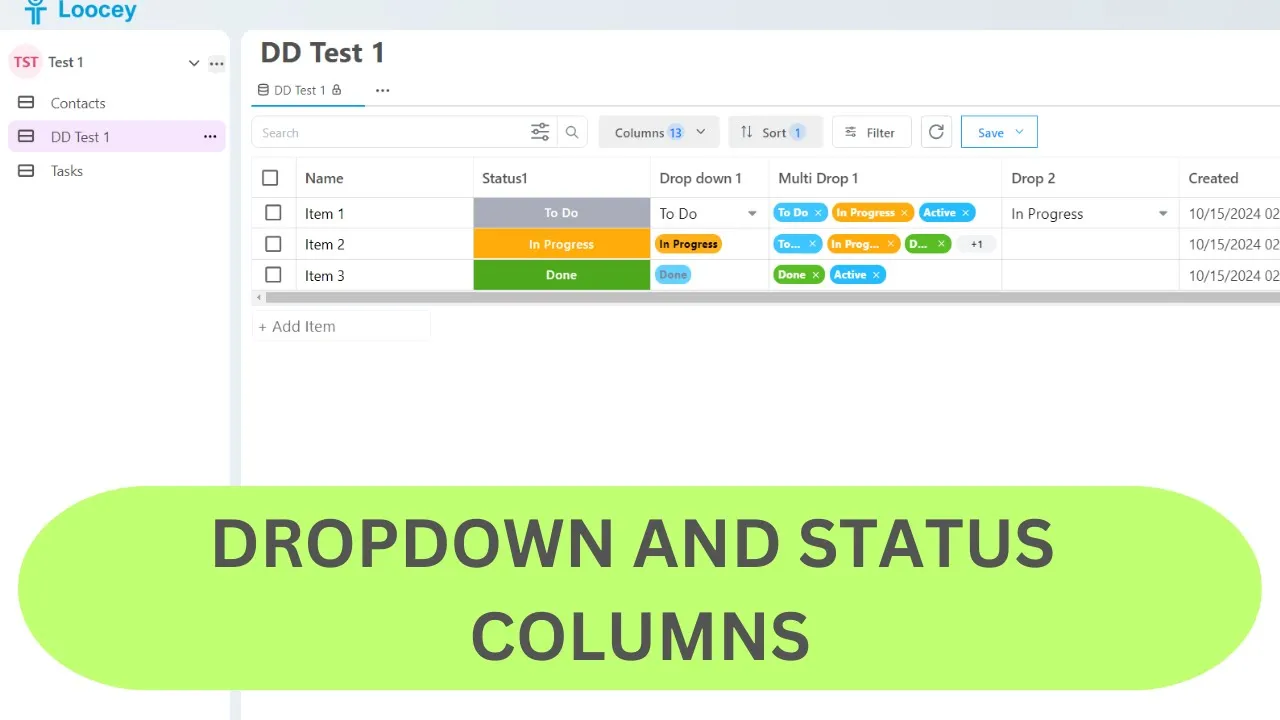
Loocey DropDown and Status Column Tutorial / Demo
Loocey DropDown and Status Column Tutorial / Demo
- Length 7 min 22 sec
- Published October 15, 2024
- Product Loocey DLA / DIBBS
Overview
Loocey DropDown and Status Column Tutorial / Demo
Step by step
The walkthrough covered in the video, written out so you can follow along inside Loocey.
- There are 2 ways to create a column in Loocey.
- We can either open the context menu of an existing column and click on “Add Column To Right” or we can also click on the Plus sign at the end of the table and select Status.
- The difference is with Plus sign it’ll already select the Column Type for us. With the 1st option, we’ll need to select the Column Type from the drop down.
- This will bring up our Add column dialog.
- We can enter the Display Name, and click on Add if we want to use the default options.
- We can also change some of the options.
- Let’s look at some of the other options:
- In the Default Value field, optionally set a default text that will auto-fill when a new row is added.
- We can also make this a Required field by toggling the Required switch.
- Relationship and Is Null toggles are for more advanced options, which we’ll cover in future videos.
- Once done with configuration, click on Add button to add the column and make it available in the list.
- The Status column will now be added to your list with all the settings you specified.
- Click Save View to update the current view, or Save As New to create a new one with the changes.
- Next, let’s go into the Settings of our new column and see what customizations options we have.
- Now let’s look at how we can update our Status column to customize it even further.
- Next, under Size, you can control how much text the column allows and how wide it appears in the list. Min Length sets the minimum number of characters users must enter, while Max Length limits how long the input can be — by default, it's set to 50. Then there’s Column Width, which controls how wide the column appears on the screen in pixels. You can adjust it to fit your content better.
- The Value Templates section is mostly a technical setting used for backend processing. Clean Up Templates helps format or clean up values, usually in CSV format. This isn’t something you typically need to change yourself — if needed, the support team will provide the correct format for you.
- In the Tooltip section, you can add helpful text that appears when someone hovers over the column. Column Header Tooltip shows a message when the user hovers over the column name — great for quick guidance or descriptions. Value Tooltip appears when hovering over the individual cell values, useful if you want to explain what certain data means without taking up extra space.
- In the Calculations section, you can set up formulas to auto-calculate values based on other data. Client Calculation runs on the user’s side using Nunjucks templates. It updates instantly in the browser as users interact with the list. Backend Calculation runs on the server using Scriban templates. This is more reliable for stored data or when calculations need to happen during data processing.
- In the Misc tab, you’ll find the Import Column Index setting. This is used when you're importing data from a CSV file that doesn’t have a header row. By setting an index number here, Loocey knows which position in the CSV maps to this column, helping it match the data correctly during import.
- The Debug Info section shows technical details about the column and its related list. This includes internal IDs like the List ID, Column ID, and other references used by the system. You typically won’t need to change anything here — it’s mainly for developers or support teams when troubleshooting or integrating with APIs.
- Once everything looks good, we just hit Save to apply all the updates to our column.
Where this fits
This tutorial covers the Platform, Team & Admin part of Loocey DLA. Loocey Core features underneath the DLA module: columns, views, assignments, exports and permissions.
- Loocey DLA Getting Started guide — account setup and the full bidding workflow
- Saved-search recipes — the exact column, condition and value for 20 common DLA searches
- DLA / DIBBS glossary — what every field on a solicitation means
- All Loocey DLA video tutorials
Try it in your own account
Loocey DLA imports DLA/DIBBS solicitations daily and carries them through a CRM bidding board, supplier quote requests, bid pricing and MIL-STD-129R labels.