

Suppliers & RFQ Emails
How to use Automated Email RFQs in Loocey DLA - Quick Tutorial by Michael
How to use Automated Email RFQs in Loocey DLA - Quick Tutorial by Michael
- Length 6 min 46 sec
- Published July 14, 2026
- Product Loocey DLA / DIBBS
Overview
In this quick tutorial, Michael walks through Loocey’s automated RFQ email process: selecting RFQs on the bidding board, opening the Bulk Email Sender, connecting your company’s Outlook or Gmail account, customizing templates and signatures, and sending personalized quote request emails to your suppliers in one pass.
Step by step
The walkthrough covered in the video, written out so you can follow along inside Loocey.
- On your Bidding Board, select one or more RFQs that you want to send quote requests for.
- Click the three-dots menu and open the Bulk Email Sender.
- The sender shows your selected items along with the manufacturers or approved sources that will receive the emails. Suppliers without an email on file, or marked as not quoting, are unchecked by default; suppliers with an email and an active quoting status are checked.
- You can change a supplier’s quoting status right from the supplier drop-down menu in this window.
- The default email template is prefilled for each supplier. You can duplicate and customize templates, edit the content, and use tags that automatically pull in details like part numbers and NSNs.
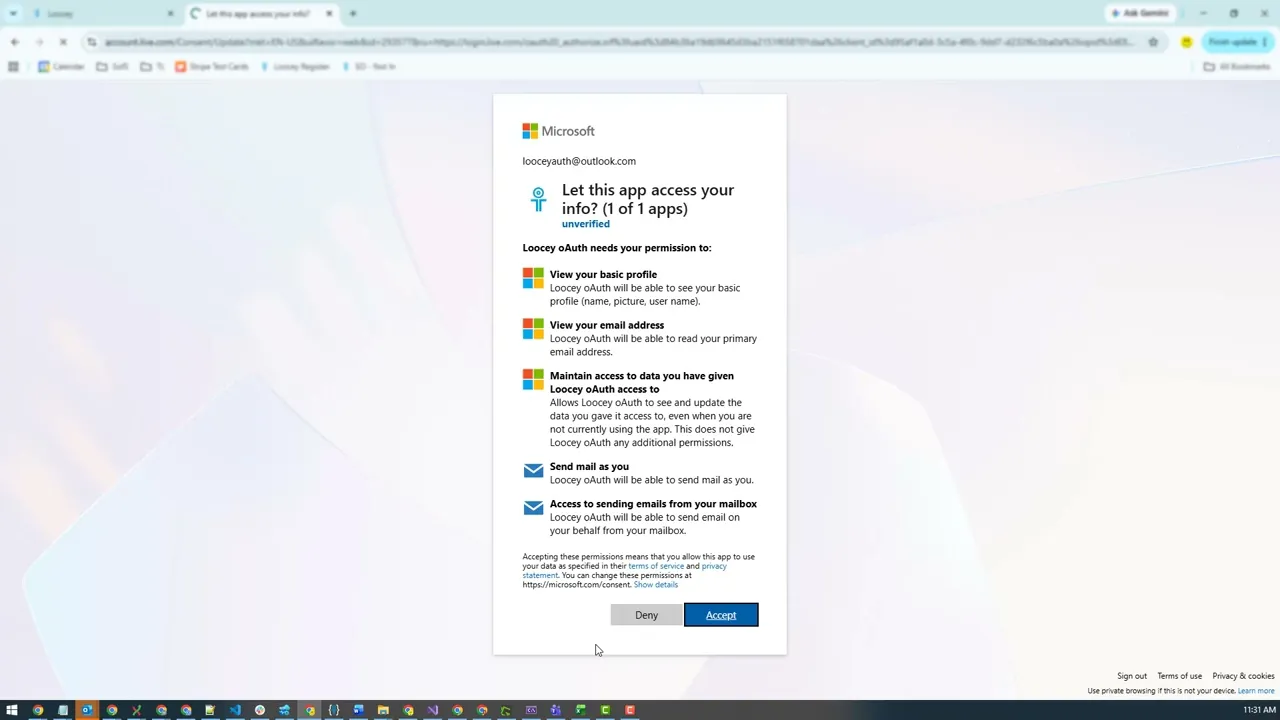
- To send from your own company email, connect it to Loocey. Loocey supports Microsoft Outlook and Google Gmail. From the From drop-down, click Connect New Email, choose your provider, and follow the sign-in steps. If you use an ad blocker, disable it for the sign-in pop-up.
- Once connected, click the refresh icon to see your email account appear in the From list.
- You can also manage connected emails elsewhere: the admin panel’s Connectors section makes an email account available to all users in your organization, while Edit Profile, Connectors adds one that only the current user sees. You can mark an account as default.
- In Email Settings, you can set a From name and an email signature once, and every email you send will include them.
- Back in the Bulk Email Sender, uncheck any supplier you don’t want to email, only checked suppliers receive the message. Add or remove To and CC addresses, and adjust the subject if needed.
- Each email is a unique instance, so editing the content for one supplier will not affect the others.
- Click Send. A pop-up shows how many emails are being sent, and when it completes, the RFQ statuses change to Quote Request Sent.
- Because the emails go out through your own email account, you can find copies in your provider’s Sent folder.
Where this fits
This tutorial covers the Suppliers & RFQ Emails part of Loocey DLA. Manage manufacturers and distributors and automate your quote-request process.
- Loocey DLA Getting Started guide — account setup and the full bidding workflow
- Saved-search recipes — the exact column, condition and value for 20 common DLA searches
- DLA / DIBBS glossary — what every field on a solicitation means
- All Loocey DLA video tutorials
Try it in your own account
Loocey DLA imports DLA/DIBBS solicitations daily and carries them through a CRM bidding board, supplier quote requests, bid pricing and MIL-STD-129R labels.