

Platform, Team & Admin
How to Add Text Area and Rich Text Column Types - Loocey
How to Add Text Area and Rich Text Column Types - Loocey
- Length 4 min 07 sec
- Published November 28, 2024
- Product Loocey DLA / DIBBS
Overview
How to Add Text Area and Rich Text Column Types - Loocey
Step by step
The walkthrough covered in the video, written out so you can follow along inside Loocey.
- Loocey’s long text and rich text column types now work directly in the list view, not just in the side panel.
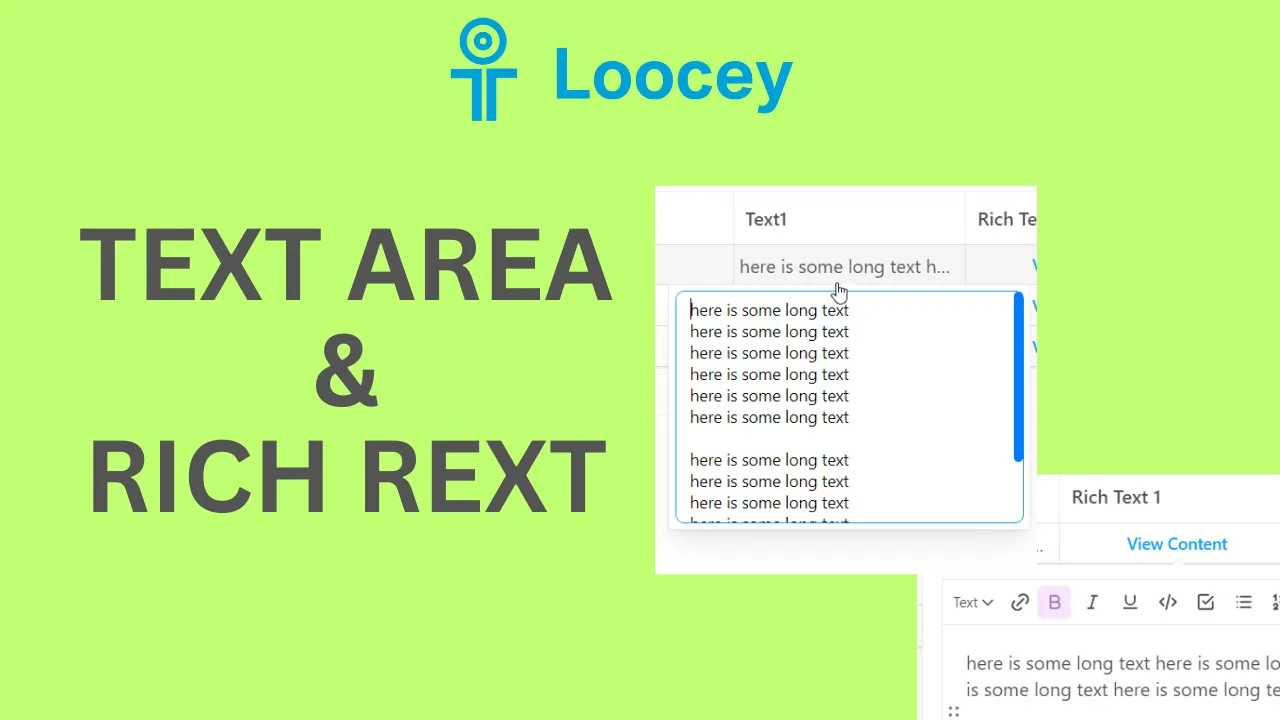
- To add a long text column, create a new column, name it, and choose the Long Text type.
- Click into the cell and a text box opens, type or paste long text, and a scroll bar appears for very long content. Everything auto-saves, so you can always come back to it.
- To add a rich text column, create a new column and choose the Rich Text type, this is an HTML-style editor.
- Rich text cells show a View Content button; click it to open the editor with formatting features like lists and numbering. From the side panel form it works as well.
- Bonus enhancements: you can now right-click and open records in a new tab, or Ctrl+click a record to open its detail view in a new tab, this works globally across lists.
- The same shortcuts work on the view tabs at the top: right-click open or Ctrl+click a view to open it in a new tab, which is handy for working multiple lists at once.
Where this fits
This tutorial covers the Platform, Team & Admin part of Loocey DLA. Loocey DB features underneath the DLA module: columns, views, assignments, exports and permissions.
- Loocey DLA Getting Started guide — account setup and the full bidding workflow
- Saved-search recipes — the exact column, condition and value for 20 common DLA searches
- DLA / DIBBS glossary — what every field on a solicitation means
- All Loocey DLA video tutorials
Try it in your own account
Loocey DLA imports DLA/DIBBS solicitations daily and carries them through a CRM bidding board, supplier quote requests, bid pricing and MIL-STD-129R labels.