

Platform, Team & Admin
Loocey Filters Contains Any & Not Contains Any - Tutorial
Loocey Filters Contains Any & Not Contains Any - Tutorial
- Length 11 min 20 sec
- Published December 27, 2024
- Product Loocey DLA / DIBBS
Overview
Loocey Filters Contains Any & Not Contains Any - Tutorial
Step by step
The walkthrough covered in the video, written out so you can follow along inside Loocey.
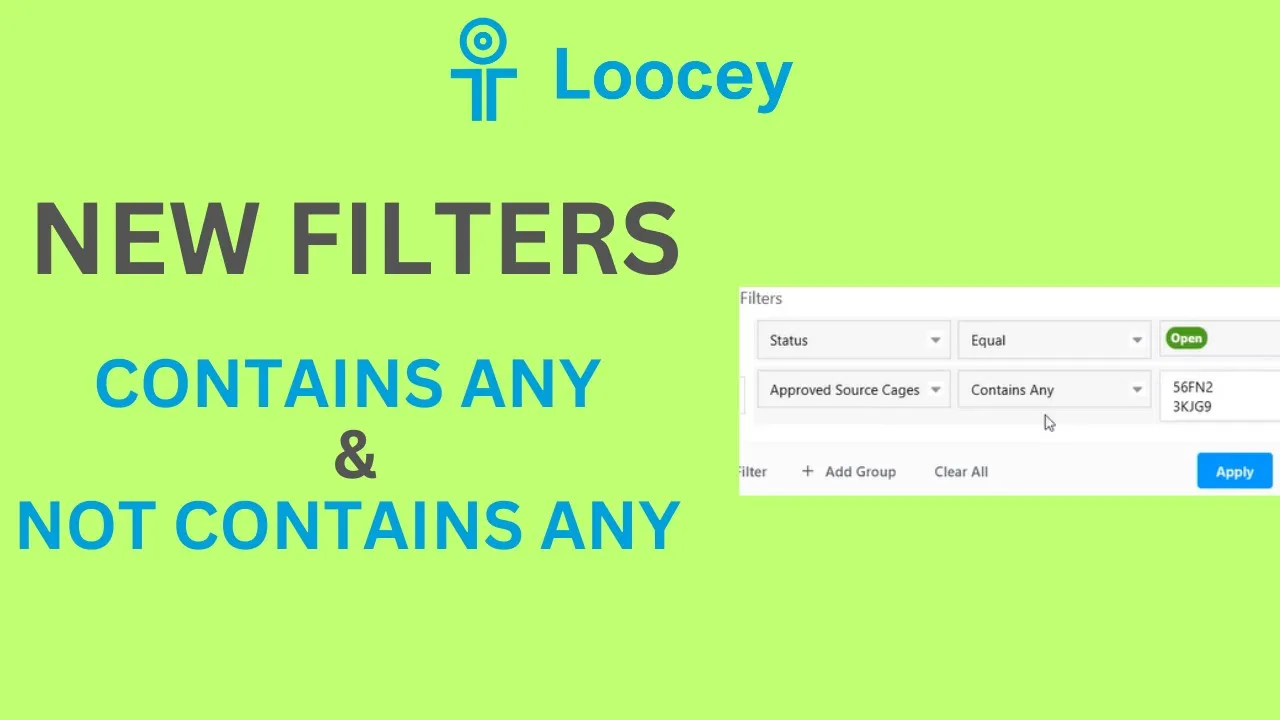
- The Contains Any and Not Contains Any conditions let you multi-search within a single column, without creating a pile of separate filters.
- A great use case is the Approved Source Cages column, which consolidates an RFQ’s approved source cage codes into one comma-delimited field. Open an NSN dialog and you’ll see the same cage codes under approved parts.
- Say you have two or three favorite suppliers, your unicorn suppliers, and you want to find their open solicitations. Note down their cage codes from your Suppliers list.
- While you’re in Suppliers, note the Quoting column: mark a supplier as No or Skip and Loocey will leave them out of quote request emails on future RFQs, anything other than Yes is skipped.
- A good starting point is the Simple RFQs shared view, which has the common beginner filters preset. Do a Save As to create your own view, name it Best Suppliers, since saved searches work like tabs in Loocey.
- Open Filters on the new view and add a filter on Approved Source Cages with the Contains Any condition.
- Why not In? The In condition does an exact match against the whole column value, which fails when an RFQ has multiple cage codes in the field. Contains Any checks whether the column contains each value in your list, one at a time.
- Enter your suppliers’ cage codes one per line and hit Apply. The system returns every RFQ where any approved source matches one of your best suppliers, save the view, and it’s ready every day.
- The reverse also works: use Not Contains Any to exclude RFQs involving suppliers you never want to work with.
- These conditions work on any column, for example, filter FSC contains 6240, just remember it’s a contains match, not starts-with.
- Bonus preview: Kanban/pipeline views are coming, create a new Kanban view on the bid status column to see your bids visually organized in columns.
Where this fits
This tutorial covers the Platform, Team & Admin part of Loocey DLA. Loocey DB features underneath the DLA module: columns, views, assignments, exports and permissions.
- Loocey DLA Getting Started guide — account setup and the full bidding workflow
- Saved-search recipes — the exact column, condition and value for 20 common DLA searches
- DLA / DIBBS glossary — what every field on a solicitation means
- All Loocey DLA video tutorials
Try it in your own account
Loocey DLA imports DLA/DIBBS solicitations daily and carries them through a CRM bidding board, supplier quote requests, bid pricing and MIL-STD-129R labels.