

Demos & Overviews
How To Find RFQs in DLA/Dibbs – RFQ Research in Loocey
How To Find RFQs in DLA/Dibbs – RFQ Research in Loocey
- Length 22 min 17 sec
- Published October 4, 2024
- Product Loocey DLA / DIBBS
Overview
How To Find RFQs in DLA/Dibbs – RFQ Research in Loocey
Go to the Product page to learn more:
Step by step
The walkthrough covered in the video, written out so you can follow along inside Loocey.
- Log in to Loocey: the bottom-left section holds the DLA DIBBS research tools and shared data, while the top section is your private CRM.
- Start with FSC Codes: browse federal supply classes with descriptions to decide which categories to focus on.
- Use DLA Companies (approved sources): Loocey’s research team manually finds websites and email addresses for approved sources, your go-to companies for opening supplier accounts.
- Use Approved Parts to maximize supplier relationships: search by a supplier’s cage code to see every other NSN that same company provides, so one opened account lets you bid on many more items.
- Explore NSN Parts: click any NSN to see approved parts and sources (click a cage code for company contact details), related open RFQs, and the award history.
- Read the history data: the last unit price, last quantity, and last award date at the top tell you what a competitive bid likely looks like, recent awards mean you should stay close to the last price.
- Use the DIBBS link for any NSN to jump straight to DIBBS and see its live solicitations.
- Watch the Approved Source Is Bidding column: if an approved source has won within the last 24 months, they’re likely to bid again with the lowest price, filter these out with AS Bidding equals False.
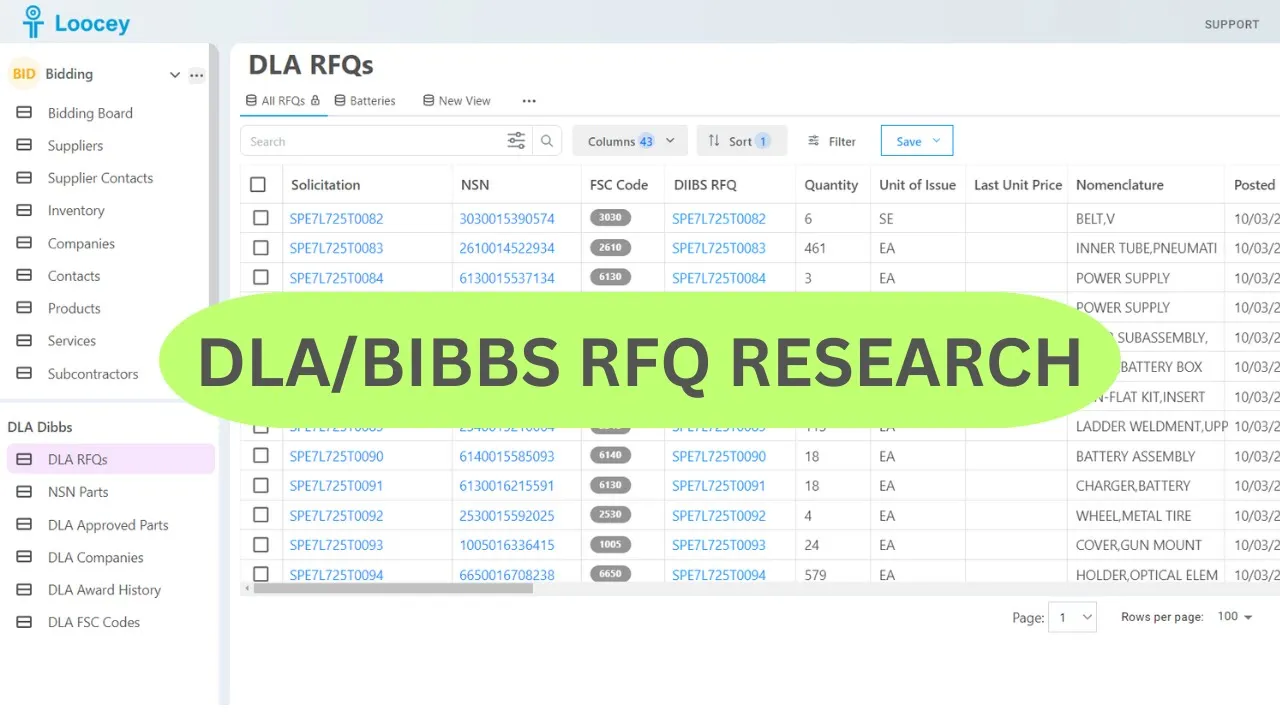
- Move to the RFQs board, your daily workspace: Loocey imports all RFQs daily and even parses each PDF to extract flags no one else provides.
- Scan the key columns: NSN, FSC code (with tooltips), DIBBS solicitation link, quantity, posted and return dates, inspection and FOB points, Tech Docs, JCP, and ISO flags.
- Check Line Count: Loocey counts the CLINs inside the PDF, click the solicitation to see each line’s PR number, quantity, and unit of issue.
- Filter by set-asides: add a group filter on Set Aside, for example, R for service-disabled veteran-owned or L for women-owned, combined with Tech Docs equals False, then save the search as a view.
- Use the COTS flag to find commercial off-the-shelf items, which are easier to source and sell when starting out.
- Review packaging and logistics data: page count, packaging code (MIL-STD versus ASTM), QUP, and the contracting officer’s name, email, and phone, all filterable.
- When you decide to bid, select the RFQs and copy them to your Bidding Board with one click, research, bid management, and supplier management all stay in one place.
- Use the Award History table to research prior awards directly, with single-column quick search or multi-column filters.
Where this fits
This tutorial covers the Demos & Overviews part of Loocey DLA. Start here — full product demos, webinars and feature round-ups for Loocey DLA.
- Loocey DLA Getting Started guide — account setup and the full bidding workflow
- Saved-search recipes — the exact column, condition and value for 20 common DLA searches
- DLA / DIBBS glossary — what every field on a solicitation means
- All Loocey DLA video tutorials
Try it in your own account
Loocey DLA imports DLA/DIBBS solicitations daily and carries them through a CRM bidding board, supplier quote requests, bid pricing and MIL-STD-129R labels.