

Platform, Team & Admin
Loocey Filters and Saved Searches and Views - DLA/Dibbs RFQ Filters
Loocey CRM Demo for DLA/Dibbs and Sam.gov
- Length 9 min 59 sec
- Published October 4, 2024
- Product Loocey DLA / DIBBS
Overview
Loocey CRM Demo for DLA/Dibbs and Sam.gov
Go to the Product page to learn more:
Step by step
The walkthrough covered in the video, written out so you can follow along inside Loocey.
- Loocey now lets you save views and switch between them, views appear as tabs, are drag-and-drop reorderable, and work on your CRM boards as well as the DLA RFQs list.
- To create a view, open any list and click Save As New. The new view appears as a tab; you can then change its filters, for example, show only Won bids, and save.
- Manage views from the tab settings: rename a view, or unpin it so it no longer shows as a tab. Bring it back any time via Manage Views by selecting which views to pin.
- Everything you save is retained per view: filters, sorting, and even the column selection, hide the columns you don’t need and the view remembers.
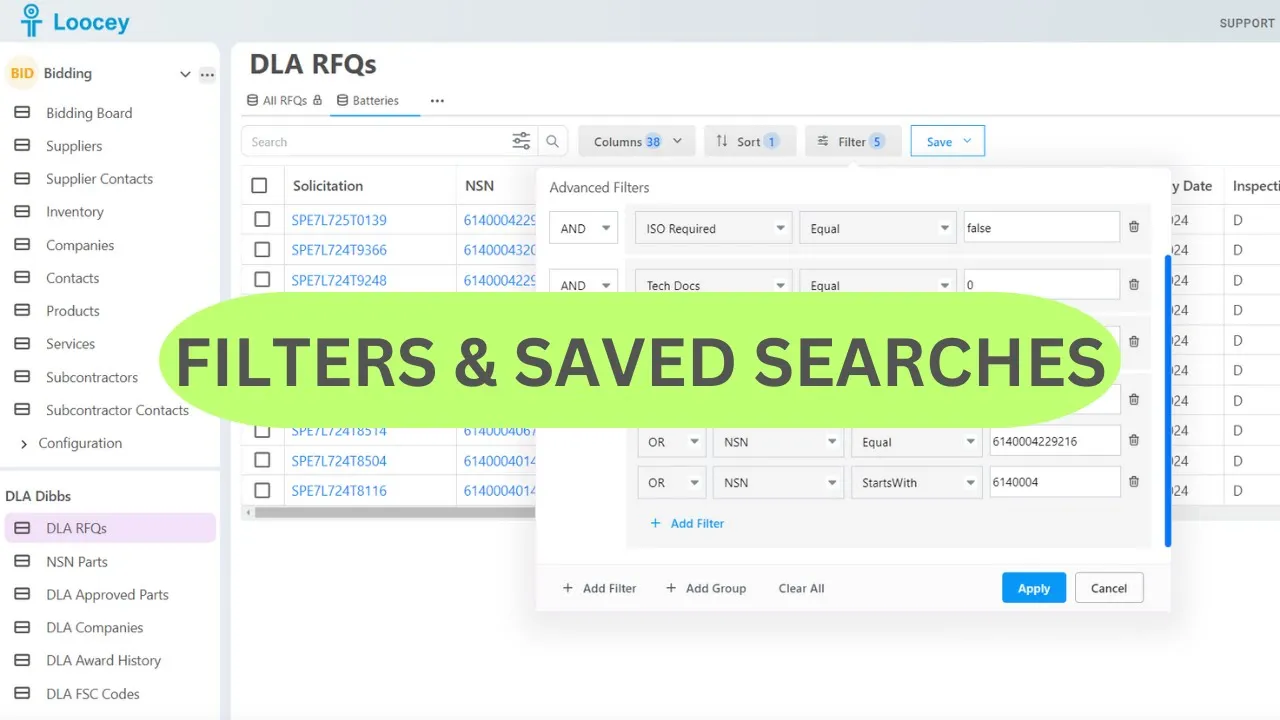
- Now apply it to DIBBS research: create a targeted view with Save As, for example, Batteries, and add a filter for FSC Code 6140.
- Add a filter group on NSN to follow specific stock numbers: NSN equals one value Or another, so either matches along with your FSC filter.
- You can also use Starts With on NSN to match a family of stock numbers by their leading digits.
- Stack exclusion filters outside the group: ISO equals False, Tech Docs equals False (you can type 0 for false), and JCP equals False to filter out certification-heavy RFQs.
- Save the view to retain all filters, even after refreshing the page, the view keeps your setup, so each day you can instantly see new matching opportunities.
- Trim the columns for a quicker read: hide fields you’ve already filtered on (like FSC code and nomenclature) and keep quantity, unit of issue, and last unit price visible, then save again.
- Click any NSN to open its pop-up with approved parts, RFQs, and history, plus a quick link to the exact solicitation on DIBBS for one-click bidding.
- Note: views you create are private to your company. The shared system view (with the lock icon) can’t be edited, but everything else is fully yours to customize.
Where this fits
This tutorial covers the Platform, Team & Admin part of Loocey DLA. Loocey DB features underneath the DLA module: columns, views, assignments, exports and permissions.
- Loocey DLA Getting Started guide — account setup and the full bidding workflow
- Saved-search recipes — the exact column, condition and value for 20 common DLA searches
- DLA / DIBBS glossary — what every field on a solicitation means
- All Loocey DLA video tutorials
Try it in your own account
Loocey DLA imports DLA/DIBBS solicitations daily and carries them through a CRM bidding board, supplier quote requests, bid pricing and MIL-STD-129R labels.