

Demos & Overviews
Top Loocey Features - Deep-Dive / Training
Top Loocey Features - Deep-Dive / Training
- Length 21 min 49 sec
- Published November 9, 2024
- Product Loocey DLA / DIBBS
Overview
Top Loocey Features - Deep-Dive / Training
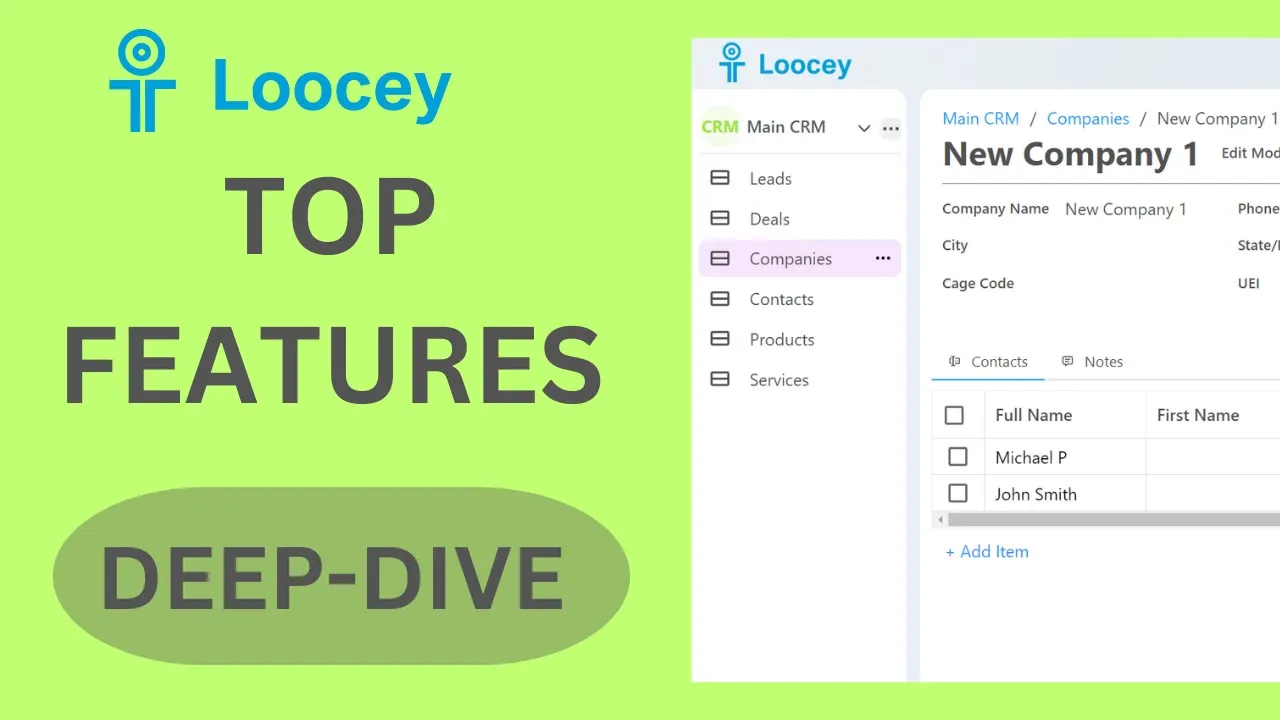
We'll go over the best Loocey features and different columns in this video.
Step by step
The walkthrough covered in the video, written out so you can follow along inside Loocey.
- Workspaces: on the left are your workspaces, think of them as databases with specific features. Built-in workspaces like the CRM include leads, companies, and contacts, with pop-up editing, notes on every record, and detail views.
- Create a workspace: click to add one, give it a name and a color, each company gets its own dedicated cloud database, so Loocey scales as your records grow.
- Create lists: inside a workspace, create lists (they are real database tables). For example, an Employees list.
- Add columns: single line text for first and last name, an Email type column, a Website type column that renders clickable links, plus many more types, long text, rich text, date, calculated numbers, user, badges, drop-downs, switches, and checkboxes.
- Edit data inline: cells auto-save as you type, columns can be reordered and resized, and multi-column edits from the side panel save with the Save button.
- Column settings: in the advanced section you can set required/not null, default values, indexes, and tooltips shown on hover.
- More column types: integer columns for numbers like age, date and time columns, a User column listing your system users (for example, a Manager field), and a Color column for saving color values.
- Saved views: click Save As New to create a view, for example, a Quick View showing only first name, last name, and email. Views remember column selection, order, filters, and sorting; you can unpin views and re-pin them from Manage Views.
- Filters: add filters per view (for example, First Name contains test), use groups for complex logic, and save each combination as its own view. A global search with a column selector is also available.
- Relationship columns: create a Job Roles list, then add a Role column to Employees using the drop-down/relationship type, select the workspace, the list, the value column (ID), and the display column (Name), and the drop-down fills dynamically from the related table.
- Two-way relationship views: in the advanced relationship options, choose which Employees view shows inside a job role’s details, open Admin Assistant and you see every employee with that role, and adding a person there links them automatically.
- Cross-list relationships: create a Projects list and a relationship column to Employees to assign projects to people; the opposite view in the employee’s detail page shows all their projects as tabs.
- Coming soon: Kanban/pipeline views, a form builder, and email marketing modules.
Where this fits
This tutorial covers the Demos & Overviews part of Loocey DLA. Start here — full product demos, webinars and feature round-ups for Loocey DLA.
- Loocey DLA Getting Started guide — account setup and the full bidding workflow
- Saved-search recipes — the exact column, condition and value for 20 common DLA searches
- DLA / DIBBS glossary — what every field on a solicitation means
- All Loocey DLA video tutorials
Try it in your own account
Loocey DLA imports DLA/DIBBS solicitations daily and carries them through a CRM bidding board, supplier quote requests, bid pricing and MIL-STD-129R labels.