

Loocey ADA
ADA Compliance Software for Websites, PDFs and Documents
Scan your websites against WCAG 2.2 AA and get an AI fix prompt for every issue. Fix PDFs and PowerPoint decks with AI, review and approve the result, and track it with Analytics and a VPAT ACR.
- WCAG 2.2 AA
- PDF/UA-1
- ADA Title II
- Section 508
- AI Fix Prompts
- VPAT 2.5 ACR
- Scheduled Scans
AI Features
AI Writes the Fixes, a Person Approves Them
The AI does the slow part. For your website it writes fix options and a ready-to-paste prompt for every issue. For PDFs and decks it fixes alt text, reading order, headings and table headers in place, the LooceyADA engine audits the result again, and your reviewers decide what is approved.
AI Feature
Fix With AI for Websites
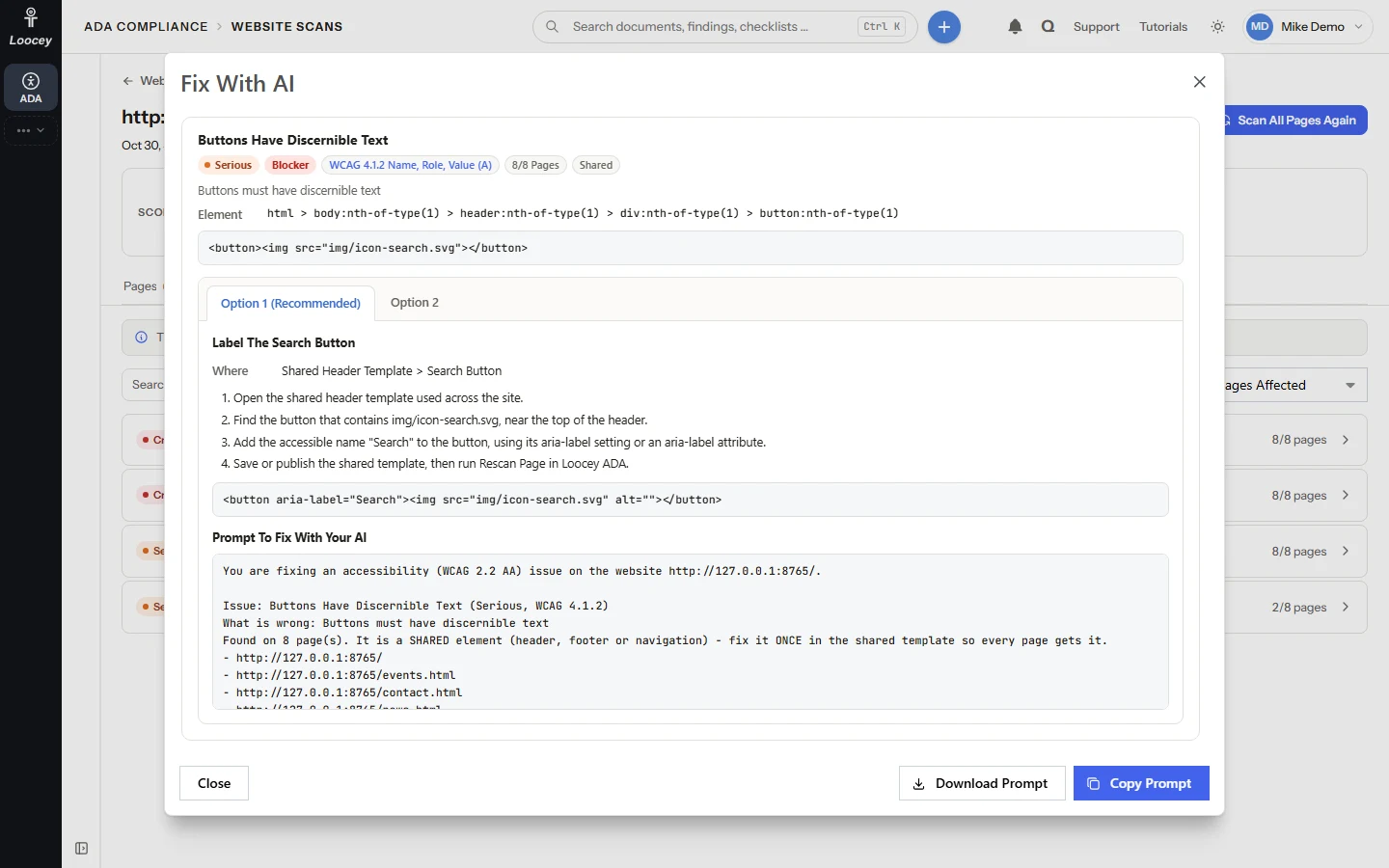
Every issue on your website comes with fix options and a prompt for your AI
Your website is yours, so Loocey ADA does not change it. When a scan finds an issue, the AI writes the ways to fix it: Option 1 (Recommended), Option 2 and more, each with where to make the change, the steps, the corrected code and a Prompt To Fix With Your AI.
How It Works
- Open Fix With AI on an issue, a page, a whole scan or a website.
- Pick an option tab and read where to change it, the steps and the corrected code.
- Click Copy Prompt, or Download Prompt as a Markdown file, and give it to your developer or your own AI.
- After the change, click Rescan Page to confirm the issue is gone.
What You Get
- Each prompt names the website, the pages, the element's selector and html, and the WCAG criteria
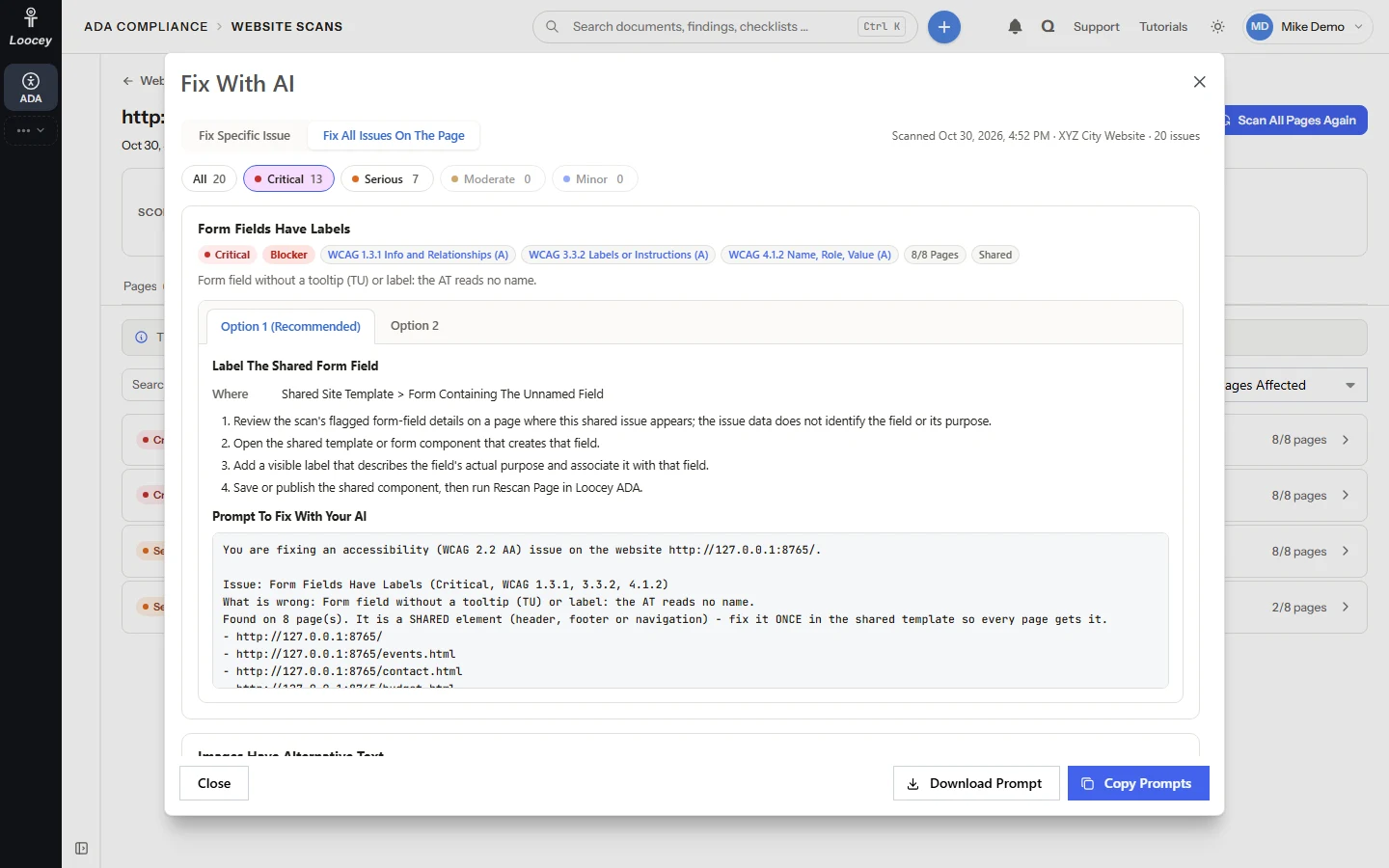
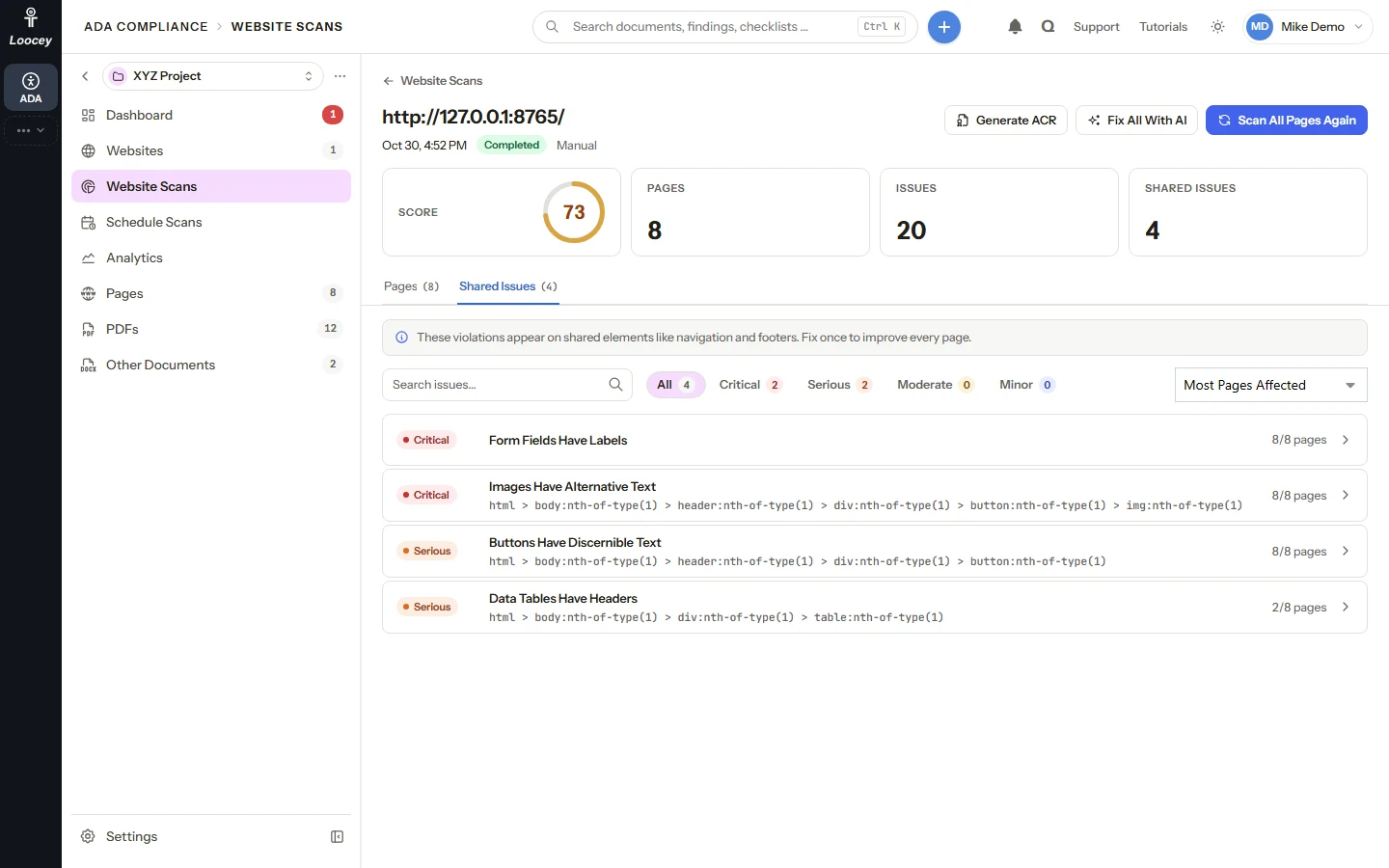
- A shared header or footer issue gets one set of options for the whole site
- Fix All Issues On The Page, narrowed to Critical, Serious, Moderate or Minor
- Options are written once per issue and carried to later scans at no extra AI cost
AI Feature
Run Remediation With AI
Let the AI fix PDFs and decks, and keep a person in charge
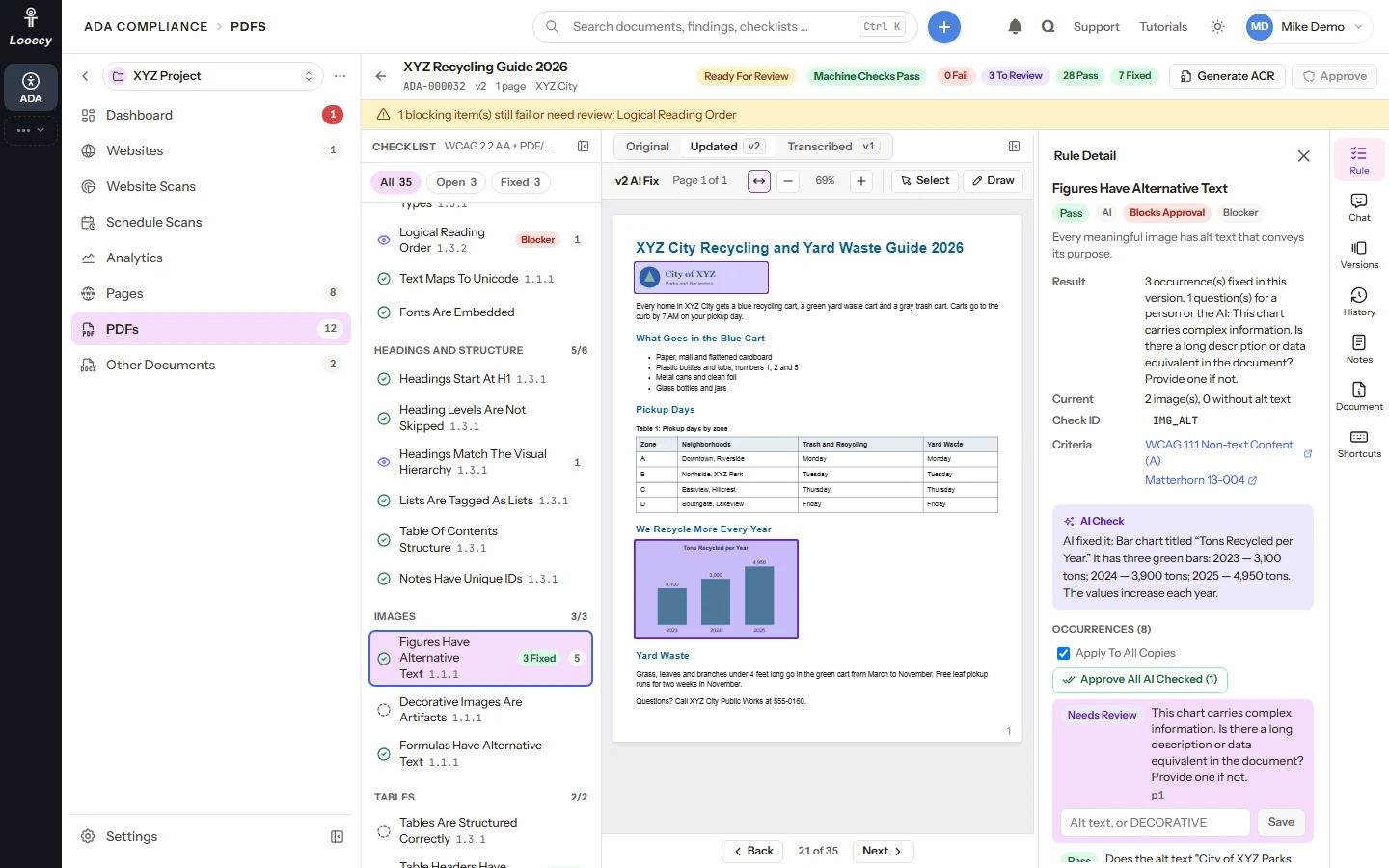
One click on a PDF or PowerPoint deck: the LooceyADA engine audits it, the AI answers what the audit asks, the engine applies the edits and audits again, and a new Updated version waits for your review.
How It Works
- Open a PDF or deck that is Ready For Review and stay on its Original.
- Click Run Remediation With AI. A progress bar shows Audit, AI Answer, Remediate and Build Review.
- The engine checks every AI answer, applies it and audits the file again.
- The review opens on Updated, with every occurrence the fix took care of marked Fixed in green.
What You Get
- Alt text, reading order, headings, table headers and more, fixed in one run
- Never worse: a pass that leaves more machine errors than it started with is not kept
- In Loocey's tests in October 2026 a 42-page PDF was ready in about a minute
- The AI never approves a document; contrast and color stay with a person
AI Feature
Fix With AI in Bulk
Fix the checked PDFs, a list or a whole project in one run
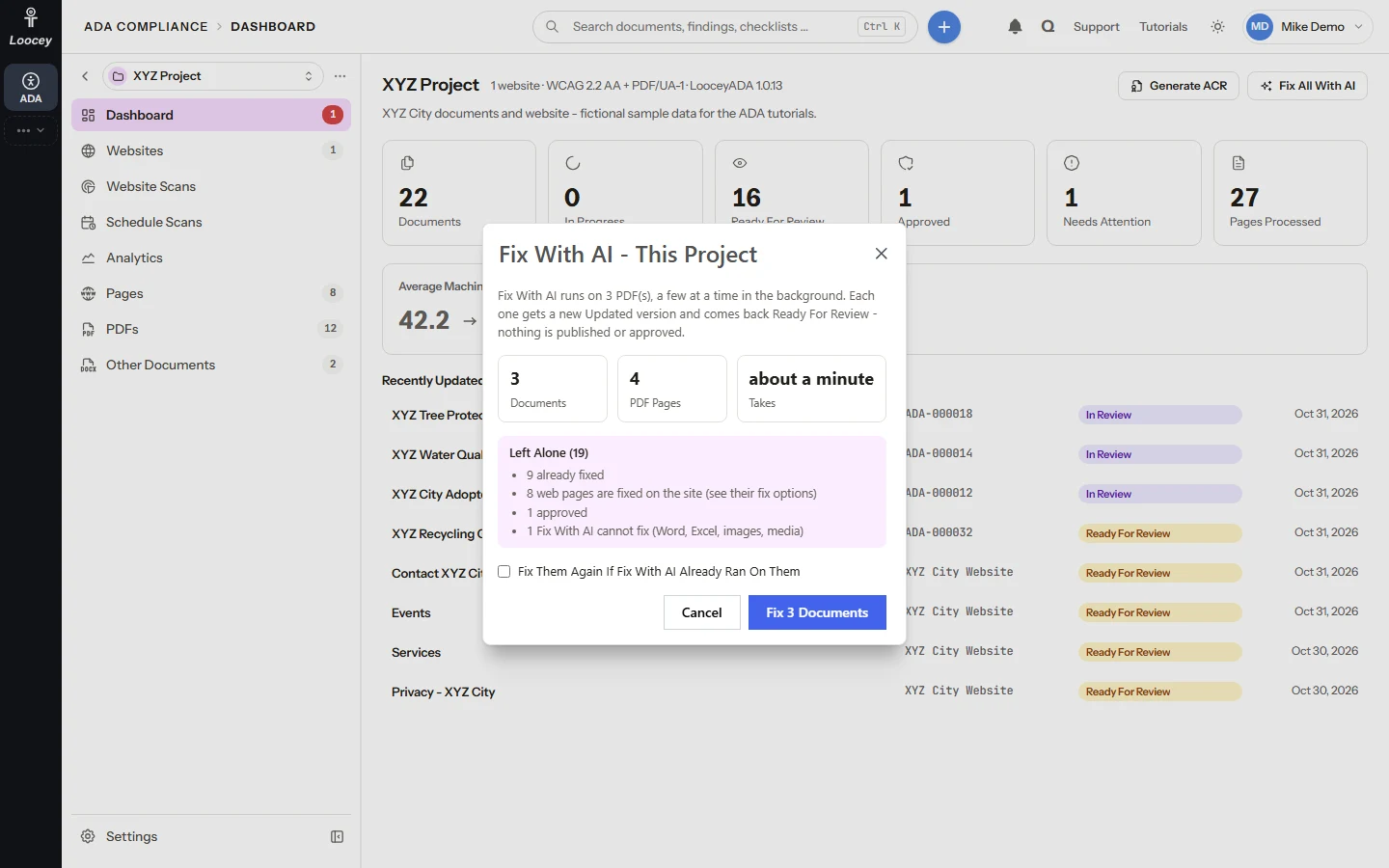
Fix With AI runs the same remediation on many PDFs and decks. A dialog counts the documents and PDF pages and estimates the time before anything starts.
How It Works
- Click Fix All With AI on the Dashboard or a list, or tick rows and click Fix With AI.
- Read the count, the PDF pages, the time estimate and what is Left Alone, and why.
- Confirm. Documents run a few at a time in the background.
- Each document comes back Ready For Review with its own Updated version.
What You Get
- Up to 500 documents per start
- Stop The Waiting Ones at any time; documents in progress finish
- Fix Them Again only when you tick it, so finished work is not redone
- Nothing is published or approved: every document waits for a person
AI Feature
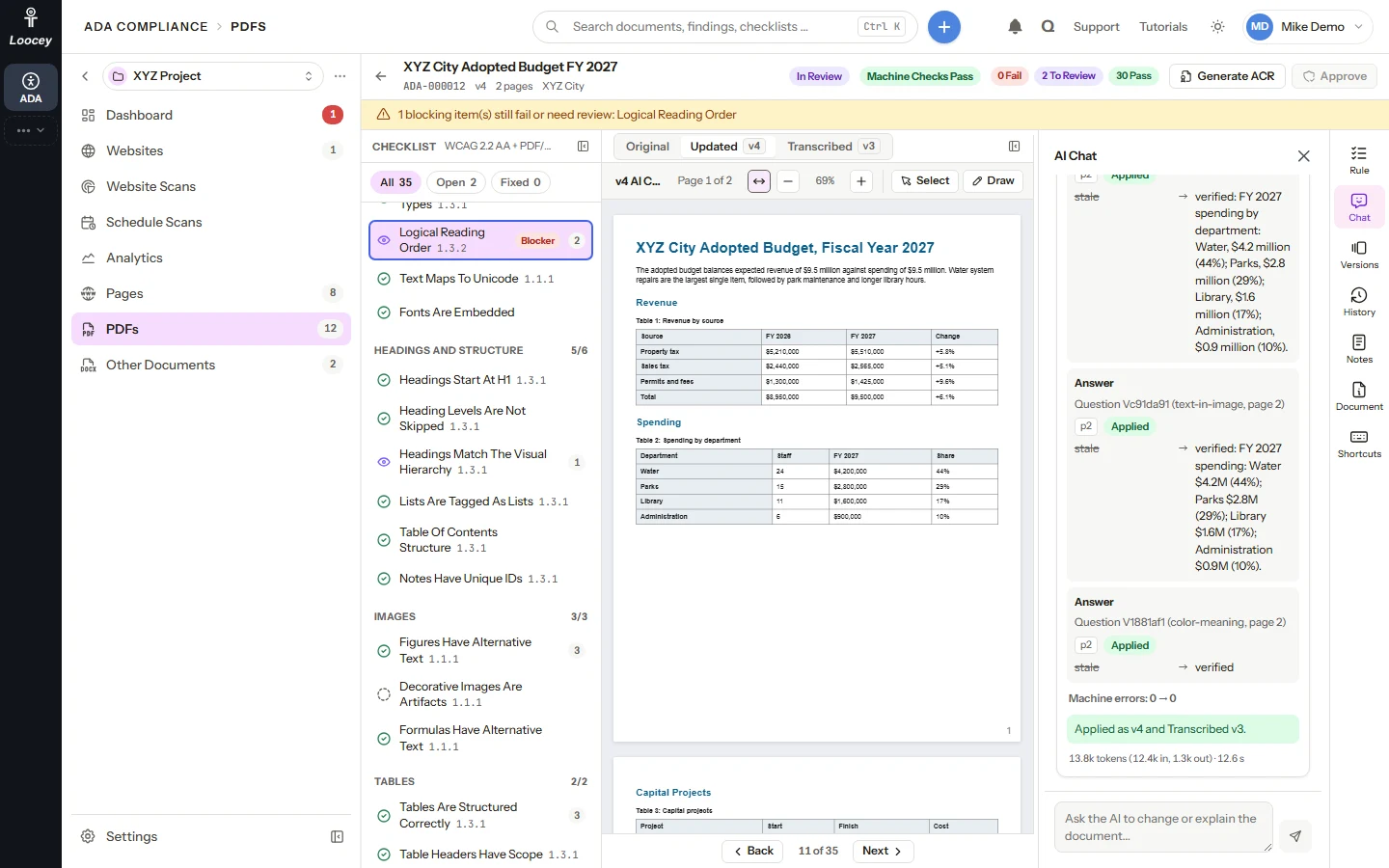
AI Chat on Every Review
Ask for a change in plain words, then apply or reject the proposal
Every PDF and deck review has an AI Chat. Ask for a better alt text, header rows on a table or a different heading level, or ask why something fails. Changes come back as a proposal, never as a surprise.
How It Works
- Open Chat on the review's right rail.
- Pick a suggestion such as "Give every table a header row", or type your own request.
- Read the proposal: each change with its before and after value, and the machine errors before and after.
- Click Apply to write a new version, or Reject and tell the AI why.
What You Get
- Built-in requests across the document, such as "Make all logos decorative" or "Shorten every alt over 125 characters"
- The selected item, occurrence and page go with your message
- An edit that would add machine errors is not kept
- The AI only works on the document; other requests are refused
AI Feature
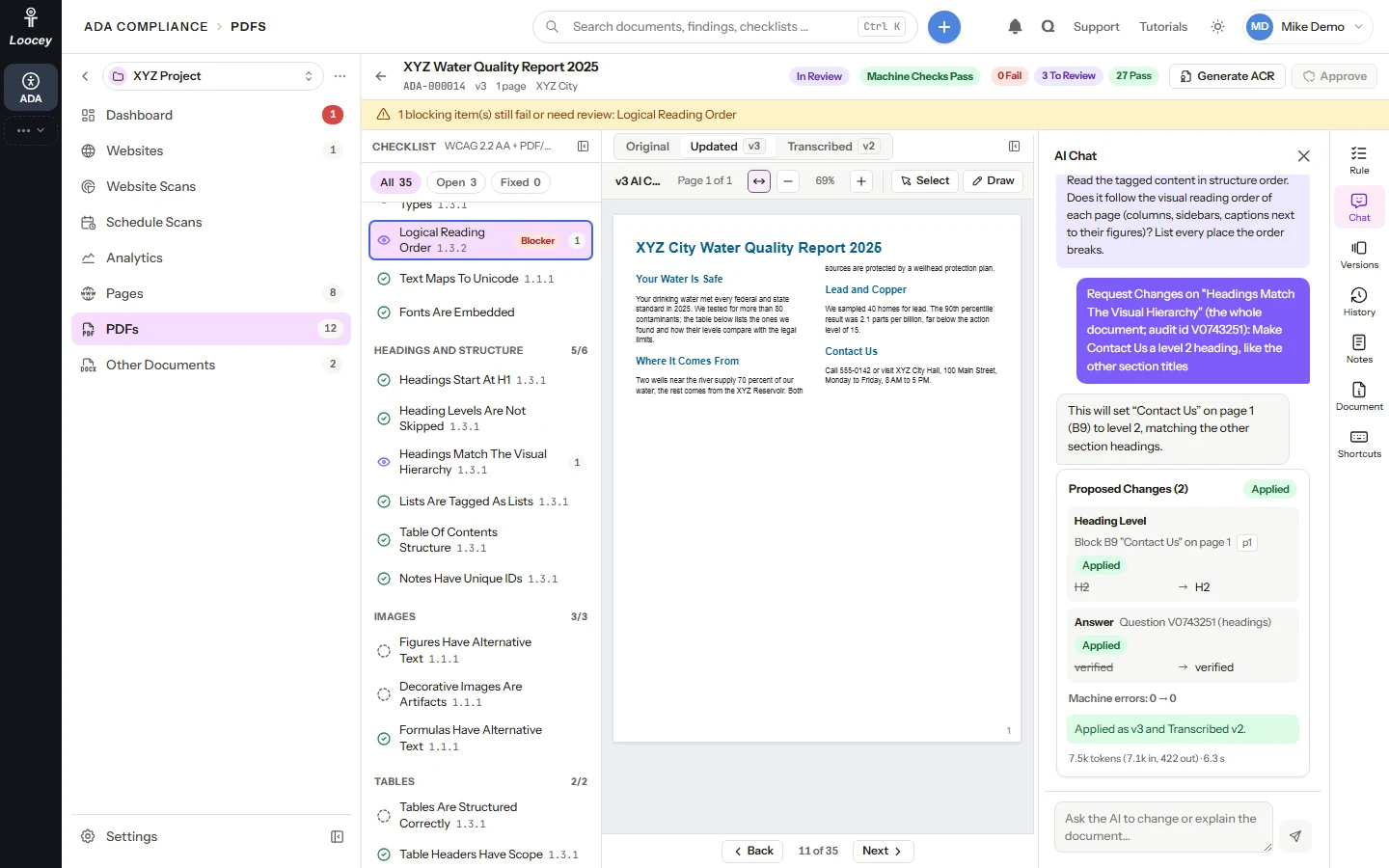
Request Changes From the AI
Send a checklist item back with a comment, and the AI changes the document
When an item is not right, say what should change. The AI edits the document at once as a new version and asks you to check the item again. Point at the page with Select or Draw to show exactly what you mean.
How It Works
- Select the checklist item, for example Headings Match The Visual Hierarchy.
- Type what should change, for example "Make Public Comment a level 2 heading."
- Click Request Changes. The AI applies the edit as a new version.
- The item reads Needs Review until you check it and approve it.
What You Get
- Select an element or draw a rectangle on a PDF page, then comment on it
- Sent marks stay on the page as numbered pins
- The AI never passes an item whose last decision was Request Changes
- Every request and decision is recorded with who and when
AI Feature
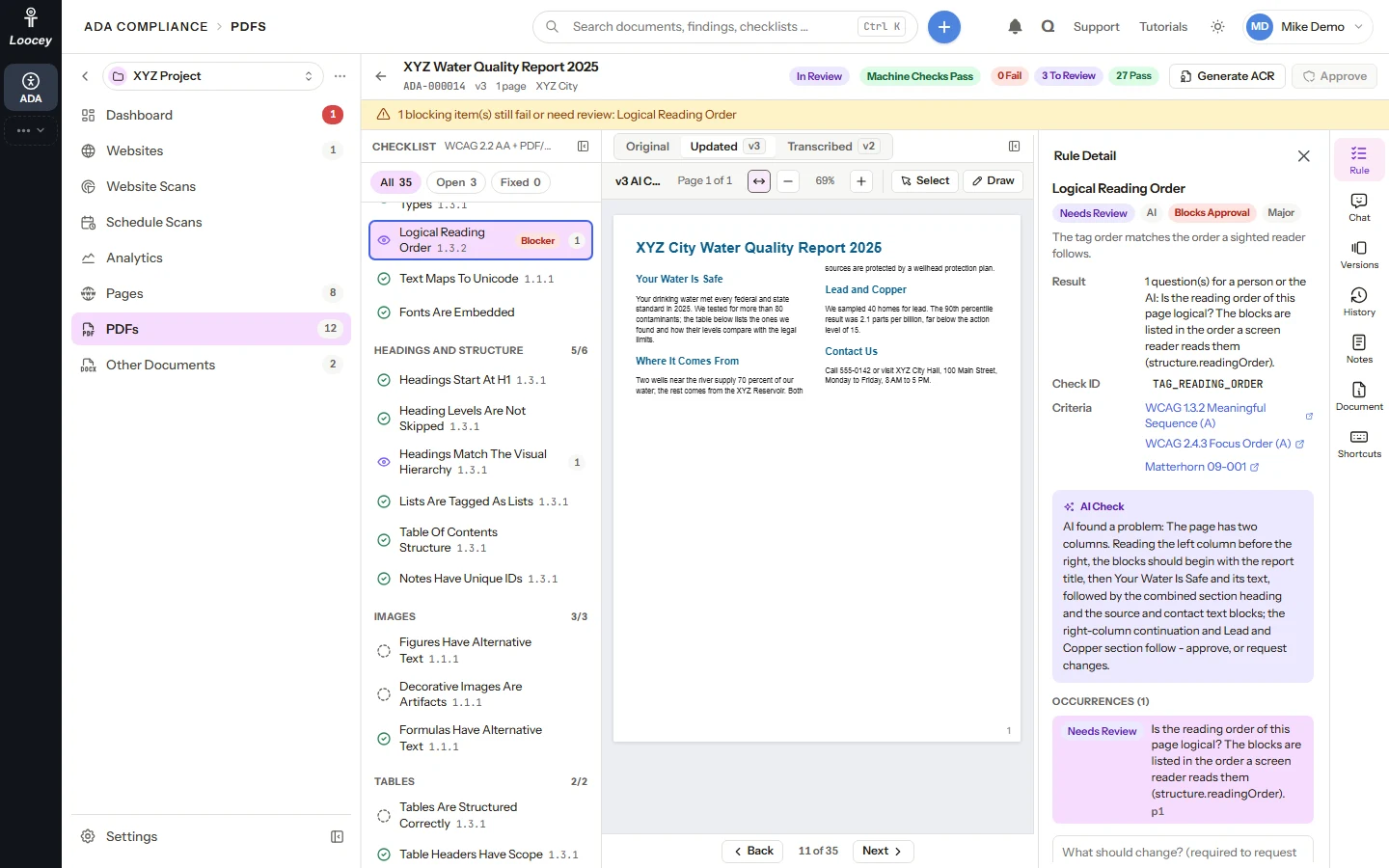
AI Checks for What a Machine Cannot Decide
The AI looks at reading order, headings and tables, and tells you what it found
Some checklist items have no automated check, such as a logical reading order. The AI checks them against the page and writes what it checked and what it asks you, right on the item.
How It Works
- Open an item such as Logical Reading Order.
- Read the AI Check: what the AI compared and what it asks you to confirm.
- Click an occurrence to see it outlined on the page.
- Approve the item, or use Approve All AI Checked for the occurrences the AI verified or fixed.
What You Get
- Each item shows who decided it: Reviewer, AI or Engine
- A reviewer's decision outranks the AI's, which outranks the engine's
- Structure calls such as reading order, headings, table headers and form labels still need your approval
- Approve All AI Checked passes only what the AI verified; the rest keeps waiting for you
AI Feature
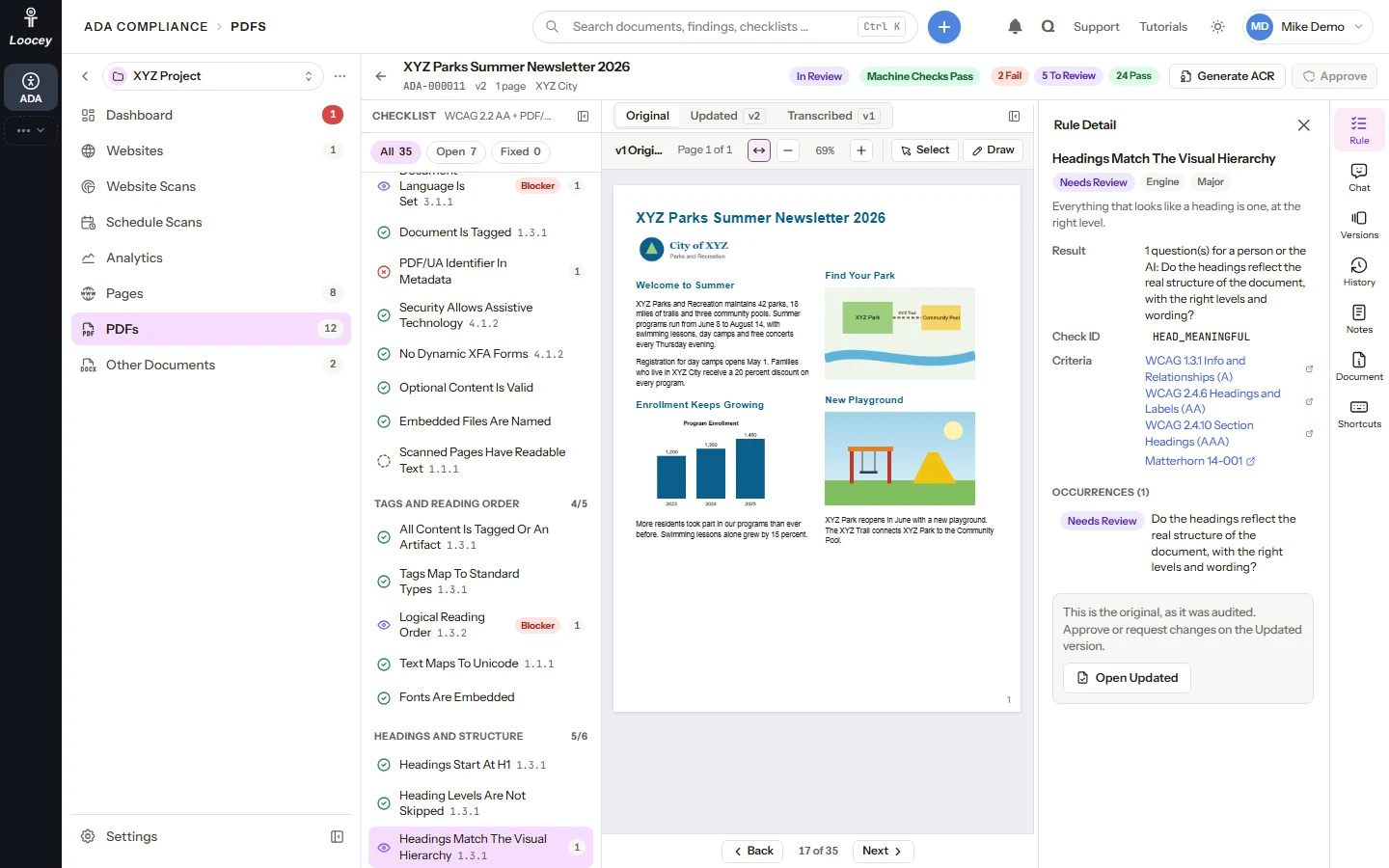
Original, Updated and Transcribed
See the problem, the fix and what a screen reader gets
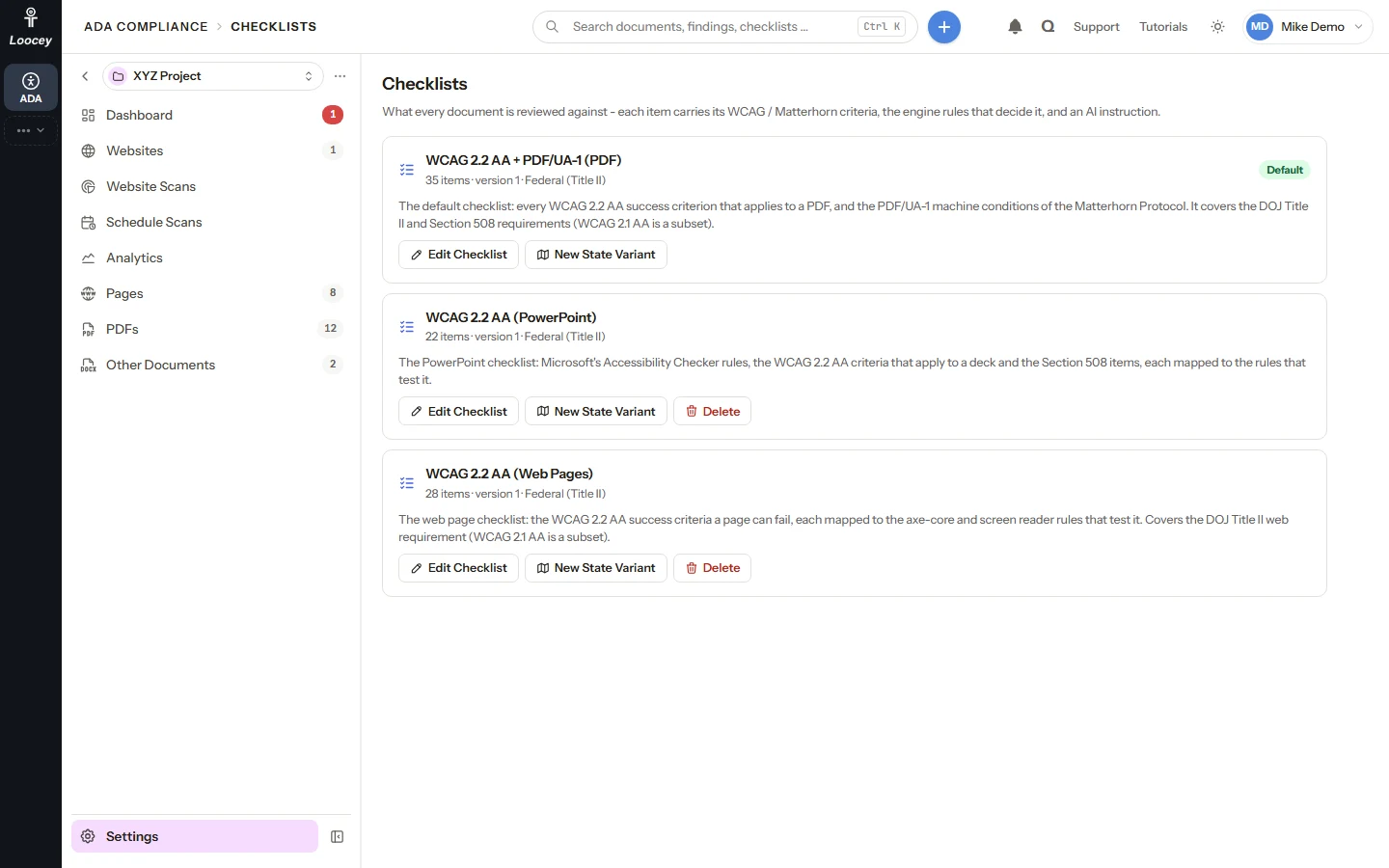
Every PDF review has three views. Original is the file as it was audited, Updated is the version the AI remediated, and Transcribed is a text-only version the AI writes for PDFs and PowerPoint decks.
How It Works
- Open a review and look at the Original with its failures.
- Switch to Updated to see what the fix took care of.
- Switch to Transcribed for the text-only version: headings, lists, tables and what every image and chart says.
- Press T to move between the views while you review.
What You Get
- Each view keeps its own scroll position and its own review
- Transcribed follows the reading order of the document
- Download any version, including the accessible PDF
- A web page shows the page as scanned, with Rescan Page and Fix With AI beside it
Features
Scan, Track and Report on Every Website and Document
Website scans with shared issues and a Loocey Score, scheduled scans, Analytics, the ACR, projects for each department, one review screen, recorded decisions and checklists you can tune.
Website Scans
Scan a website, score every page and see what fails
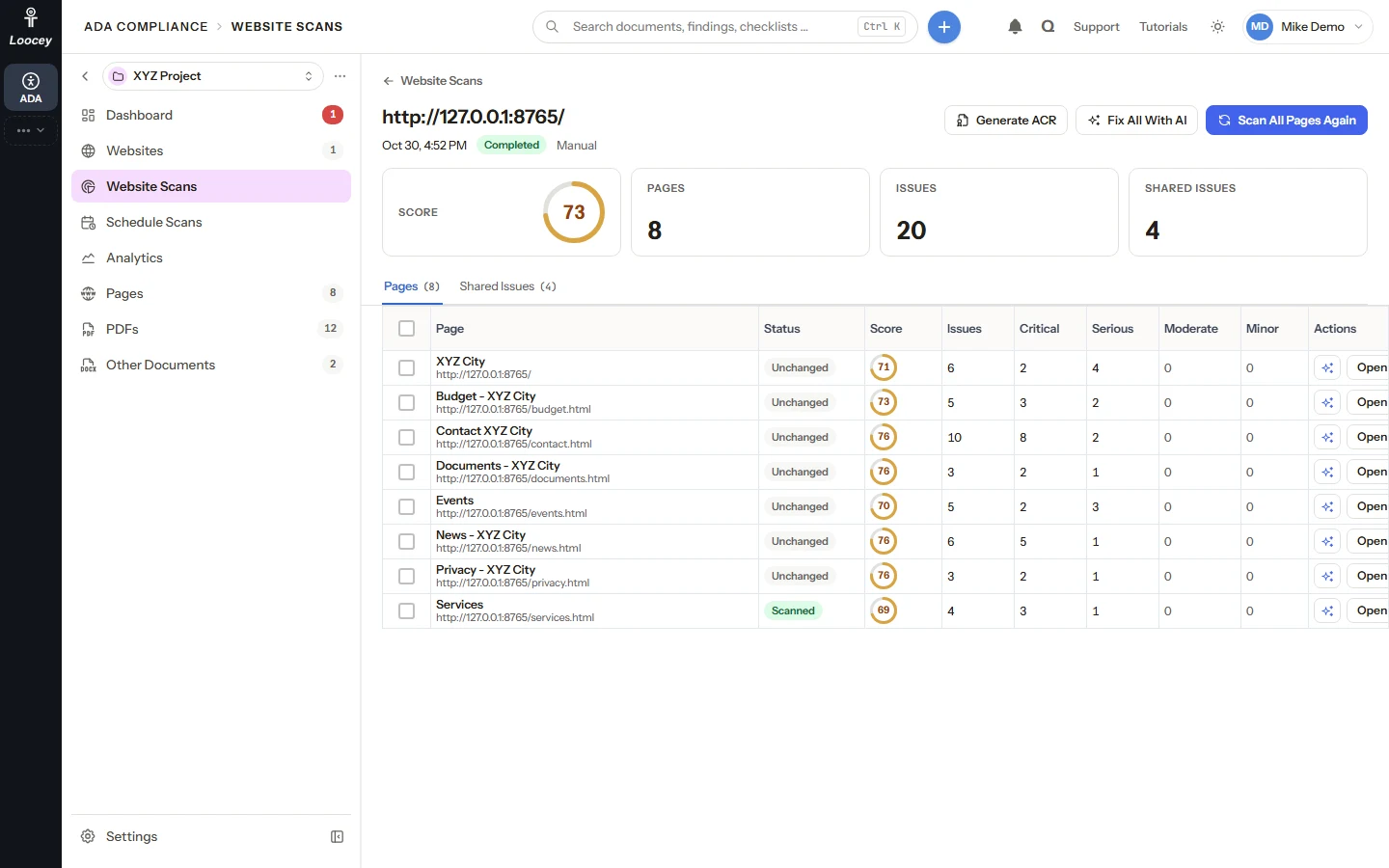
A scan reads up to Max Pages of a website, audits each new or changed page against the WCAG 2.2 AA web checklist and groups what fails into issues. Each scan has a Loocey Score, its pages and its issues by impact.
- New Scan for one website or every website of a project, with Max Pages (10 by default, up to 5,000)
- Score, Pages, Issues and Shared Issues tiles, and a Pages tab with each page's score
- Critical, Serious, Moderate and Minor counts on every scan and page
- Unchanged pages keep their last audit, so a rescan only audits what changed
Schedule Scans
Scan your websites daily, weekly or monthly, on their own
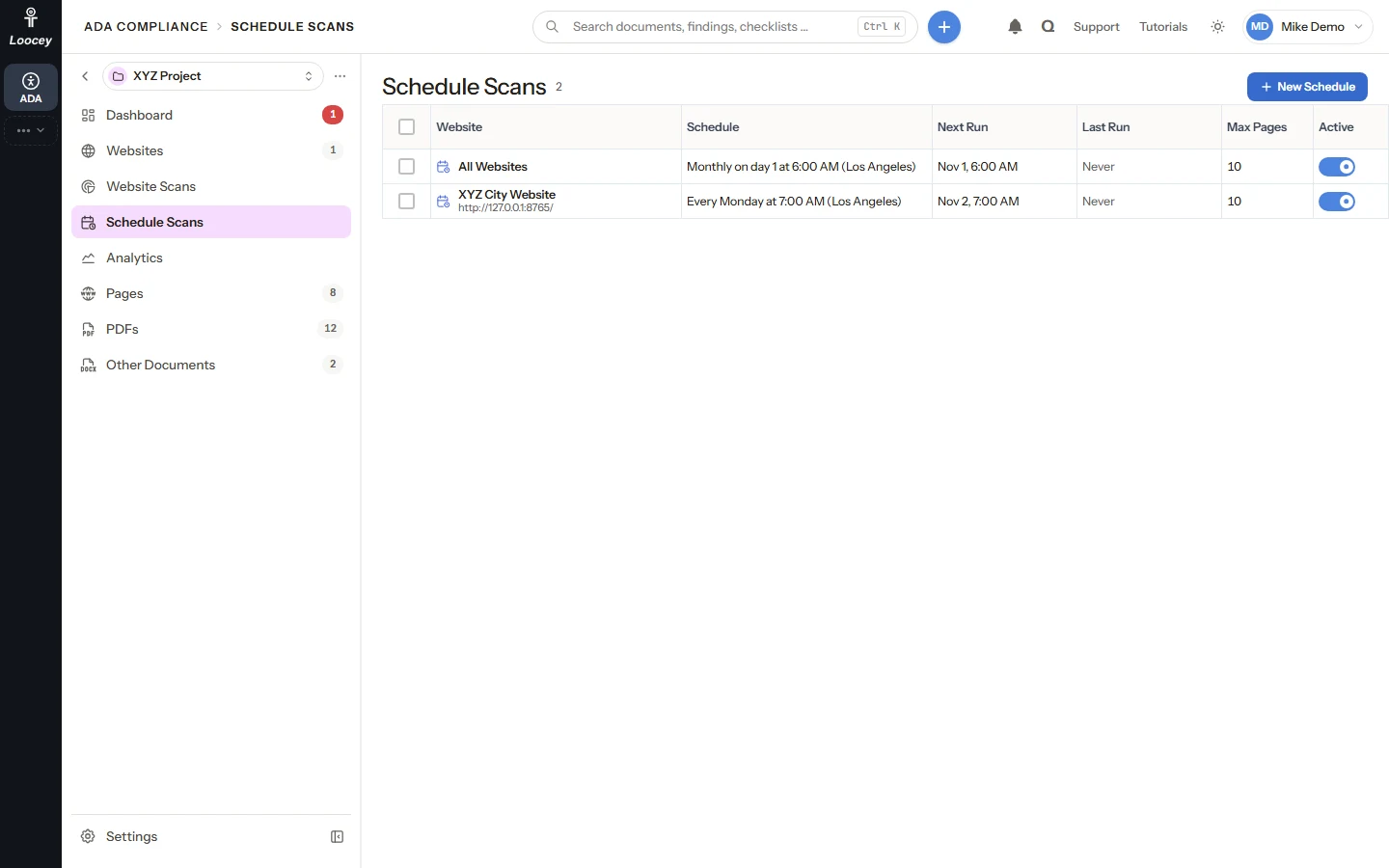
A schedule scans one website, or every website of a project, at the day and time you pick in your own time zone, so the score and the fix options stay current without anyone pressing a button.
- Daily, Weekly or Monthly, at any half hour, in the time zone you pick
- A summary line such as "Every Monday at 7:00 AM"
- Run Now, Edit, pause with the Active switch, or delete
- Next Run and Last Run on every schedule, with a link to the scan it started
Analytics
Show how your websites and documents improve over time
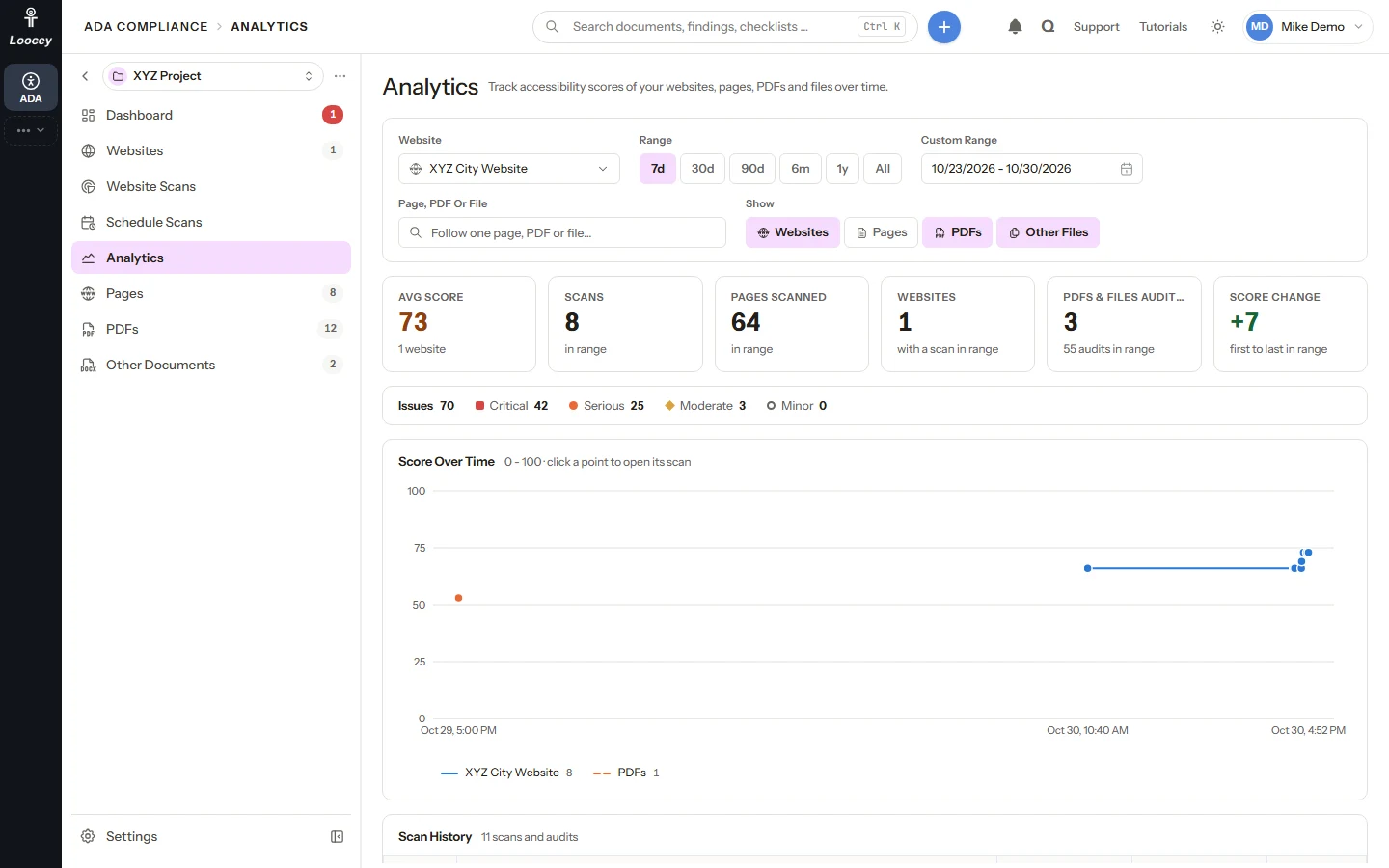
Analytics tracks the scores of a project's websites, pages, PDFs and other files: how each website scored scan after scan, how the files improved as they were fixed, and every scan and audit in a range.
- Score Over Time, one line per website, plus Pages, PDFs and Other Files
- Avg Score, Scans, Pages Scanned, Websites, PDFs and Files Audited, and Score Change tiles
- Ranges of 7 days to all time, or a custom range
- Follow one page or PDF on its own line, with its scan history
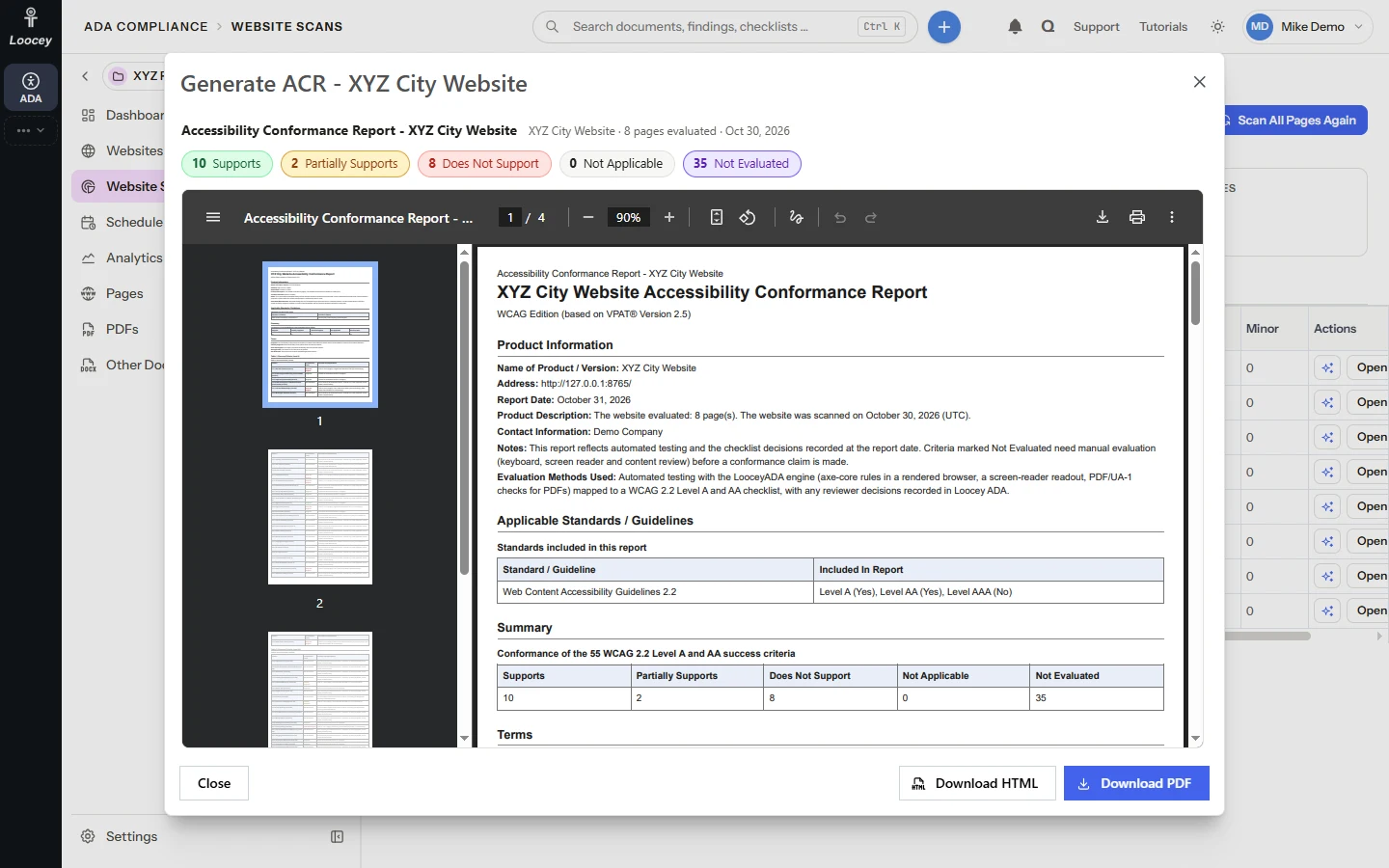
Generate an ACR (VPAT)
An Accessibility Conformance Report from what Loocey ADA already knows
Generate ACR builds the VPAT 2.5 WCAG edition report that agencies ask for, for a website, a single document or a whole project, from the latest scan and review decisions. Download it as a PDF or an accessible HTML page.
- Every one of the 55 WCAG 2.2 Level A and AA success criteria, with remarks
- Supports, Partially Supports, Does Not Support, Not Applicable and Not Evaluated
- Never Supports by assumption: what a machine cannot decide stays Not Evaluated
- A reviewer's recorded decision counts like an automated result
Projects and Dashboard
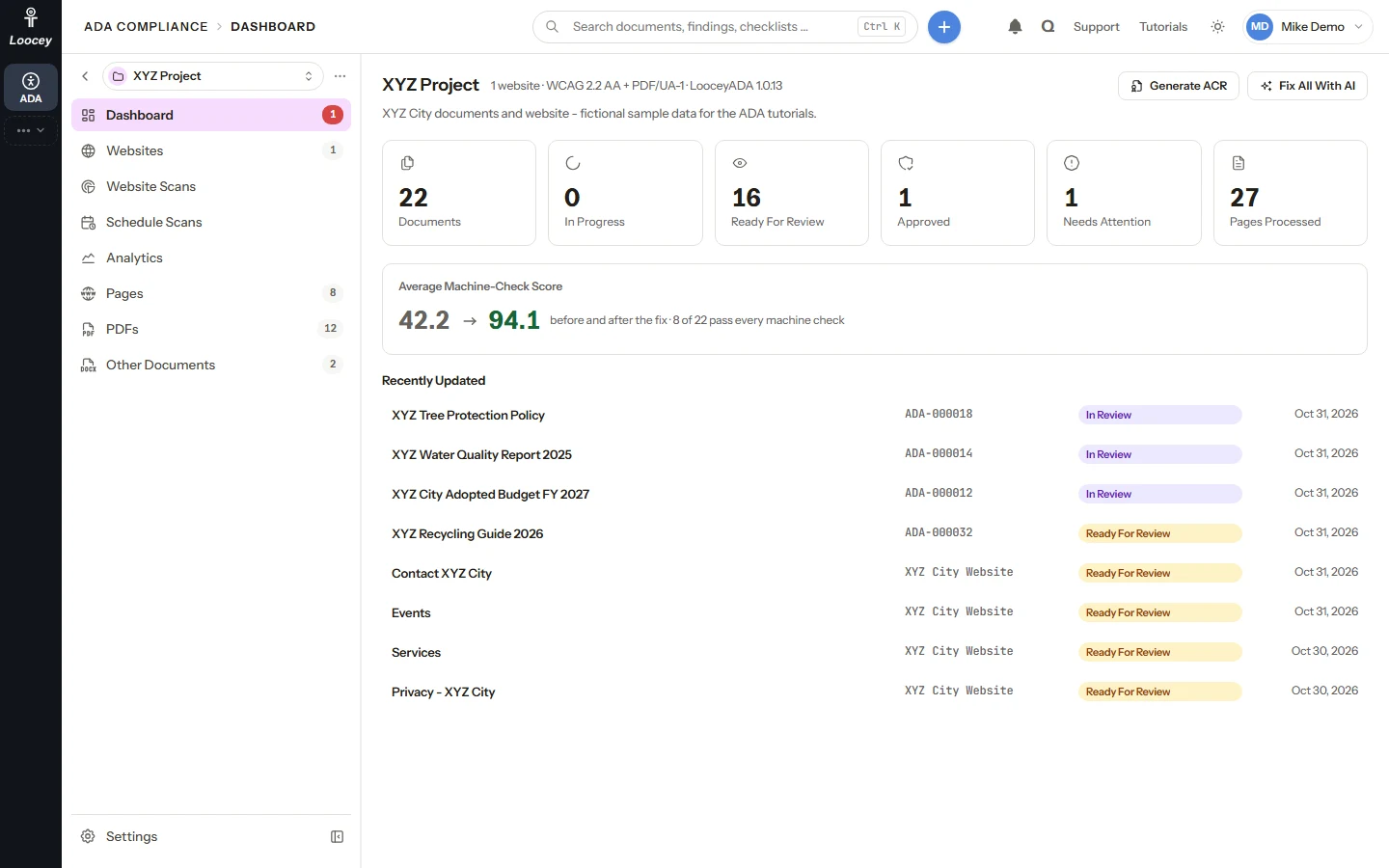
One project per department or program, with its own numbers
A project holds the work of one department or program: its websites and the documents added to it. Its Dashboard shows where the work stands and what waits for a person.
- Six tiles: Documents, In Progress, Ready For Review, Approved, Needs Attention and Pages Processed
- The average machine-check score before and after the AI fix
- A project menu for Websites, Website Scans, Schedule Scans, Pages, PDFs, Other Documents and Analytics
- New websites and documents take the project's client and jurisdiction
Upload PDFs and Decks
Drop files into a project and they are audited automatically
Upload one file or many. Each file becomes its own document, is audited by the LooceyADA engine against its checklist and is Ready For Review in seconds.
- PDFs and PowerPoint (.pptx) decks are audited and fixed with AI
- Word, Excel and image files are stored, numbered and flagged for manual work
- Up to 200MB per file, with one type, client, jurisdiction and checklist for a batch
- Findings carry rule ids, WCAG criteria, Matterhorn Protocol references and their page
Lists That Show Progress
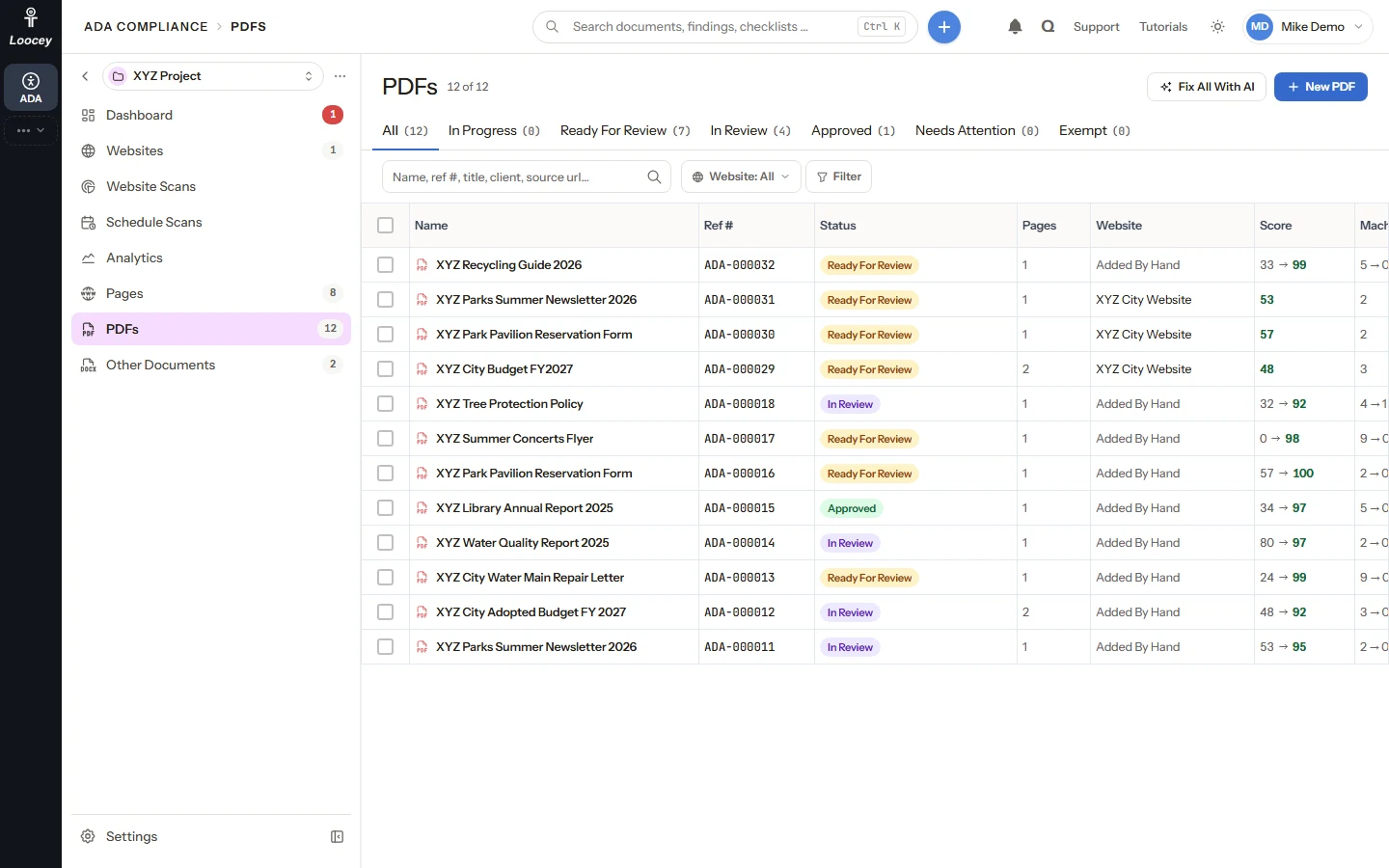
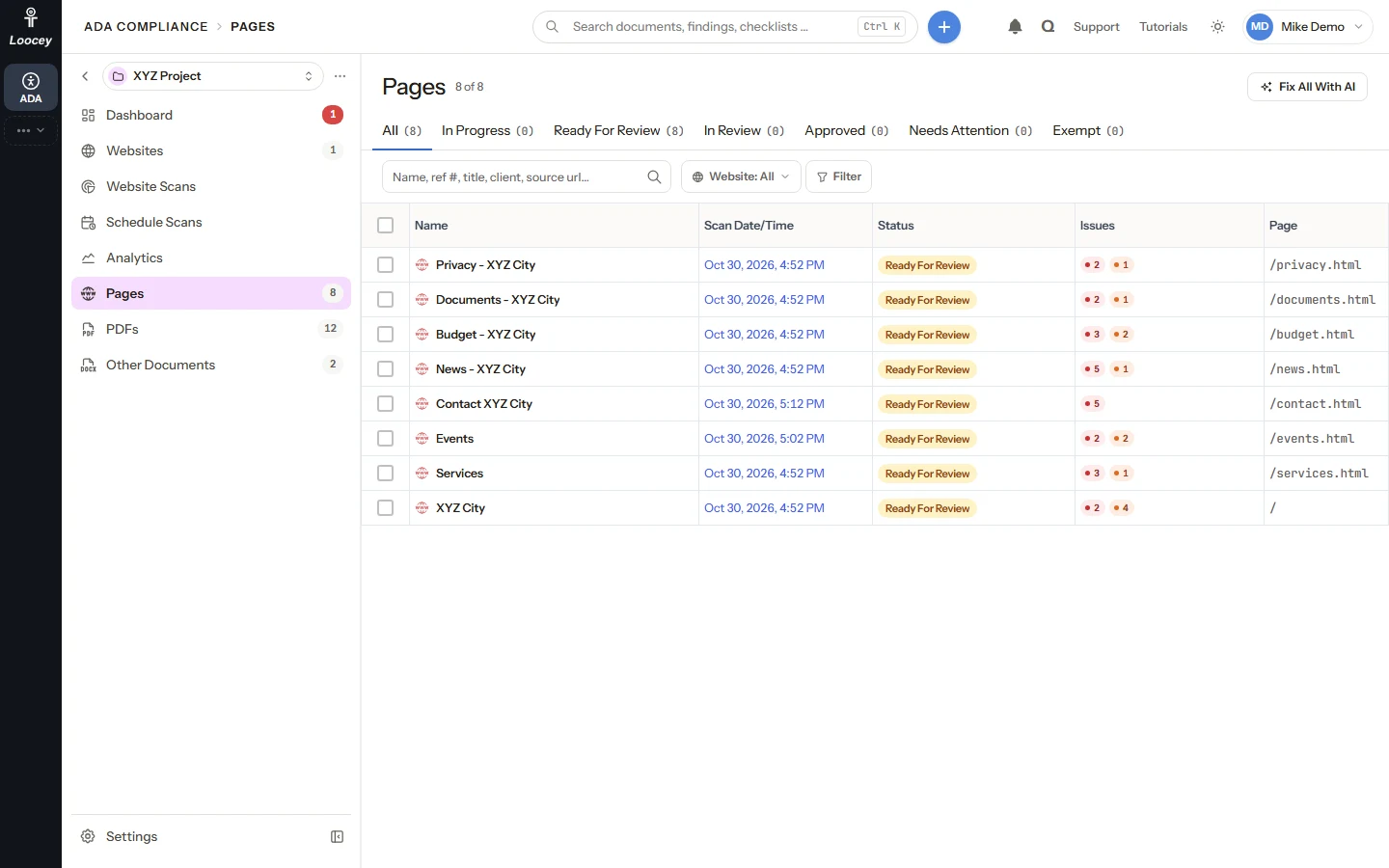
Every page and document of a project, by status
The Pages, PDFs and Other Documents lists show each item's status, website, score and issues by impact, so a team works through them in order.
- Status tabs: In Progress, Ready For Review, In Review, Approved, Needs Attention and Exempt
- Search by name, reference number, title, client or source address
- Filters such as Open Items greater than 0, and a Website filter
- Tick rows for Fix With AI, Rescan Page, Generate ACR, Process Again or Delete
The Review Screen
The checklist, the document and every decision on one screen
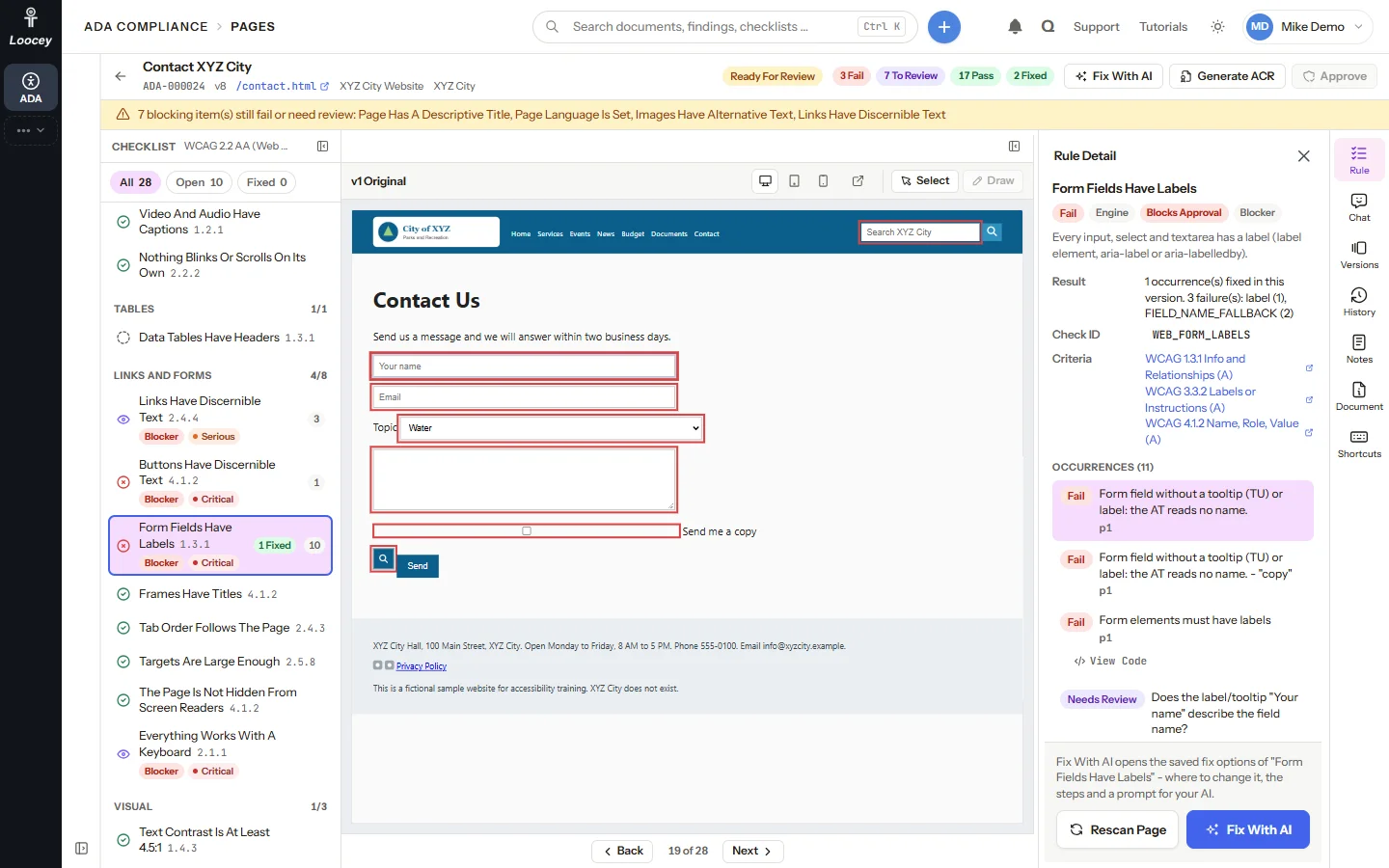
The review shows the checklist on the left, the document in the middle and the details on the right. The rail opens the rule, the AI Chat, versions, history, notes, document details and the keyboard shortcuts.
- The header counts what fails, what needs a person and what passes
- Each item links to its WCAG success criteria and, for PDFs, its Matterhorn checkpoints
- J and K move through the checklist, V approves an item, T switches views
- Collapse a column when you need room
Decide Every Item
Approve, mark Not Applicable or correct, with a note on every decision
A person decides every checklist item. Each decision is kept with who made it, when, the previous status and the comment.
- Approve or Not Applicable, each with a short note
- Correct the document title or language, or write alt text, straight into a new version
- Decisions are append-only and listed on the item
- The first decision moves a document from Ready For Review to In Review
Approval and Versions
Only a person approves, and every version is kept
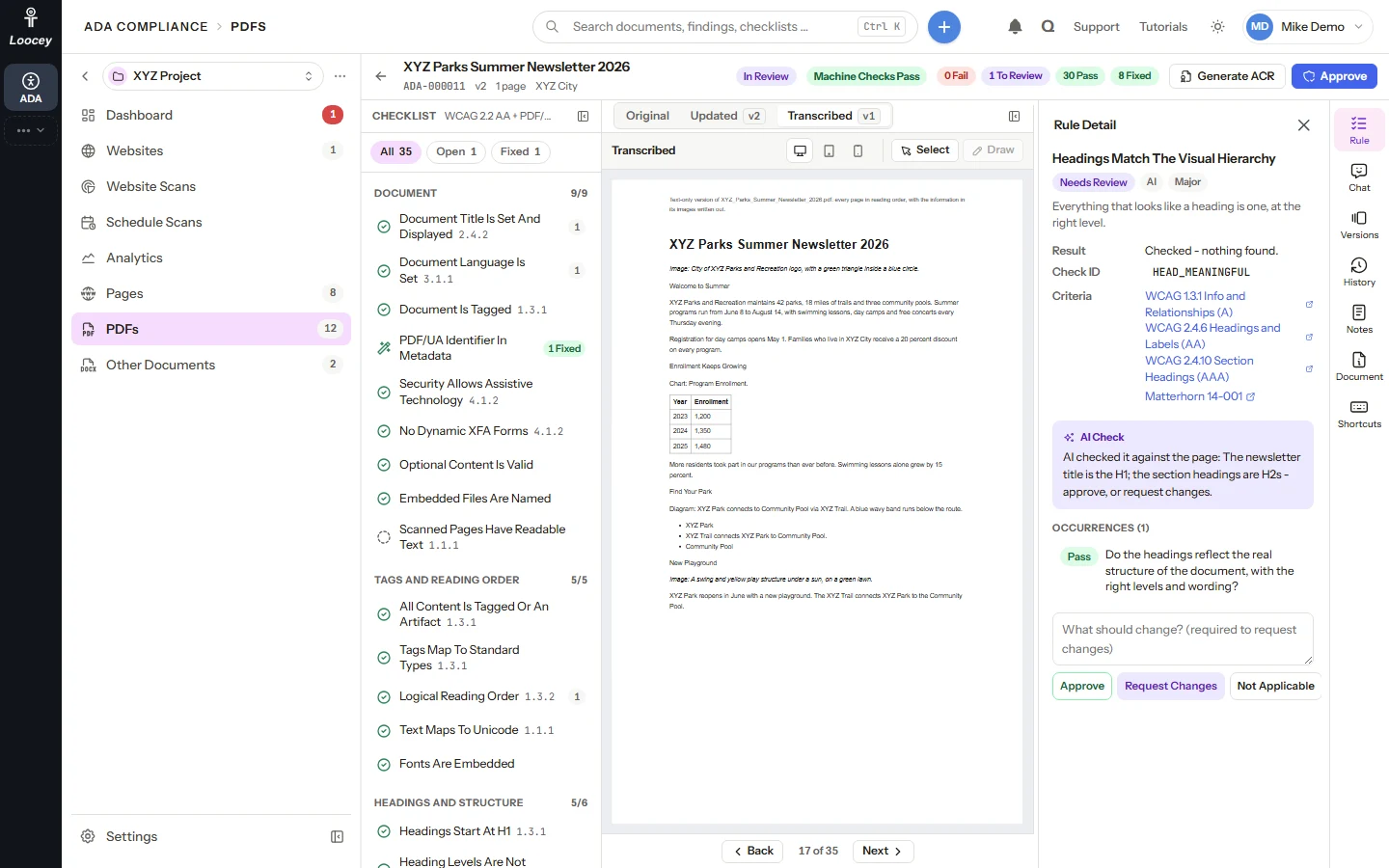
When nothing blocks it any more, a person approves the current version. The review becomes read only, and any later change starts a new version. No version is ever deleted.
- An amber bar names whatever still blocks approval
- Marked PDF/UA-1 Conformant or WCAG 2.2 AA Conformant only after a person approves
- View, download or restore any version as the new current one
- Notes, change history and document details on every document
Checklists
Three default checklists you can edit, plus state variants
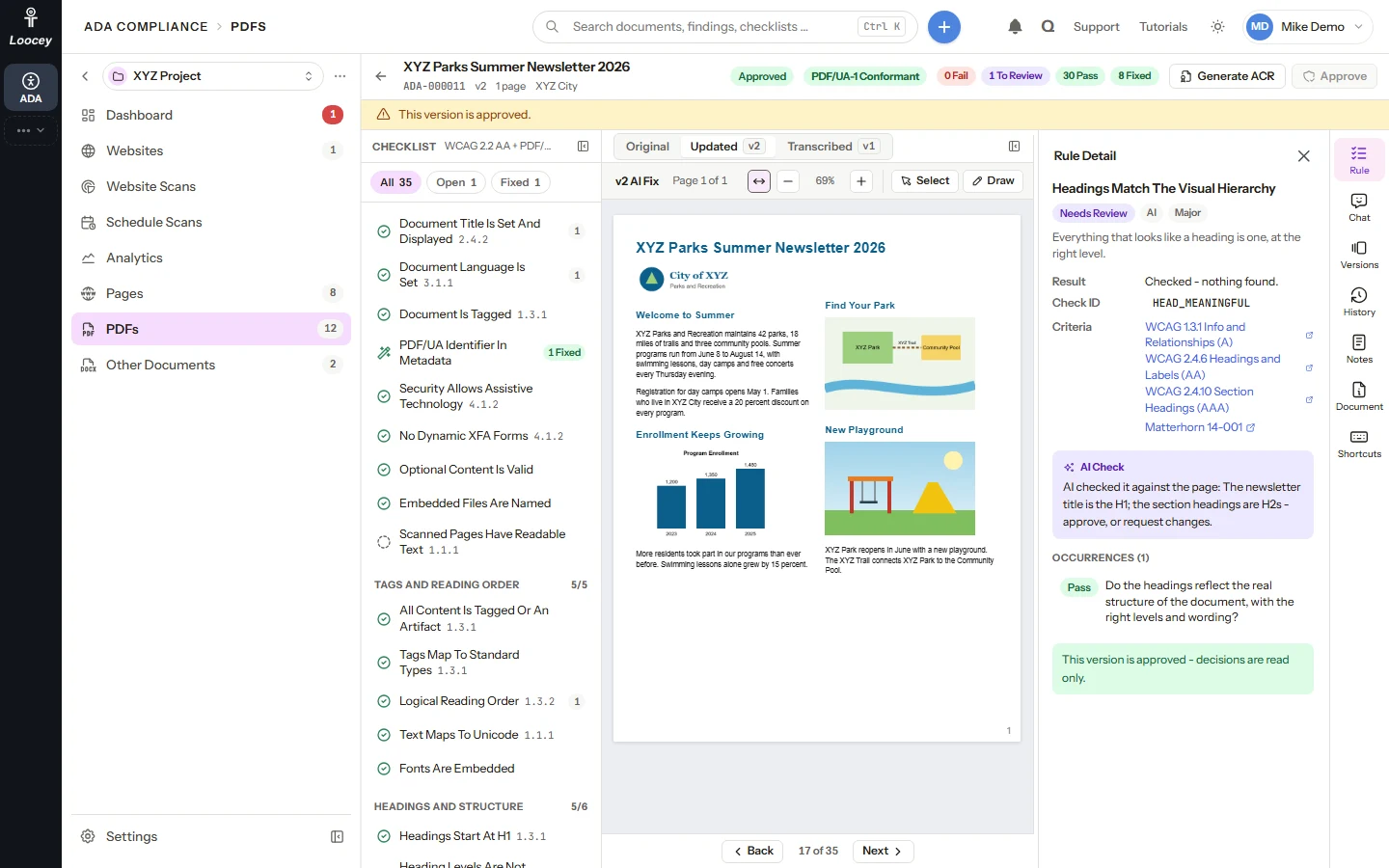
A checklist is what every document is reviewed against. Loocey ADA ships one for PDFs, one for web pages and one for PowerPoint decks, and you can tune each item.
- WCAG 2.2 AA + PDF/UA-1 for PDFs, WCAG 2.2 AA for web pages and for PowerPoint
- Set the severity, impact, check type, WCAG criteria, engine rules and whether an item blocks approval
- Write the instruction the AI follows for each item
- Create a variant for any US state or the District of Columbia
At a Glance
Loocey ADA by the numbers
- Default checklists for PDFs, web pages and PowerPoint decks
- 3
- Pages per website scan
- 5,000
- Jurisdictions: Title II, Section 508, 50 states and DC
- 53
- WCAG 2.2 A and AA criteria rated in every ACR
- 55
Who It Is For
Accessibility for government agencies, school districts and public bodies
Governments, schools and agencies must meet the ADA Title II and Section 508 rules for their websites and the documents they publish. Loocey ADA turns that into a list of work: every page and file audited, fixed with AI where a machine can, and reviewed by a person before it is approved.
-
State and Local Governments
Cities, counties and state agencies keep each department apart: one project per department or program, such as Parks and Recreation, with its own websites, documents, scans, analytics and AI runs.
-
School Districts and Schools
Scan the district website on a schedule, fix the PDFs it links to, such as board minutes and forms, and track what still needs a person in one place.
-
Public Agencies and Special Districts
Transit agencies, water districts and other public bodies scan their public website, hand the fix prompts to their web team, and produce an ACR when a partner asks for one.
-
Firms That Serve the Public Sector
Consultants and remediation teams run a project per client and download every website's fixes as one file. When the account also has Loocey CRM, its clients fill the Client field on projects, websites and documents.
Standards
WCAG 2.2 AA audit, PDF/UA, Section 508 and ADA Title II
Every document is reviewed against a checklist. Each checklist item names its WCAG success criteria and, for PDFs, its Matterhorn Protocol checkpoints. The jurisdiction you pick decides which checklist is used.
-
WCAG 2.2 AA
The default checklists for web pages and PowerPoint decks check WCAG 2.2 Level AA, and the PDF checklist adds it to PDF/UA-1. Every item links to the W3C explanation of its success criteria.
-
PDF/UA-1
The default PDF checklist, WCAG 2.2 AA + PDF/UA-1, maps findings to Matterhorn Protocol checkpoints for tagging, reading order, figures, tables and forms.
-
ADA Title II
Pick Federal (Title II) as the jurisdiction. Criteria added in WCAG 2.2 carry a 2.2 Only tag, because the federal Title II rule references WCAG 2.1 AA.
-
Section 508
Pick Federal (Section 508) as the jurisdiction for federal work. Section 508 and EN 301 549 are also available as standards for your own checklists.
-
VPAT 2.5 ACR
Generate ACR writes the Accessibility Conformance Report in the VPAT 2.5 WCAG edition format for a website, a document or a project, rating all 55 WCAG 2.2 Level A and AA criteria.
-
Impact Levels
Every web issue carries the impact levels axe-core uses: Critical, Serious, Moderate and Minor. PDFs and decks get theirs from their checklist items' severity.
What a Pass Means
Scores are the engine's 0-100 machine-check scores, not a legal finding. A document reads Machine Checks Pass when the engine's checks pass, and is marked PDF/UA-1 Conformant or WCAG 2.2 AA Conformant only after a person approves a version with no machine failures. Items with no automated check, such as keyboard use and reflow, always wait for a person.
How It Works
From a scan to an approved file in six steps
-
Create a Project
Add a project for a department or program and set its jurisdiction: Federal (Title II), Federal (Section 508) or a state.
-
Scan Websites and Add Documents
Scan a public website now or on a schedule, and upload PDFs, PowerPoint decks and Office files.
-
Audit Automatically
The LooceyADA engine audits every page and file against its checklist, scores it and groups shared issues.
-
Fix With AI
Copy the AI fix prompts for your website, and run Remediation With AI on your PDFs and decks.
-
Review and Approve
A person checks each item, rescans fixed pages, compares the Original and Updated documents and approves the result.
-
Track and Report
Follow the score over time in Analytics, download the approved files and generate an ACR.
MCP and Loocey Apps
Work with Loocey ADA from your AI assistant
Loocey ADA adds its own tools to the Loocey MCP (Model Context Protocol) server, so a compatible AI assistant can read your scans, fix prompts and reports, start scans and organize your accessibility work as you, with your permissions.
Loocey MCP Server: ADA Tools
-
ada_queryRead projects, documents, reviews, checklists and websites, plus website scans, a scan's pages and issues, the saved fix options and prompts, schedules, Analytics and the ACR. -
ada_saveAdd or change projects, upload files by URL, record decisions, add notes, add websites and save scan schedules. -
ada_runStart a website scan, rescan a page, approve a document, process it again or restore a version. -
ada_deleteSoft-delete documents, websites and projects. Write tools are hidden when your role lacks the permission.
-
Acts as You
A connected AI assistant acts as the signed-in user, limited by that user's permissions.
-
Not Through MCP Yet
Run Remediation With AI, the AI Chat and checklist editing are not available through MCP yet.
-
Loocey CRM Clients
When the account also has Loocey CRM, its clients fill the Client field on projects, websites and documents.
FAQ
Loocey ADA questions, answered
What is Loocey ADA? Product
Loocey ADA is ADA compliance software for websites, PDFs and PowerPoint decks. It scans websites and audits documents against WCAG 2.2 AA and PDF/UA-1 checklists with the LooceyADA engine. For websites, the AI writes fix options and a prompt for every issue; PDFs and decks are fixed with AI in place. A person reviews every item and approves the result, and Analytics and the ACR show the progress. It is built for governments, schools and agencies, and the firms that serve them.
Which accessibility standards does Loocey ADA audit against? Standards
Three default checklists ship with every workspace: WCAG 2.2 AA + PDF/UA-1 for PDFs (35 items), WCAG 2.2 AA for web pages (28 items) and WCAG 2.2 AA for PowerPoint decks (22 items). Each item links to its WCAG success criteria, and PDF items also link to their Matterhorn Protocol checkpoints. WCAG 2.1 AA, PDF/UA-2, Section 508 and EN 301 549 are available as standards for your own checklists.
Does Loocey ADA help with ADA Title II website accessibility? Standards
Yes. Set a project, website or document to the Federal (Title II) jurisdiction and Loocey ADA audits its web pages and documents against WCAG 2.2 AA. Criteria that are new in WCAG 2.2 carry a 2.2 Only tag, because the federal Title II rule references WCAG 2.1 AA. Loocey ADA is a tool, not legal advice: its scores are machine-check scores, and a document is only marked Conformant after a person approves a version with no machine failures.
Does Loocey ADA support Section 508? Standards
Yes. Federal (Section 508) is one of the jurisdictions you can pick for a project, website or document, next to Federal (Title II), the 50 US states and the District of Columbia. Section 508 is also available as a standard for your own checklists.
How does a website scan work? Websites
Pick a website and Max Pages (10 by default, up to 5,000) and click New Scan. Loocey ADA reads the pages by following links and the sitemap.xml, audits each new or changed page against the WCAG 2.2 AA web checklist, and groups what fails into issues. An issue on the shared header, footer or navigation is counted once for every page. Each scan has a Loocey Score from 0 to 100, its pages with their scores, and its issues by impact. A scan follows the site's robots.txt by default and only fetches public internet addresses.
Does Loocey ADA change my website? Websites
No. Your website runs on your own platform, such as WordPress or Squarespace, and Loocey ADA does not edit it. For every issue a scan finds, the AI writes fix options: Option 1 (Recommended), Option 2 and more, each with where to make the change, the steps, the corrected code and a Prompt To Fix With Your AI. Copy the prompt or download it as a Markdown file for your developer or your own AI, make the change, then click Rescan Page to confirm it.
Can I scan my websites automatically? Websites
Yes. Schedule Scans runs a scan of one website, or of every website in a project, daily, weekly or monthly at the time and time zone you pick, for example every Monday at 7:00 AM. You can run a schedule now, pause it or change it at any time, and each scheduled scan appears in Website Scans and Analytics.
Can Loocey ADA produce a VPAT or ACR? Reports
Yes. Generate ACR builds an Accessibility Conformance Report in the VPAT 2.5 WCAG edition format for a website (from its latest scan), a single document or a whole project. It rates all 55 WCAG 2.2 Level A and AA success criteria as Supports, Partially Supports, Does Not Support, Not Applicable or Not Evaluated, with remarks, and downloads as a PDF or an HTML page. What a machine cannot decide stays Not Evaluated, so those criteria must be checked by a person before a conformance claim is made.
How do I show progress over time? Reports
Analytics draws each website's score scan after scan, and the scores of the project's pages, PDFs and other files as they are fixed. Tiles show the average score, scans, pages scanned, files audited and the score change in the range, and the history lists every scan and audit.
How does AI document remediation work in Loocey ADA? AI
Run Remediation With AI lets the LooceyADA engine audit the PDF or deck, has the AI answer what the audit asks (alt text, reading order, headings, table headers and more), lets the engine apply the edits and audit again, and builds an Updated version for review. A pass that would leave more machine errors than before is not kept. PDFs and PowerPoint decks also get a text-only Transcribed version.
Does the AI approve documents on its own? AI
No. The AI never approves a document and never passes a checklist item that a reviewer sent back with Request Changes. Structure calls such as reading order, headings, table headers and form labels still need a person's approval, and text contrast and color stay with a person.
Which file types can Loocey ADA audit and fix? Documents
Web pages are scanned and get AI fix options. PDFs and PowerPoint (.pptx) decks are audited, fixed with AI in place and reviewed against their checklist. Word, Excel and image files are stored, numbered and listed in the same project and flagged for manual remediation. Each upload can be up to 200MB.
Can I audit a Loocey Site without scanning it? Websites
Not yet: a direct import of a Loocey Site is coming soon. Today you scan the site's public address like any other website.
How do large agencies and school districts organize the work? Projects
With projects. A project is the work of one department or program, such as Parks and Recreation, with its own websites, documents, scans, schedules and analytics. Projects organize the work but are not a security boundary: everyone with access to the workspace can open every project. To keep departments' data apart, give each department its own ADA workspace.
Where are my documents processed? Security
The LooceyADA engine runs on Loocey's own servers, so documents and pages are not sent to an outside accessibility service. When the AI writes fix options or runs Remediation With AI or the AI Chat, the relevant page html, document text, page renders and image crops are sent to the configured AI provider. Text inside documents is wrapped so it cannot act as instructions to the AI.
Does Loocey ADA work with AI assistants through MCP? AI
Yes. Loocey ADA adds four tools to the Loocey MCP server: ada_query, ada_save, ada_run and ada_delete. A connected AI assistant acts as the signed-in user, limited by that user's permissions. It can read projects, reviews, website scans, the saved fix prompts, schedules, Analytics and the ACR, start a scan or rescan a page, save a schedule, upload files, record decisions and approve. Run Remediation With AI, the AI Chat and checklist editing are not available through MCP yet.
See Loocey ADA in action
Book a demo to see a website scan with its AI fix prompts, a PDF fixed with AI, the review screen and an ACR, and ask your accessibility questions.