

Loocey CRM
The CRM for Small Business Sales Teams That Plans Every Rep’s Day
Deals Pipeline, Shared Gmail & Outlook Inbox With AI Reply Drafts, and a Ranked My Work List for Every Rep.
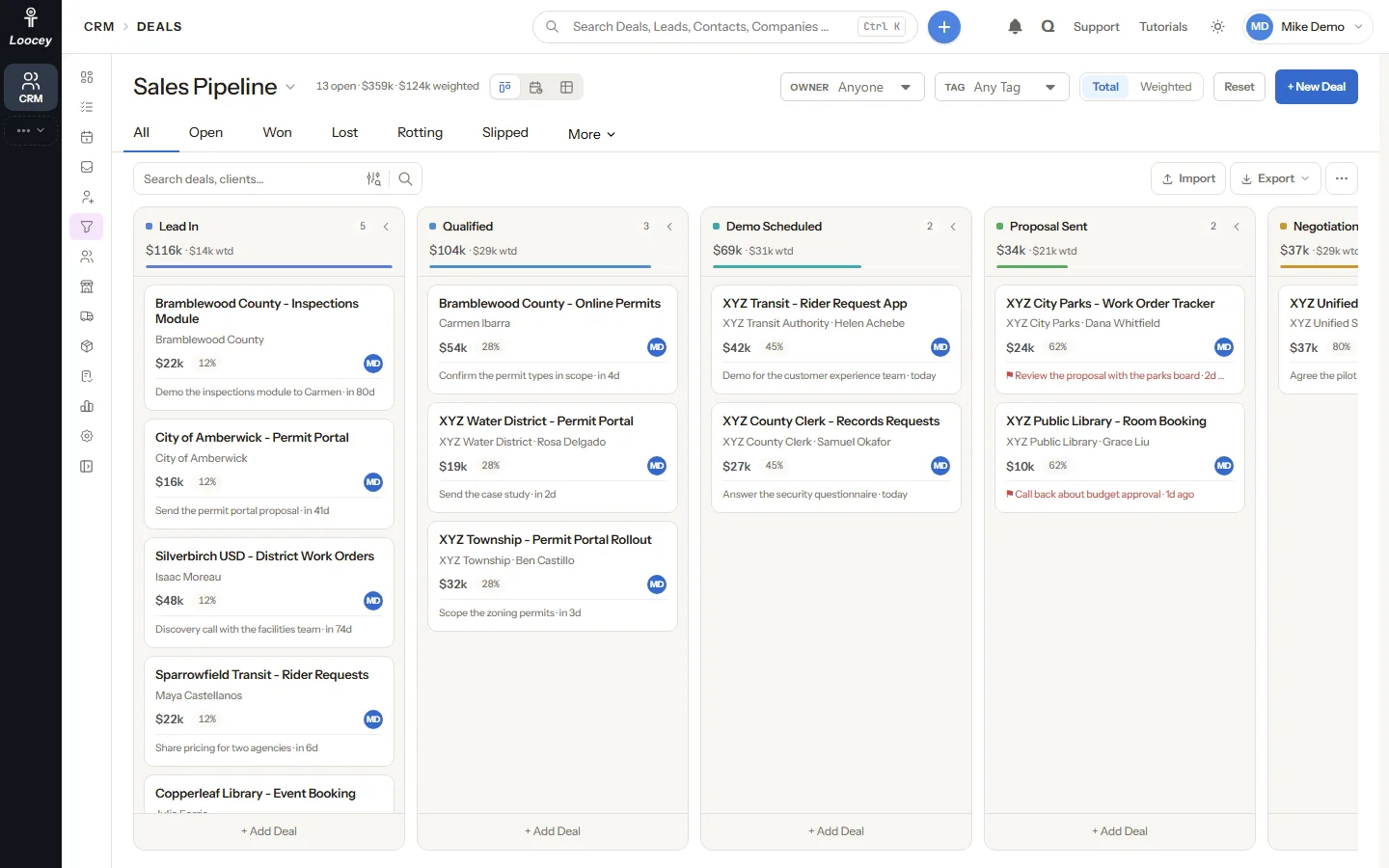
- My Work for Every Rep
- Multiple Sales Pipelines
- Shared Gmail & Outlook Inbox
- AI Reply Drafts
- MCP Server for AI Agents
AI Features
AI That Drafts, Previews and Waits for You
AI Draft writes inbox replies, your AI assistant works in the CRM through MCP, and My Work ranks every rep's day. Nothing is sent or changed until you click Send or Confirm.
AI Feature
AI Draft Replies in the Inbox
One click drafts a reply from the conversation, and you decide what is sent
Connected Gmail and Outlook mailboxes sync into one team Inbox. On any conversation, AI Draft writes a short reply from the newest messages and puts it in the reply box for you to read and edit.
How It Works
- Open a conversation in the Inbox that needs a reply.
- Click AI Draft.
- The app’s AI model writes a short reply from the newest 12 messages of the conversation.
- Read and edit the draft. Nothing goes out until you send it yourself.
What You Get
- The AI is told never to invent prices, dates or commitments, and to ask instead
- Replies go out through the conversation’s connected account with your signature
- Mine, Unassigned and Needs Reply tabs; assign, snooze or mark a thread done
- Email templates with variables filled from the record, and bulk email
Loocey CRM: Shared Inbox
-
AI DraftWrites a short reply from the newest 12 messages and puts it in the reply box. Nothing is sent until you click Send. -
Gmail and OutlookMailboxes connect with OAuth and sync into one team Inbox; an SMTP account can send. -
Mine, Unassigned, Needs ReplyTabs that split the team inbox; assign, snooze or mark a thread done. -
Email TemplatesVariables filled from the record, for one reply or a bulk email. -
On the RecordEvery message is kept on its deal, lead or contact, next to calls and notes.
AI Feature
MCP for AI Agents
Let your AI assistant find records, log calls and move deals, with a preview first
Loocey CRM has its own toolset on the Loocey MCP (Model Context Protocol) server. A compatible AI assistant works through the same code the screens use, as you and with your permissions.
How It Works
- Connect a compatible AI assistant to the Loocey MCP server.
- Ask in plain language, for example "Log an outbound call with Acme Corp and move Acme Rollout to Proposal Sent."
- The assistant answers with a preview of what will change.
- Confirm, and the change is saved with the source MCP in Change History and the audit log.
What You Get
- Read, create and update deals, leads, contacts, clients, vendors, activities, products and quotes
- Stage moves, wins, losses, lead conversions and deletes wait for your confirmation
- Paste a meeting transcript and log the meeting on the right deal, after a preview (the matching is rules-based today)
- Write tools appear only for roles that can create, update or delete records
Loocey MCP Server: CRM Tools
-
crm_queryRead deals, leads, contacts, clients, activities, quotes, the dashboard and report numbers. -
crm_saveCreate and change leads, contacts, clients, deals, activities, products, quotes and tags. -
crm_actionMove a stage, win or lose a deal, convert a lead, complete an activity, assign an owner. -
crm_deleteSoft-delete up to 50 records per call, after a preview. -
work_queryRead your ranked My Work list. -
work_saveComplete, reschedule or reprioritize My Work items. -
work_assignHand out unassigned leads.
AI Feature
My Work
Every rep starts the day with one ranked list of what to do next
My Work is each rep’s own list of new leads, follow-ups, today’s meetings and messages waiting for a reply, already in order. It shows the best 50 open items and refreshes every minute and after every call you log.
How It Works
- Open My Work: new leads, follow-ups, meetings and messages are already on the list.
- Read why each card is there, ranked by priority and by the person’s local working hours.
- Work each card in one click: Call, Follow Up Later, Log Activity, Notes or Mark Complete.
- When the list runs short, Get More Work assigns you up to 5 unassigned leads, best score first.
What You Get
- Priority Rules let admins rank new work on any field, including custom fields
- People inside their working hours come first, so you call when they can answer
- AI agents read and update the list through work_query, work_save and work_assign
- Amy, the Loocey Assistant, will plan your day from My Work: Coming Soon
Features
Everything a Small Sales Team Needs, in One CRM
Deals, leads, contacts, clients and vendors, activities, the calendar and customer email in one place, with the Dashboard and Reports for managers.
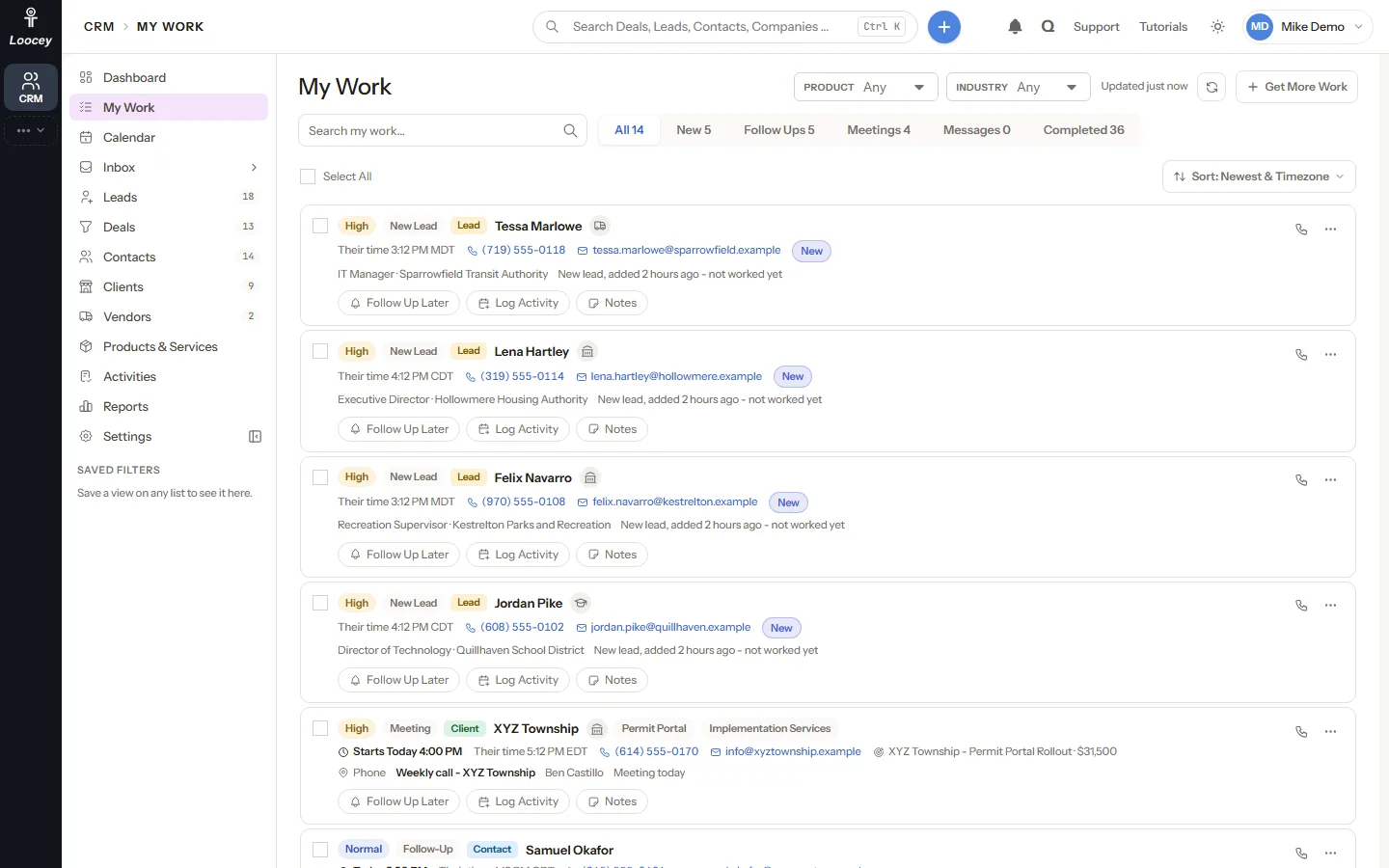
Deals Pipeline
Sales pipeline boards with forecasts and deal health
Run deals on a board with one column per stage, switch to the Forecast view by close month, or work them as a table with saved views and bulk actions. Use as many pipelines as your business needs.
- Each stage has a probability, rotting days and required fields
- Drag a card to move it; stage history records every move
- Idle and slipped badges, with Rotting and Slipped tabs
- Drop a deal on Won or Lost, with a lost reason
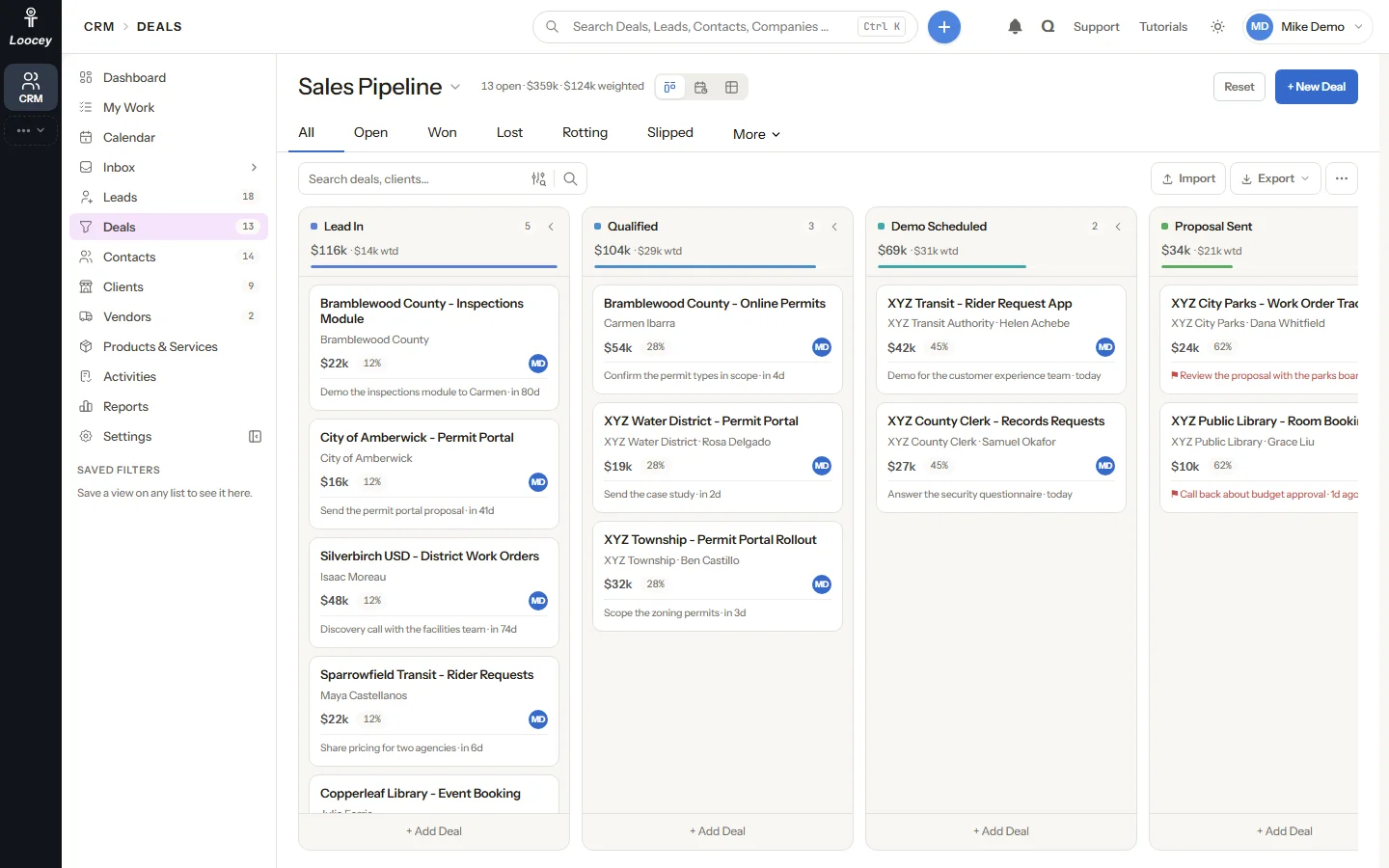
Deal and Record Pages
Every deal keeps its full story on one page
Deal and record pages show the key numbers, the stage bar and everything that happened: activities, notes, emails, calls, files, products, quotes and change history.
- Log calls with an outcome, direction and duration, and log meetings and emails
- Notes with replies and pins, and reminders with a due date and an assignee
- Product lines and versioned quotes with a status and an expiry date
- Every change in the audit log with who, when and the old and new value
Leads and Saved Views
Leads, contacts, clients and vendors in lists you shape
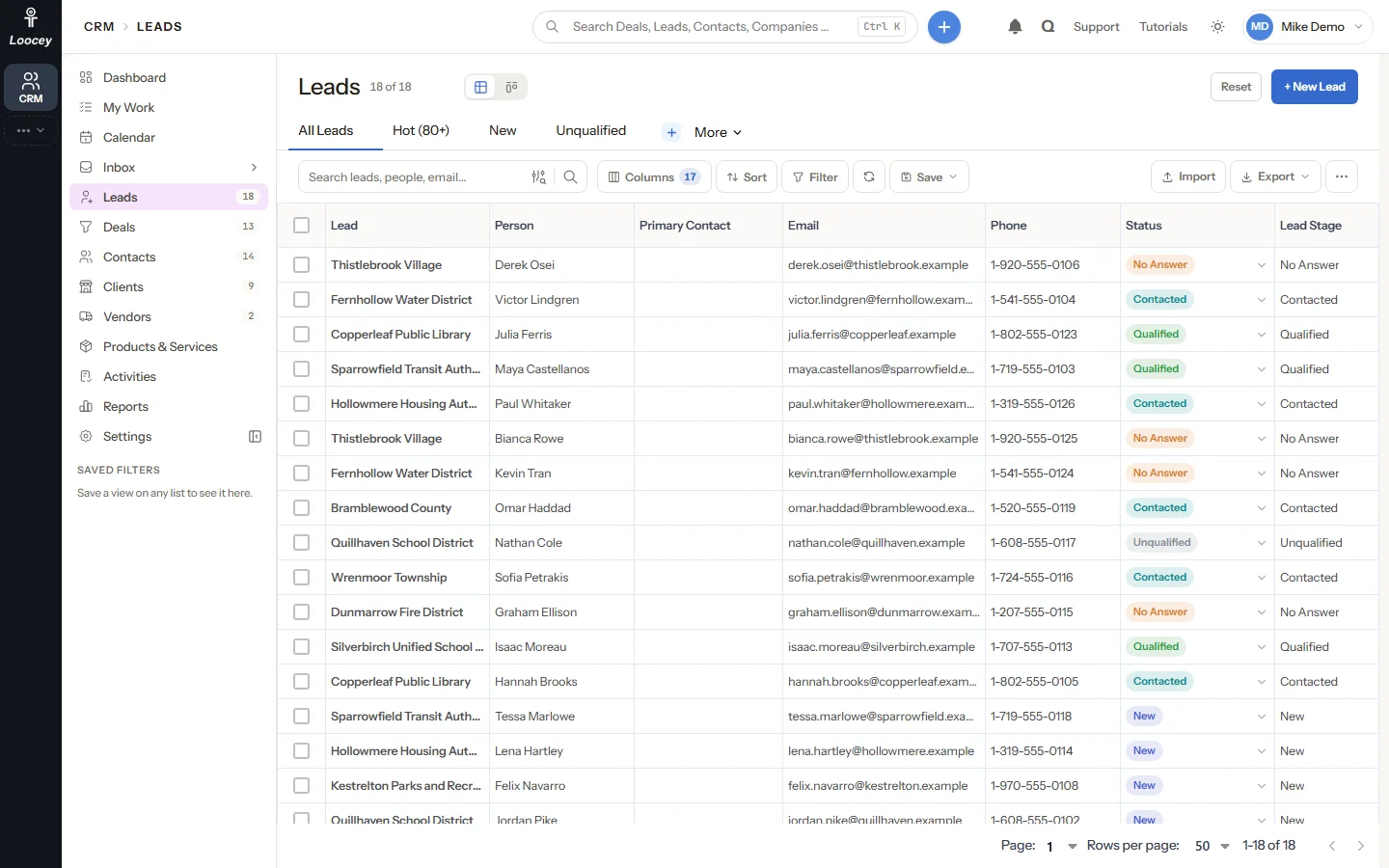
Every list has saved views, server-side filters and sorting, a side panel for quick edits and a full record page.
- And / Or filter groups on any field, saved as private or shared view tabs
- Import CSV or XLSX with column mapping and a dry run
- Export any view, or only the ticked rows, to CSV or XLSX
- Move leads through lead pipelines on a board, like deals
Convert a Lead
A contact, a client and a deal in one step
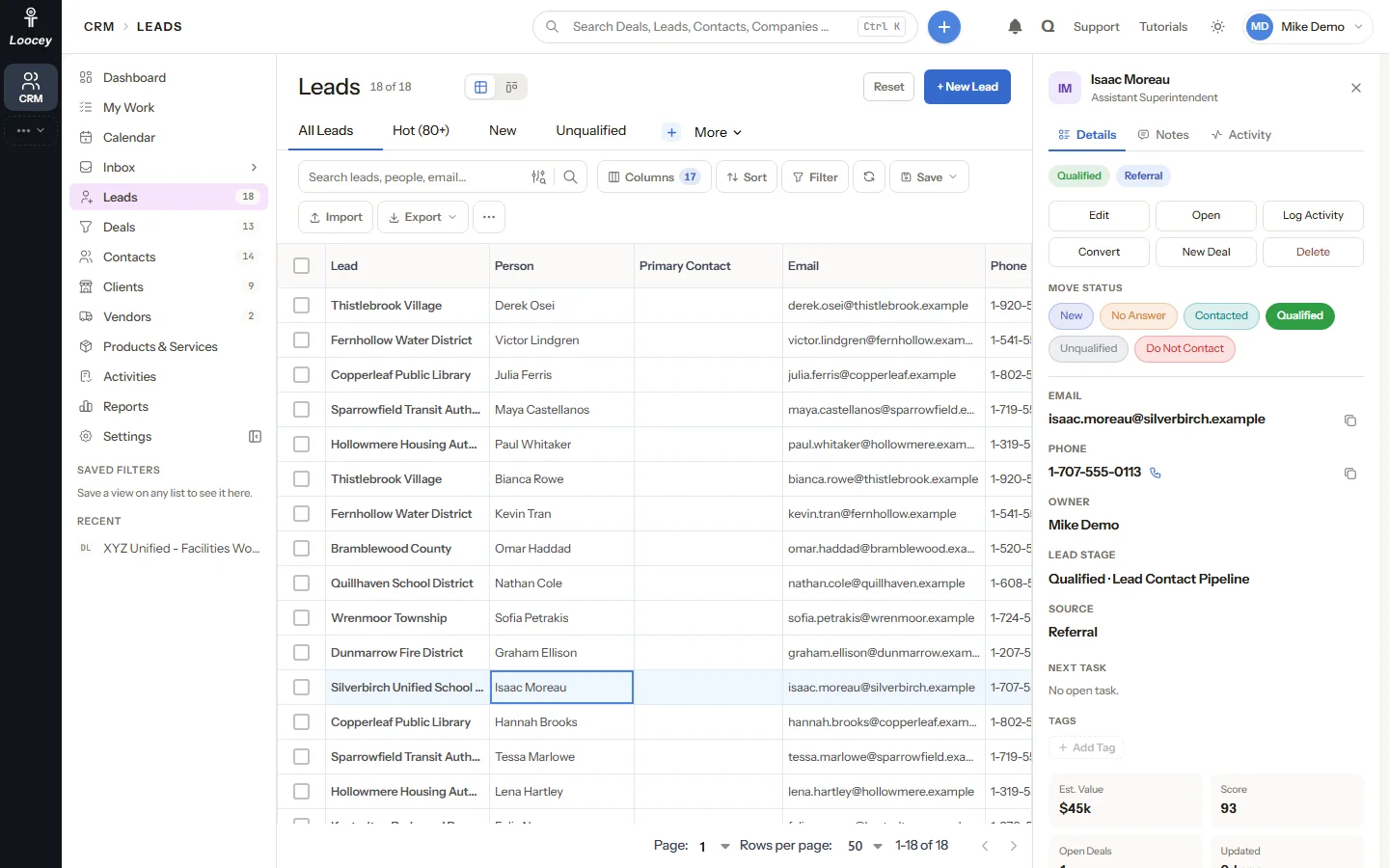
Open a lead in the side panel, change its status with one click and convert it when it is ready. Activities, notes and history stay on the record.
- Convert to a contact under a new or existing client, or into the client itself
- Open a deal in the same step
- Duplicate warnings by email, phone, company domain and name
- Merge two records into one without losing history
Calendar and Activities
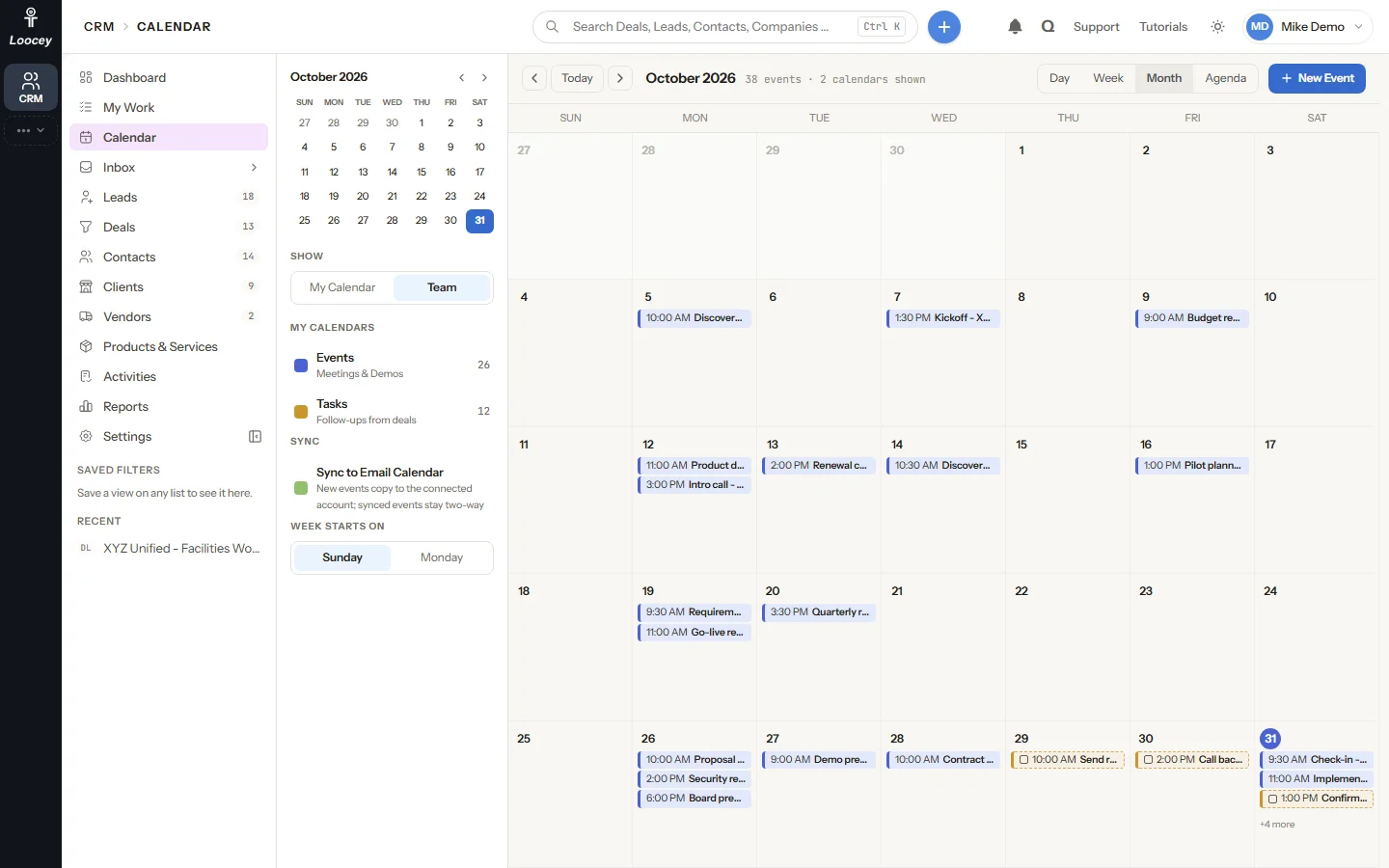
Meetings and follow-ups on one calendar
See meetings and every open task with a due date on Day, Week, Month and Agenda views. Events on a connected Google or Outlook calendar stay in step with it.
- Edits, moves and deletions are pushed back to Google or Outlook
- Drag a task chip to another day or hour to reschedule it
- The Activities screen filters by assignee, type, outcome, date or pipeline
- Complete, reschedule or reassign several activities at once
Dashboard and Reports
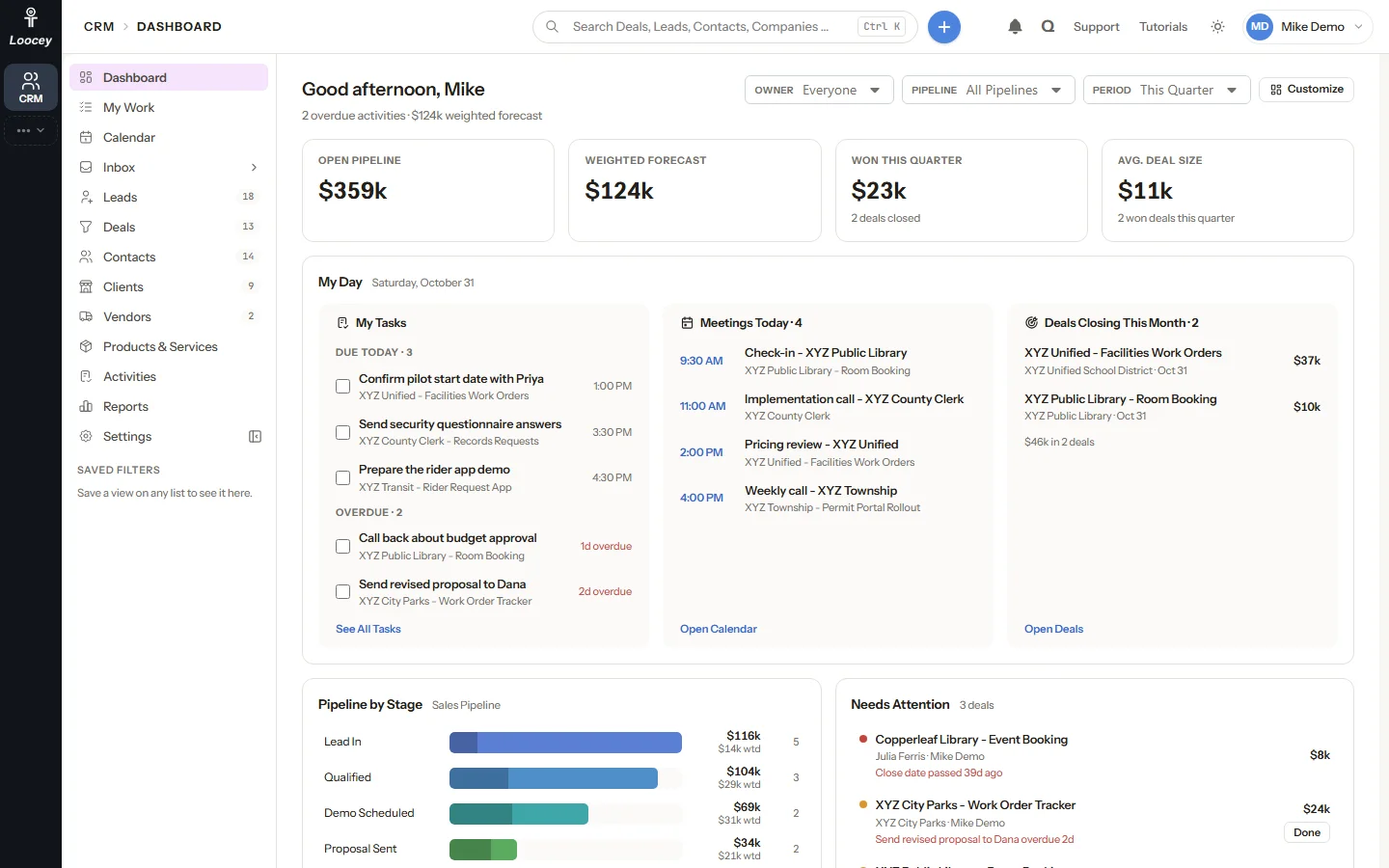
The pipeline at a glance, with a drill-down behind every number
The Dashboard shows open pipeline, weighted forecast, won this quarter, today’s tasks and meetings and the deals that need attention. Reports add win rate, the funnel, time in stage, lost reasons, the forecast and more.
- Filter every card and widget by period, pipeline and owner
- Click a card, bar or row to see the deals it counts
- Every widget and drill-down exports to CSV
- Each user can show, hide and reorder the Dashboard widgets
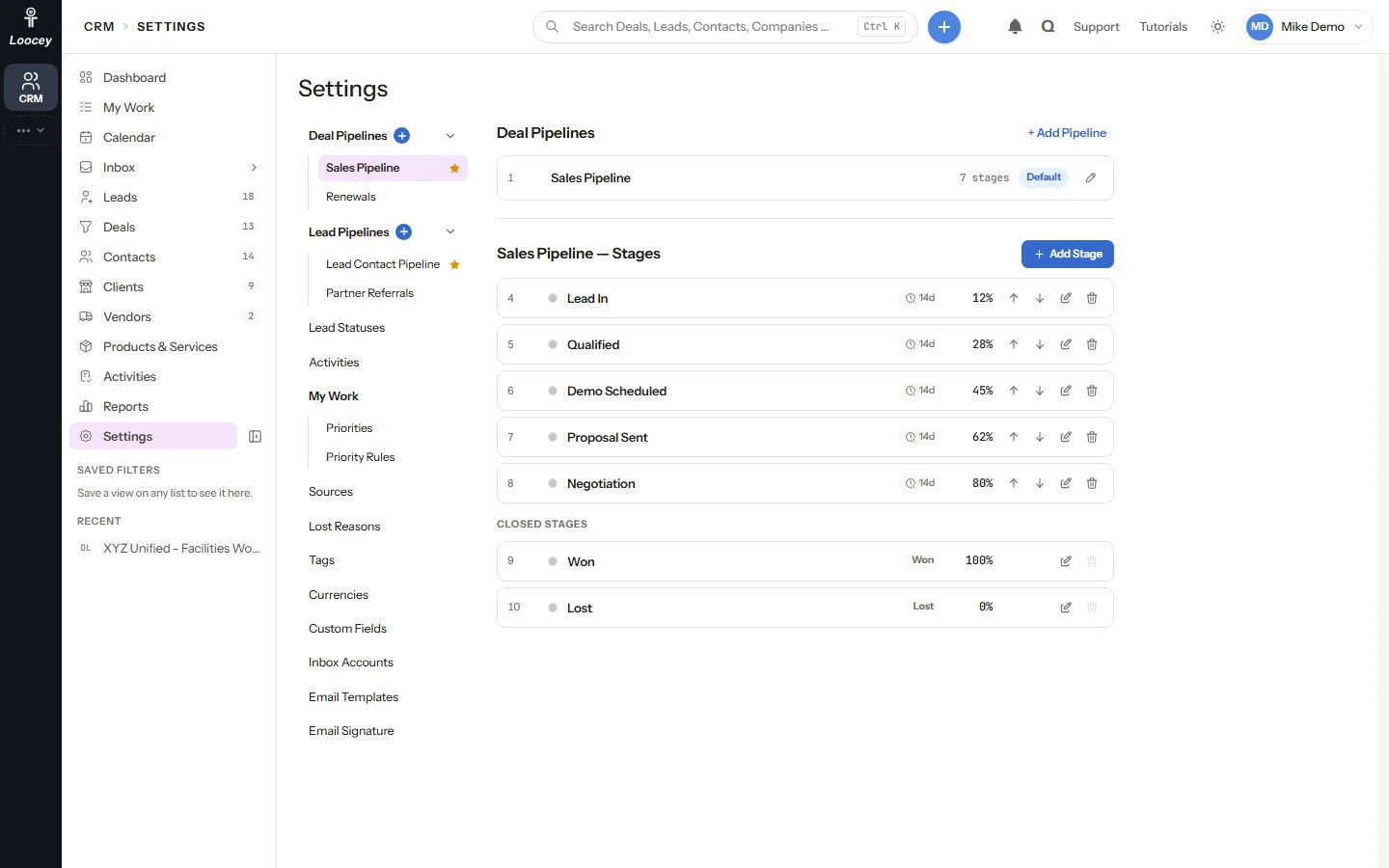
Settings Around Your Sales Process
Pipelines, stages, custom fields and inbox accounts
Set up deal and lead pipelines and stages, lead statuses, sources, lost reasons, tags, custom fields, activity types and call outcomes, currencies, inbox accounts and email templates.
- Add pipelines and set each stage’s probability, rotting days and required fields
- Custom fields in forms, filters and Priority Rules
- Connect Gmail, Outlook or SMTP accounts
- Activity types and call outcomes appear on every logging screen and in Reports
At a Glance
AI that drafts, and waits for you to decide
The AI in Loocey CRM writes drafts and previews. It never sends an email or changes a deal on its own: you read what it suggests and you click Send or Confirm.
- Best open items on each rep’s My Work list, refreshed every minute
- 50
- Latest messages AI Draft reads to write a reply you review
- 12
- Report widgets with drill-down and CSV export
- 11
- MCP tools for AI agents across the CRM and My Work
- 7
- Available
AI Draft in the Inbox
Click AI Draft on a conversation and the app’s AI model writes a short reply from the newest 12 messages. It is told never to invent prices, dates or commitments and to ask instead. The draft opens in the reply window for you to edit; nothing is sent or saved by the draft itself.
- Available
Your AI Assistant Through MCP
Connect a compatible AI assistant to the Loocey MCP server and ask it in plain language to find records, log a call, create a deal or move it through the pipeline. Every change is previewed first.
- Available
Meeting Transcripts to Activities
Paste a meeting transcript into your AI assistant and it can log a completed meeting on the right deal through MCP, after a preview of the people it matched and the tasks it found. The matching is rules-based today.
- Coming Soon
Amy on My Work
Amy, the Loocey Assistant, will plan your day from My Work, explain why an item comes first and act only after you click Confirm. Amy is switched off while we finish testing; everything on My Work works without her.
AI Agents & MCP
An AI agent CRM with an MCP server built in
Loocey CRM comes with a CRM toolset on the Loocey MCP (Model Context Protocol) server. A compatible AI assistant works through the same code the screens use, so what it does is exactly what a user does: the same rows, the same stage history and the same audit trail.
-
Read Anything in the CRM
crm_query reads deals, leads, contacts, clients, vendors, activities, quotes, products, pipelines, events, the dashboard and report numbers, and runs the global search. Up to 50 rows per call.
-
Create and Update Records
crm_save creates and changes leads, contacts, clients, vendors, deals with product lines, activities with outcomes, products, quotes and tags.
-
Pipeline Actions With a Preview
crm_action moves a stage, wins or loses a deal, converts a lead, completes an activity or assigns an owner. It answers with a preview and changes nothing until you confirm.
-
Deletes Are Confirmed First
crm_delete soft-deletes up to 50 records per call, after a preview that says what will go.
-
My Work for AI Agents
work_query reads your ranked list, work_save completes, reschedules or reprioritizes items, and work_assign hands out unassigned leads.
-
Permissions and Audit Trail
Write tools appear only for roles with Create, Update or Delete Records, and every MCP change lands in Change History and the audit log with the source MCP.
Ask Your AI Assistant
- “Show my open deals in Proposal Sent.”
- “Log an outbound call with Acme Corp: left a voicemail about the renewal.”
- “Move Acme Rollout to Proposal Sent.” The assistant shows a preview first.
- “Convert Jane Doe to a contact of Acme Corp and open a deal.”
Loocey Apps
Part of the same Loocey account as your other business apps
Loocey CRM is one app of the Loocey platform, so it works with the other Loocey apps on your account.
-
Loocey DB
Loocey DB is the no-code database platform every Loocey app runs on, on the same account as your CRM.
-
Loocey Sales & Inventory
With the Loocey Sales & Inventory app, a quote prints as a PDF or is emailed to the client with the PDF attached.
-
Loocey ADA
When the account also has Loocey ADA, CRM clients fill the Client field on accessibility projects, websites and documents.
FAQ
Loocey CRM questions, answered
What is Loocey CRM? General
Loocey CRM is a CRM for small businesses and sales teams. It covers deals on a sales pipeline board, leads, contacts, clients and vendors, activities and a calendar, a shared Gmail and Outlook inbox, products, quotes and reports. My Work gives every rep a ranked list of what to do next, and AI Draft writes reply drafts in the Inbox.
What is My Work in Loocey CRM? My Work
My Work is each user’s own ranked list of new leads, follow-ups, today’s meetings and messages waiting for a reply. It shows the best 50 open items, refreshes every minute and after every logged call, and puts people who are inside working hours in their own time zone first. Admins can add Priority Rules that decide which new work comes first.
How do AI email reply drafts work in Loocey CRM? AI
In the Inbox, AI Draft sends the newest 12 messages of the conversation to the app’s AI model, which writes a short reply. The model is told not to invent prices, dates or commitments. The draft opens in the reply window, and nothing is sent until you review it and click Send.
Can I run more than one sales pipeline? Deals
Yes. Loocey CRM supports multiple deal pipelines and multiple lead pipelines. Each pipeline has its own stages, and each stage has a probability, rotting days and required fields. The Deals board, Forecast view, table and Reports can all be filtered to one pipeline.
Does Loocey CRM work with Gmail and Outlook? Inbox
Yes. Gmail and Microsoft Outlook accounts connect with OAuth and sync their mail into the shared Inbox, where you can reply, reply all and forward. Their calendars stay in step with the CRM calendar. An SMTP account can be connected for sending.
Can an AI agent work in Loocey CRM? AI
Yes. Loocey CRM has an MCP toolset: crm_query, crm_save, crm_action and crm_delete, plus work_query, work_save and work_assign for My Work. A compatible AI assistant connected to the Loocey MCP server can read the CRM, create and update records and move deals. Actions and deletes are previewed and wait for your confirmation, and every change is audited with the source MCP.
Is Amy, the Loocey Assistant, available in the CRM? AI
Not yet. Amy is switched off while we finish testing. When she is back she will plan your day from My Work and act only after you confirm. Everything on My Work works without her today.
How do I move my data into Loocey CRM? Data
Leads, contacts, clients, vendors, deals and products import from CSV or XLSX files. Download the sample file, map your columns to CRM fields, check the dry run and import. Duplicates can be skipped or used to update existing records. Any list exports back to CSV or XLSX.
What reports does Loocey CRM include? Reports
Reports shows win rate, deals won and lost, average sales cycle, the pipeline funnel, won revenue by month, time in stage, lost reasons, forecast by month, deal velocity, a leaderboard, activities by owner, calls by outcome, lead conversion by source and top products. Each widget filters by period, pipeline and owner, drills down to its deals and exports to CSV.
Can I create and send quotes from the CRM? Deals
Yes. Add product lines to a deal and create a quote from them. Quotes have versions, a status from Draft to Accepted and an expiry date. With the Loocey Sales & Inventory app, a quote prints as a PDF or is emailed to the client with the PDF attached.
How do I get started with Loocey CRM? General
When a company signs up on a plan that is not a DLA plan, Loocey sets up a CRM app named Main CRM with pipelines and stages, lead statuses, sources, lost reasons and activity types you can change in Settings. Sign up, or book a demo and we will walk you through it.
Give every rep a clear list and every deal a next step
Pipelines, a shared inbox with AI Draft, My Work and reports, on the same Loocey account as the rest of your business apps.