

Loocey Sites
Build and Maintain Websites and Help Centers With AI
Start From a Template, Edit Every Page on the Canvas, Ask the AI Chat for Changes and Publish Versions You Can Roll Back.
- AI Chat on Every Page
- Edit on the Canvas
- Versions and Rollback
- Help Centers and Tutorials
- MCP Server for AI Agents
AI Editing
Change Your Website by Asking the AI
Type a change, point at an element, draw on the page or leave a comment, and the AI applies it to the page as a new version you can compare or undo.
AI Feature
AI Chat Edits the Page
Say what should change and the AI changes the page you are looking at
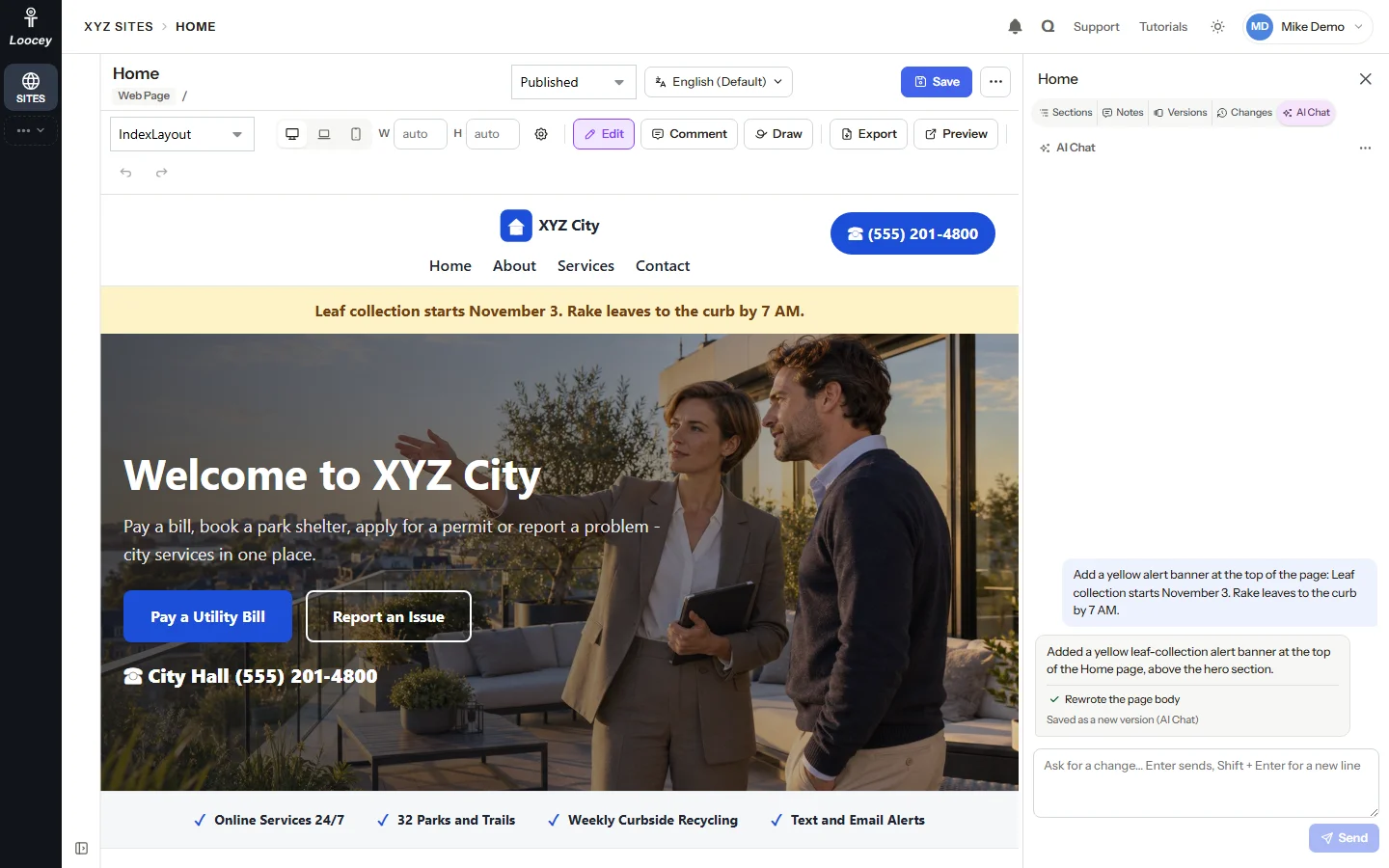
Every page has its own AI Chat in the right panel. Ask for a change in plain words and the AI applies it to the page at once, then the canvas reloads to show the result.
How It Works
- Open AI Chat in the right panel of the page.
- Type the change, for example "Add a yellow alert banner at the top of the page: Leaf collection starts November 3."
- Press Enter. The AI answers and says what it changed.
- The canvas reloads with the change, saved as a new version labeled AI Chat.
What You Get
- One chat thread per page, kept with the page
- The AI reads the page, its layouts, the site’s page list and the chat so far, so a change fits the rest of the site
- Every edit is reported as applied or not, with the reason
- Clear Thread deletes the messages and keeps every version the AI made
AI Feature
Add a Page With AI
Ask for a new page and the AI creates it in the site
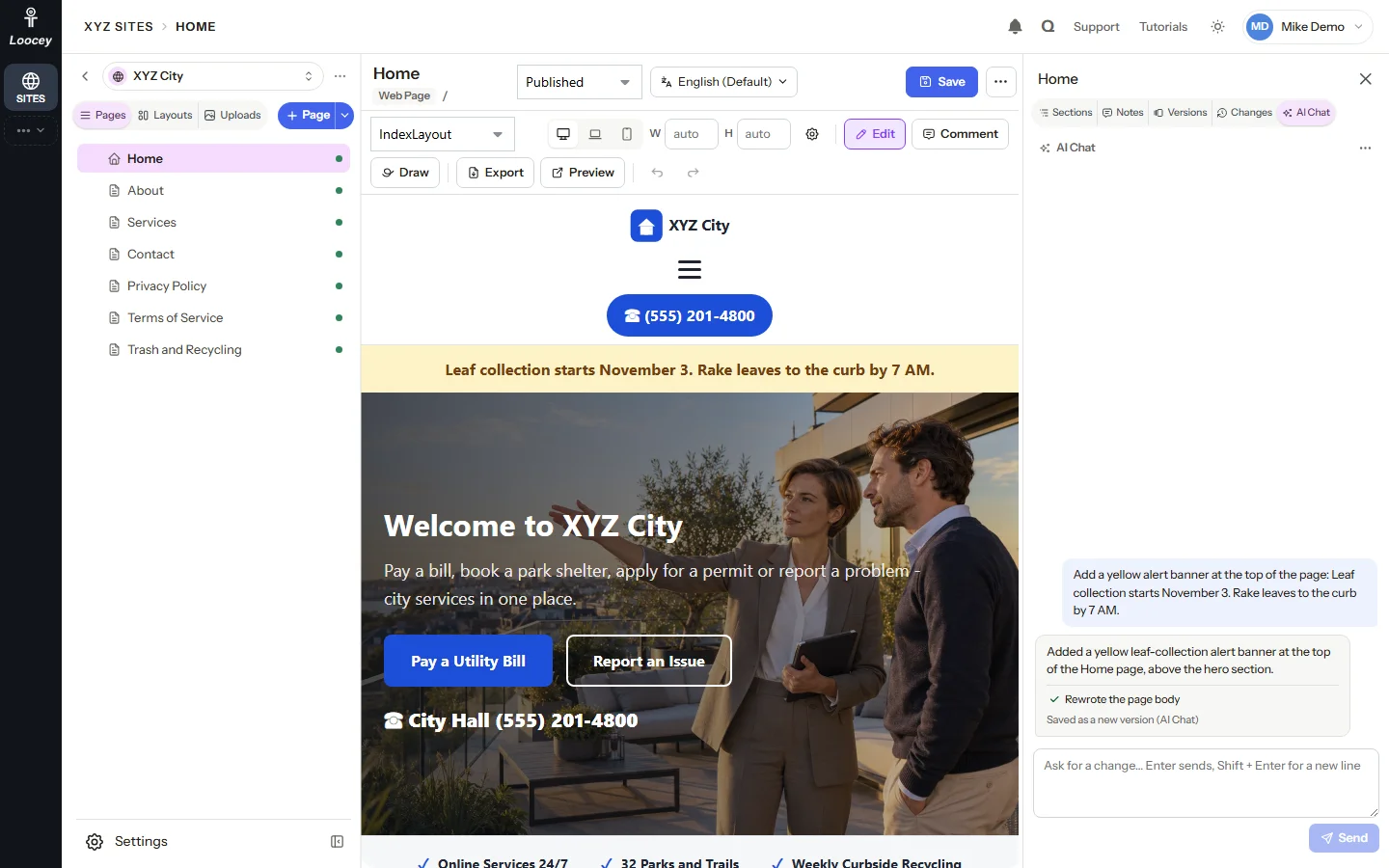
The AI Chat does more than edit the open page. It can create a new page in the site, rename a page and change a layout, and it tells you what it applied.
How It Works
- Open AI Chat on any page of the site.
- Describe the page you need, for example "Add a new page called Trash and Recycling. Make up realistic pickup days by neighborhood, what goes in each cart, and how to book a bulky item pickup."
- The AI creates the page and reports what it did.
- Open the new page from the page tree and keep editing it on the canvas or with the AI.
What You Get
- New pages, page names and page content from plain-language requests
- Layout changes too, refused when the Liquid would not parse
- Every page the AI touches keeps its own versions
- Pages you start by hand still begin from a page template
AI Feature
Draw an Area, the AI Changes It
Circle part of the page with the red pen and say what should change there
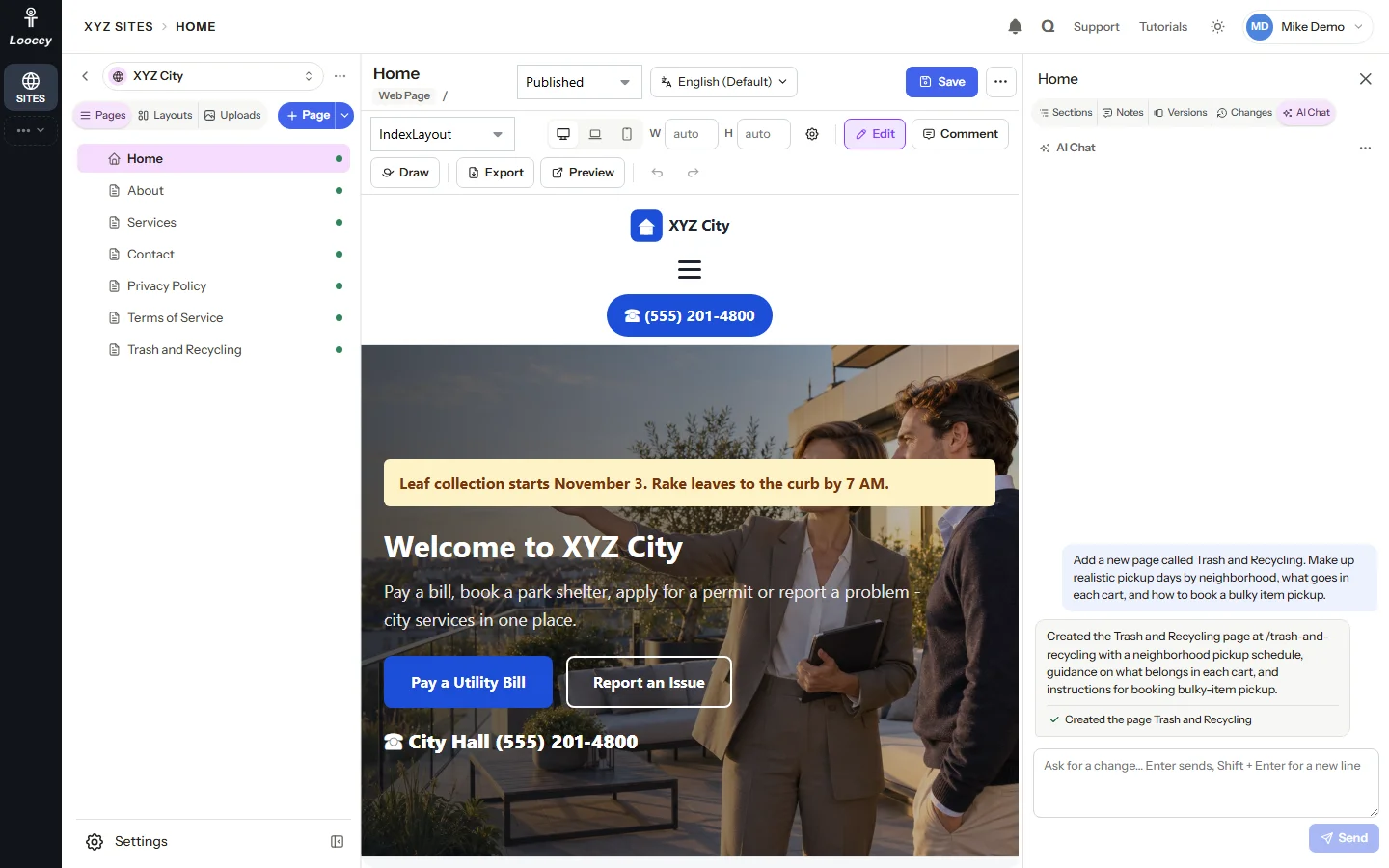
Draw turns the canvas into a sketch pad. Mark the area you mean, type what should change and send it to the AI Chat with the elements under your drawing.
How It Works
- Click Draw in the canvas bar.
- Drag the red pen around the area, for example the opening hours.
- Type what should change there, for example "Add a Sunday row that says Closed, and make the hours stand out."
- Click Send to Chat. The AI gets your words, the drawn area and the elements under it, and applies the change.
What You Get
- Point at a whole area when one element is not enough
- Draw as many strokes as you like on the desktop, laptop, mobile or custom preview
- Save As Note keeps the drawing for a colleague instead
- The request waits in the AI Chat until you press Send
AI Feature
Select an Element and Ask AI
Pick a heading, a button or a picture and tell the AI what to change about it
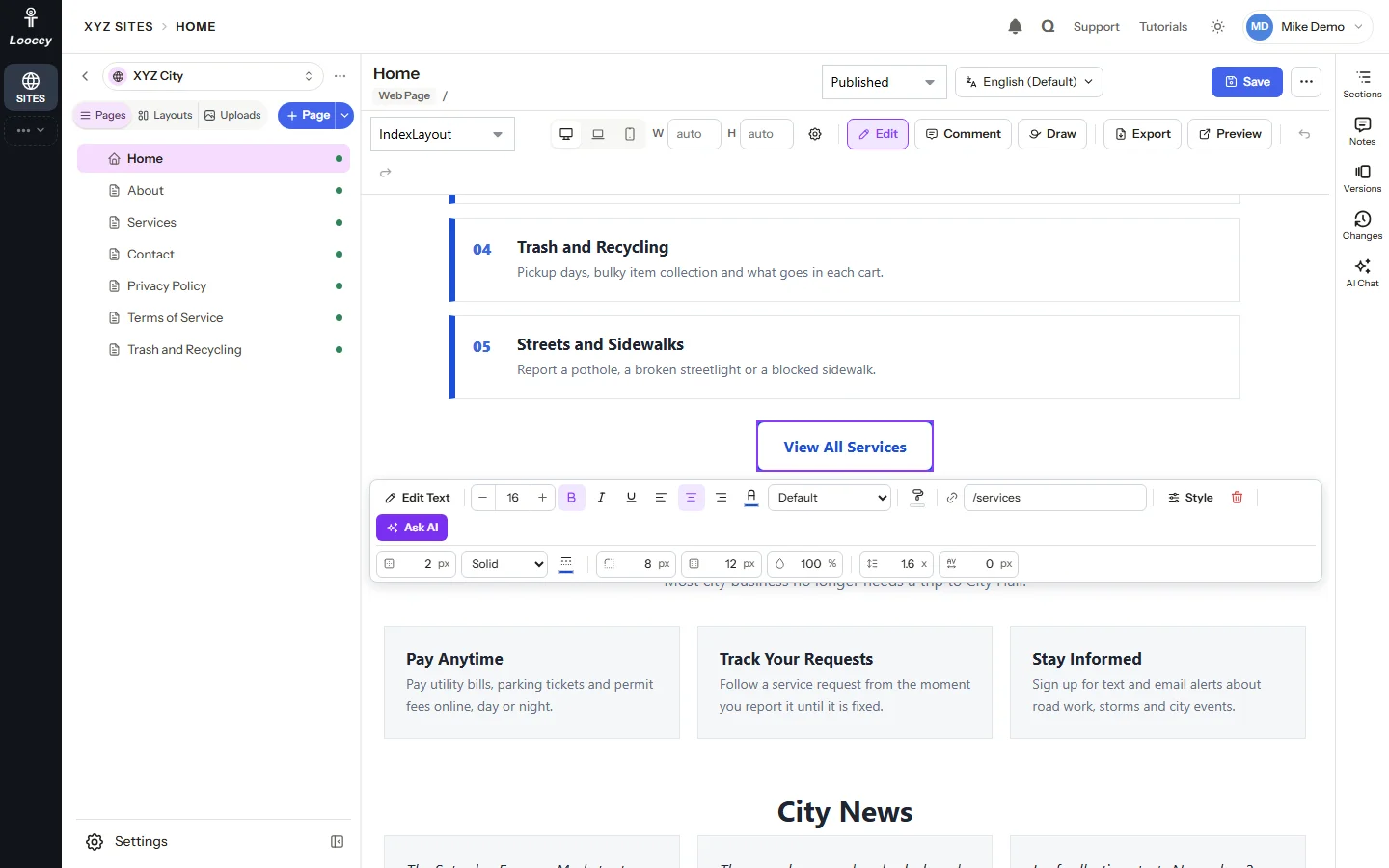
Click any element on the canvas and its popover opens. Ask AI hands exactly that element to the AI Chat, so the change lands where you meant it.
How It Works
- Click the element on the canvas, for example a button.
- Click Ask AI in the element popover.
- The AI Chat opens with a request card naming the element. Type the change, for example "Make this button solid green with white text."
- Press Enter. The AI changes that element and the canvas reloads.
What You Get
- The AI edits the element you picked, not the whole page
- The same popover has quick edits for text, size, color, link and spacing
- Cancel on the request card drops the request
- Every AI change is a page version you can compare or restore
AI Feature
Comment, and the AI Applies It
Leave a comment on an element and send it straight to the AI
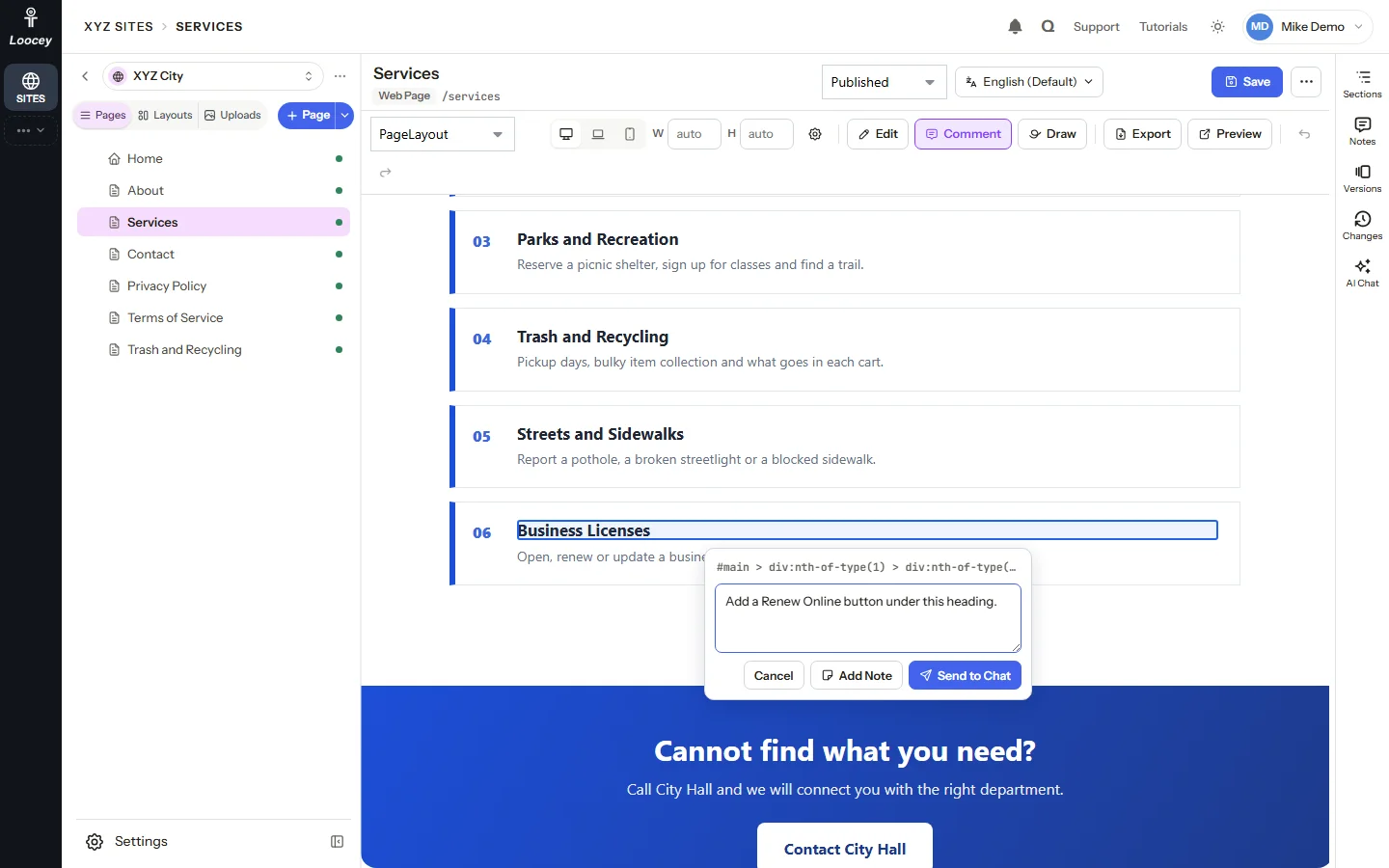
Comment turns a click on an element into a request about it. Send it to the AI Chat to have it applied, or save it as a note for the team.
How It Works
- Click Comment in the canvas bar and click the element.
- Type what should change, for example "Add a Pay Online button to this card that links to /services."
- Click Send to Chat. The request card shows the element and your words.
- Press Send. The AI applies the change and says what it did.
What You Get
- Reviewers write what they want in plain words, right on the page
- Add Note keeps the comment in Notes, with the element it is about
- Notes have replies, pins and resolved threads
- Links on the page do not navigate while you comment
AI Feature
AI Versions With Undo and Rollback
Every AI change is a version, so nothing the AI does is final
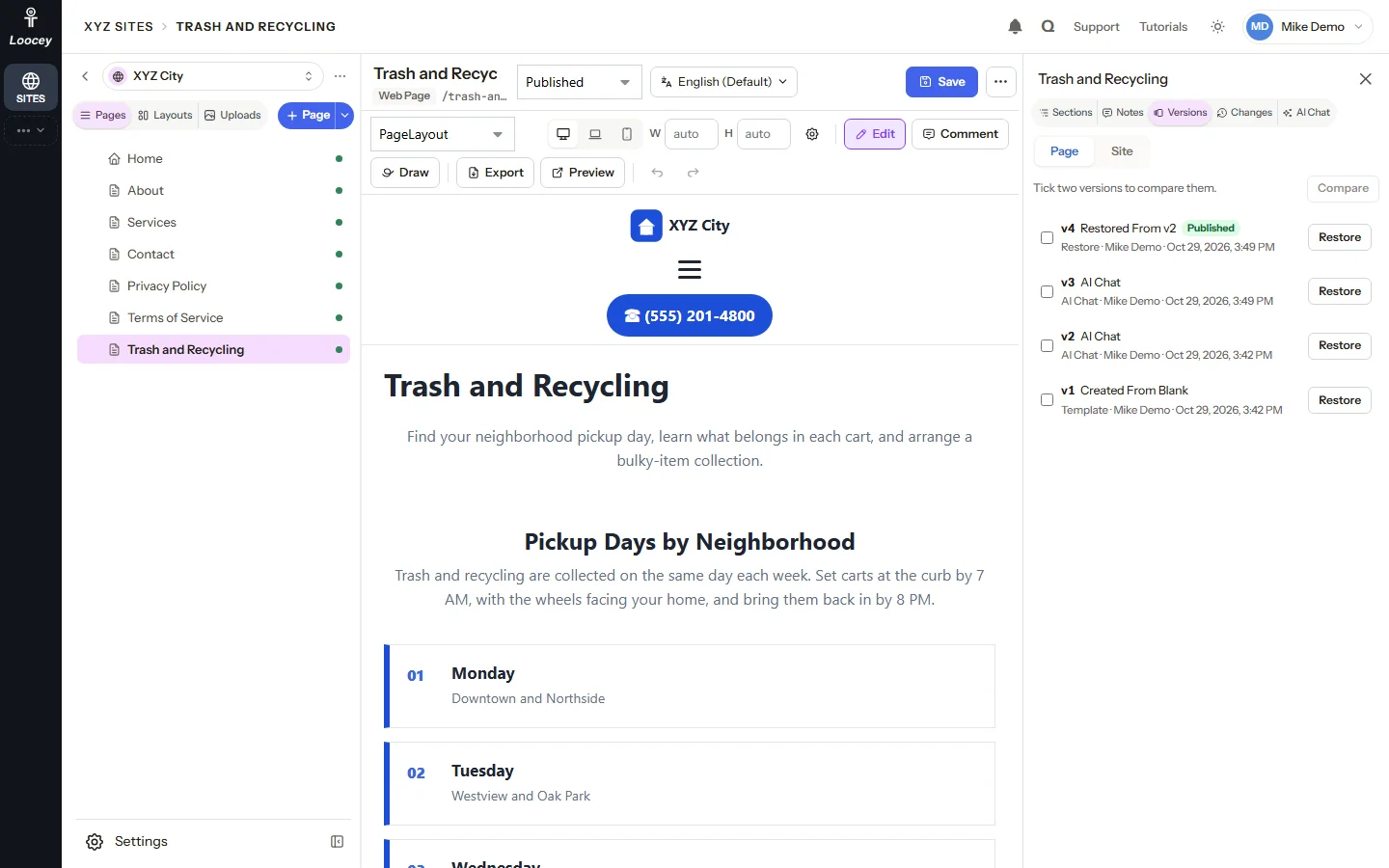
Each AI Chat answer that changes the page is saved as a page version with the source AI Chat. Compare it with an earlier version, restore one, or roll the whole site back to an earlier publish.
How It Works
- Open Versions in the right panel after an AI change.
- Tick two versions and click Compare to see both versions, or only the lines that changed.
- Click Restore on an earlier version. It comes back as a new version and nothing is lost.
- To undo a whole release, roll the site back to an earlier publish.
What You Get
- A version for every save, autosave, quick edit, AI Chat edit and MCP save
- Versions are never deleted, and Clear Thread keeps them
- Restore and rollback each add a new version
- Undo and Redo step through quick edits on the canvas
Features
Everything a Multi‑Site CMS Needs
Templates, a canvas editor, help centers, languages, scheduling and numbered site versions, for every site your team runs.
Site Templates
Start a new site from 244 site templates
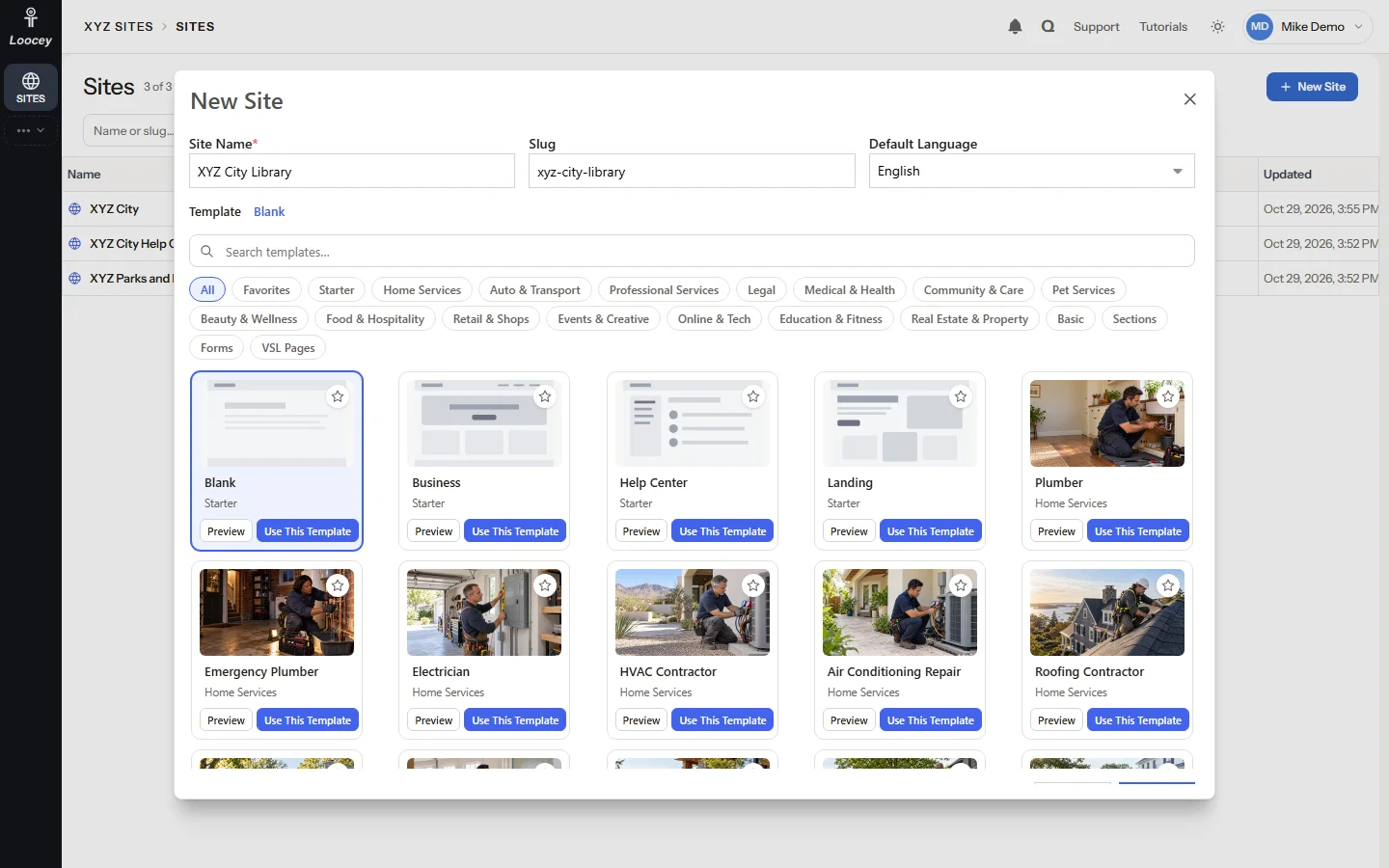
New Site opens a gallery with four Starter templates and 240 catalog templates. The template creates the first layouts, pages and stylesheet, so the new site is on the canvas straight away.
- Blank, Business, Help Center and Landing starters
- Industry websites, basic layouts, hero sections, forms and video sales letter pages
- Search, filter by category and favorite the templates you like
- Preview a template at Desktop, Tablet and Mobile width before you create anything
Canvas Editing
Edit the page right where you see it
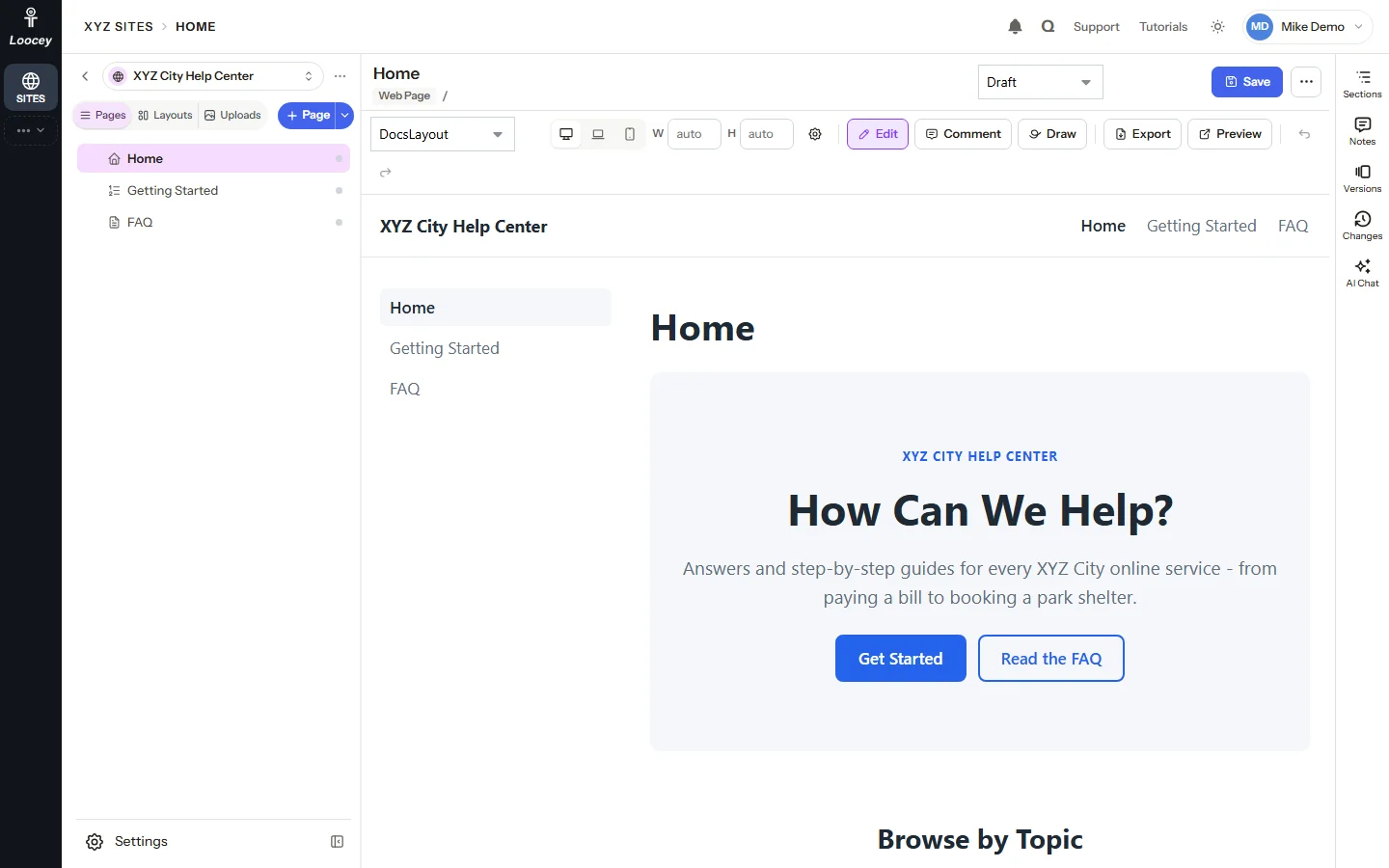
A web page opens on the canvas: the page rendered through its layouts exactly as the site shows it. Click an element to change its words, colors or link, or double-click text to type.
- Element popover: font size, bold, alignment, colors, link, border, spacing and opacity
- Edit text in place, with a rich text toolbar for longer blocks
- Desktop, Laptop, Mobile or a custom screen size
- Undo and Redo, and Edit HTML Source for the page body
Help Centers and Tutorials
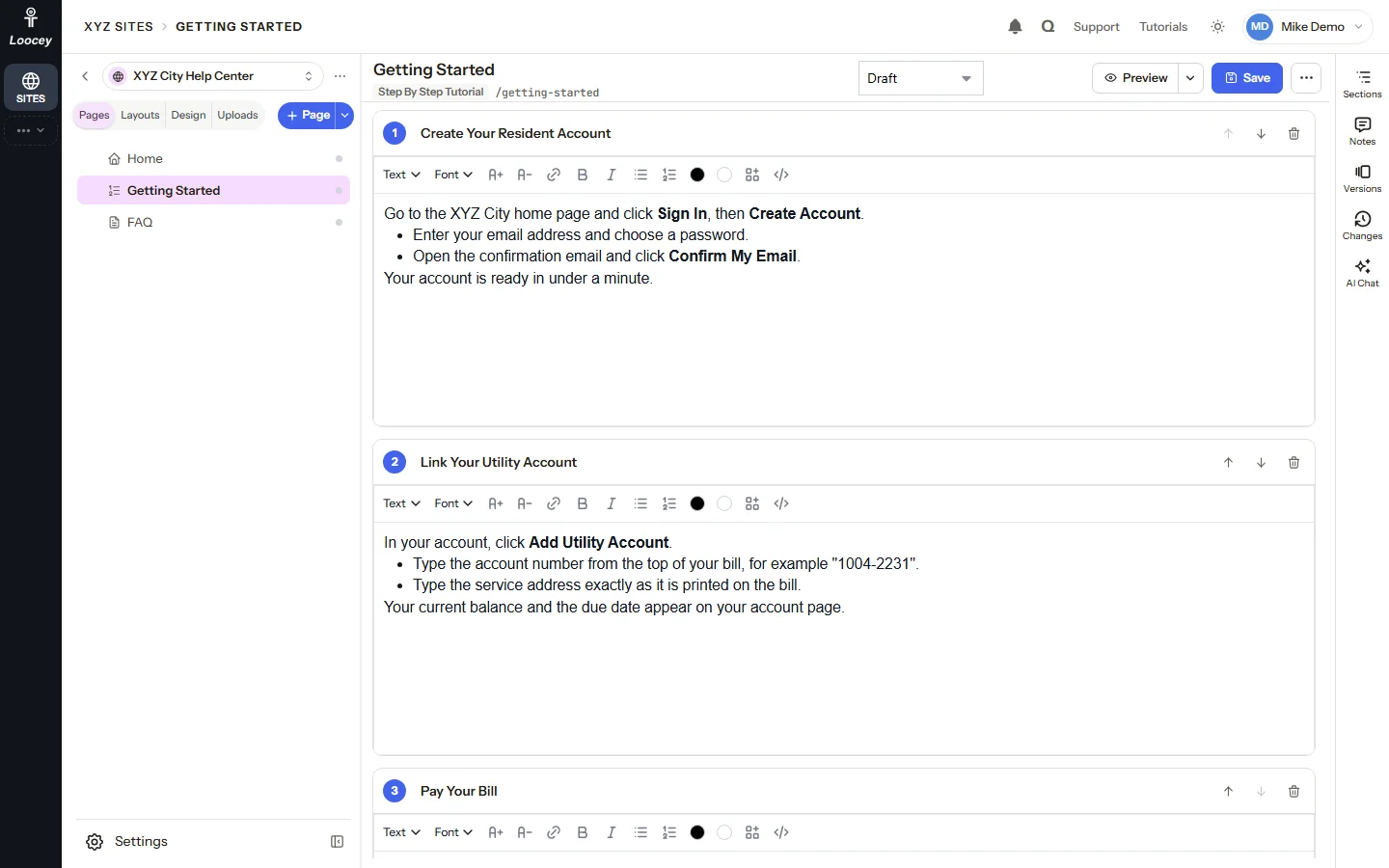
Documentation sites with step-by-step tutorial pages
The Help Center starter creates a docs home, a Getting Started tutorial and an FAQ on a Docs layout with a side menu. Step By Step Tutorial pages are an ordered list of steps, each with its own rich text body.
- Add, edit, move and remove the steps of a tutorial
- 33 page templates, from Article and Pricing to Documentation Home and Changelog
- Web Pages, Step By Step Tutorial pages and Redirect pages in one page tree
- Liquid layouts with Base, Page, Landing, Docs, Blog List and Two Columns archetypes
Publish and Roll Back
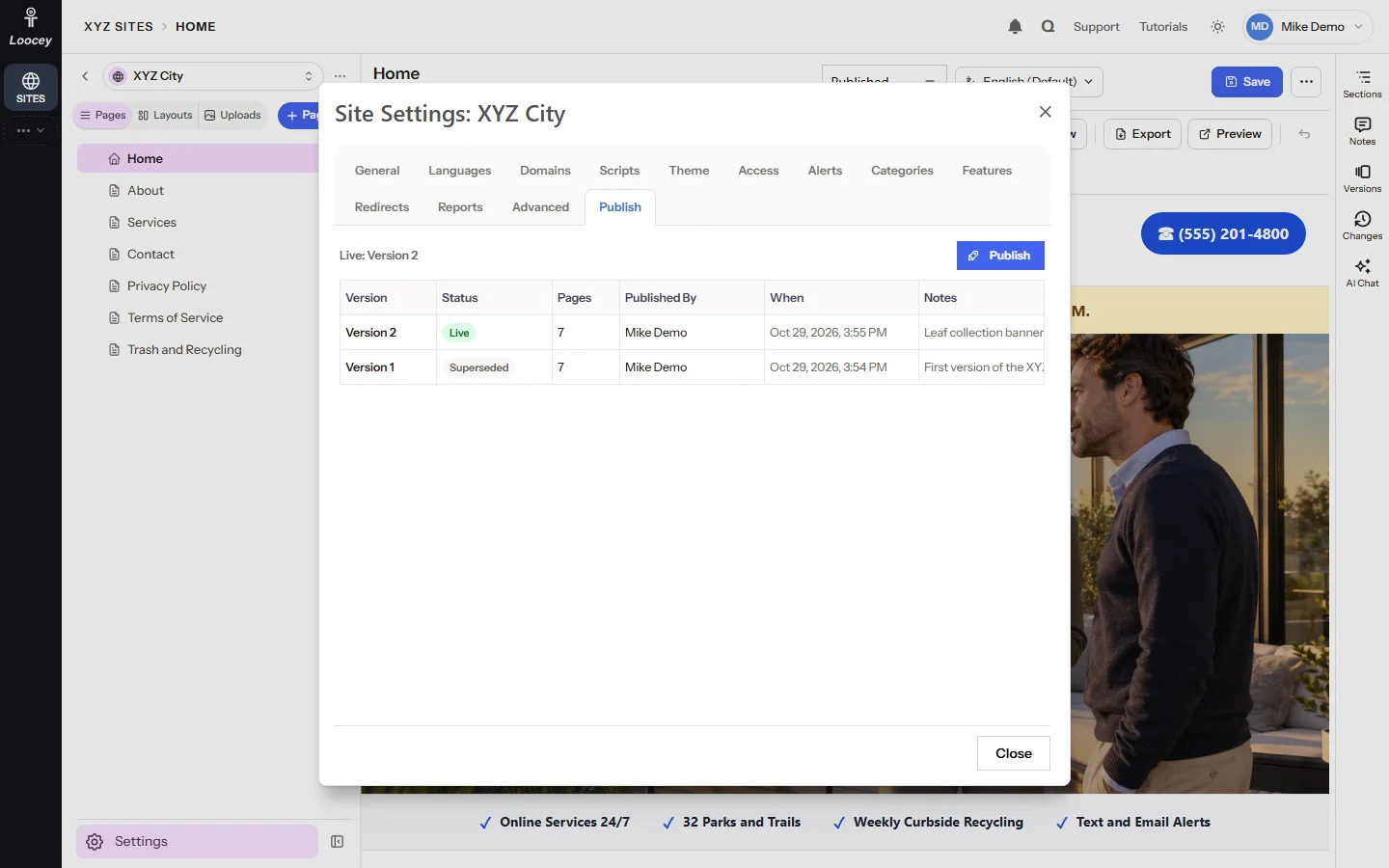
Numbered site versions you can always go back to
A publish renders every page that is not Hidden, in every enabled language, and records which version of each went out. A rollback puts every page back to an earlier publish and publishes that as the next version.
- Version 1, Version 2 and so on, with page count, publisher, time and notes
- Live, Superseded, Rolled Back and Failed status, with the render error on a failed publish
- One-click rollback, saved as a new version of every page
- Export a page or the whole site as a zip of html, with css, sitemap.xml, robots.txt and RSS feeds
Many Sites in One App
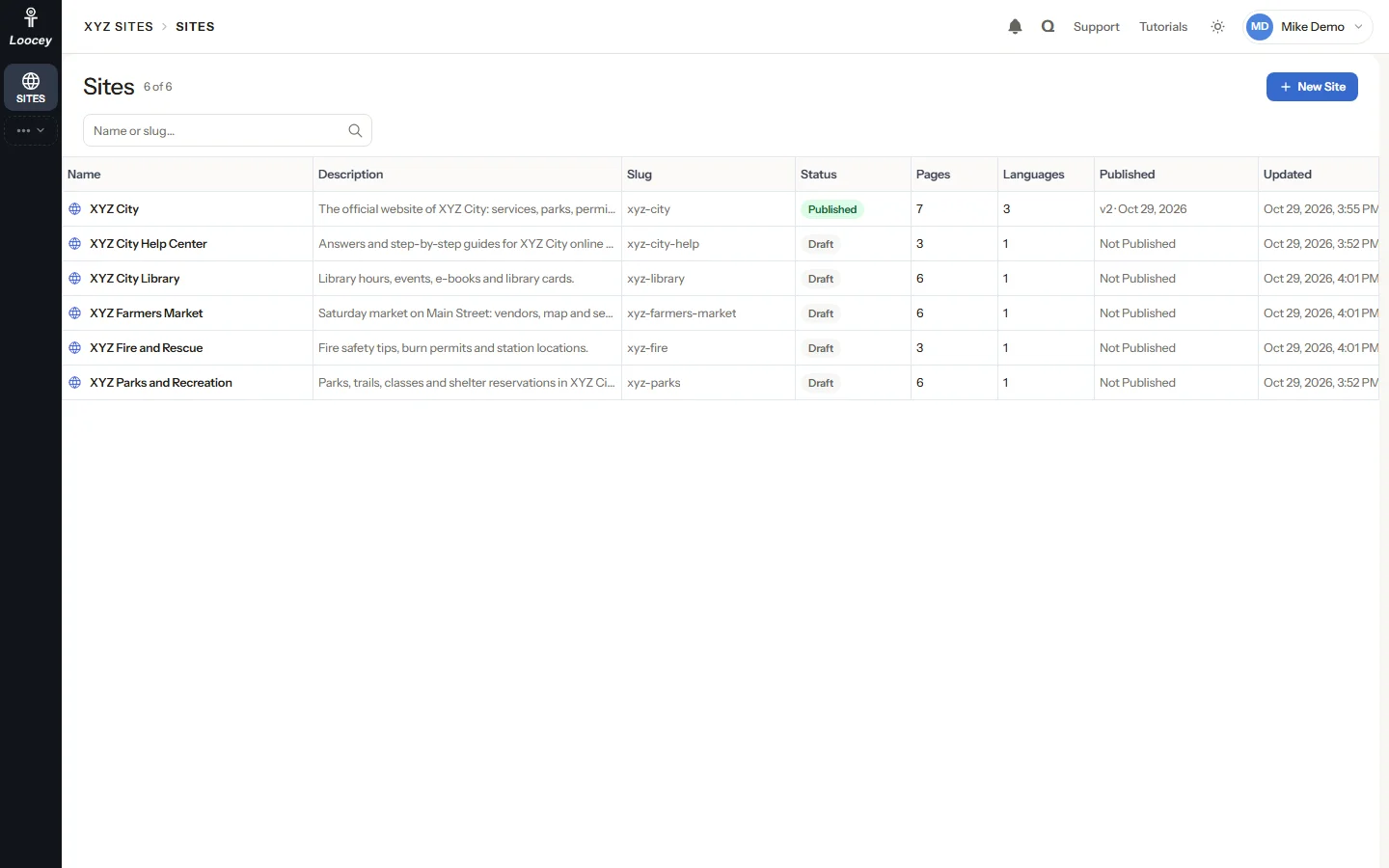
A multi-site CMS for every website your team runs
One Sites app holds any number of sites, each with its own pages, layouts, languages, domains and settings. The Sites home lists every site with its status, pages, languages and live version.
- Marketing sites, product pages, help centers and public-sector websites side by side
- Switch between sites from the site switcher without leaving the editor
- Each Sites app has its own database schema
- Draft and Published status at a glance for every site
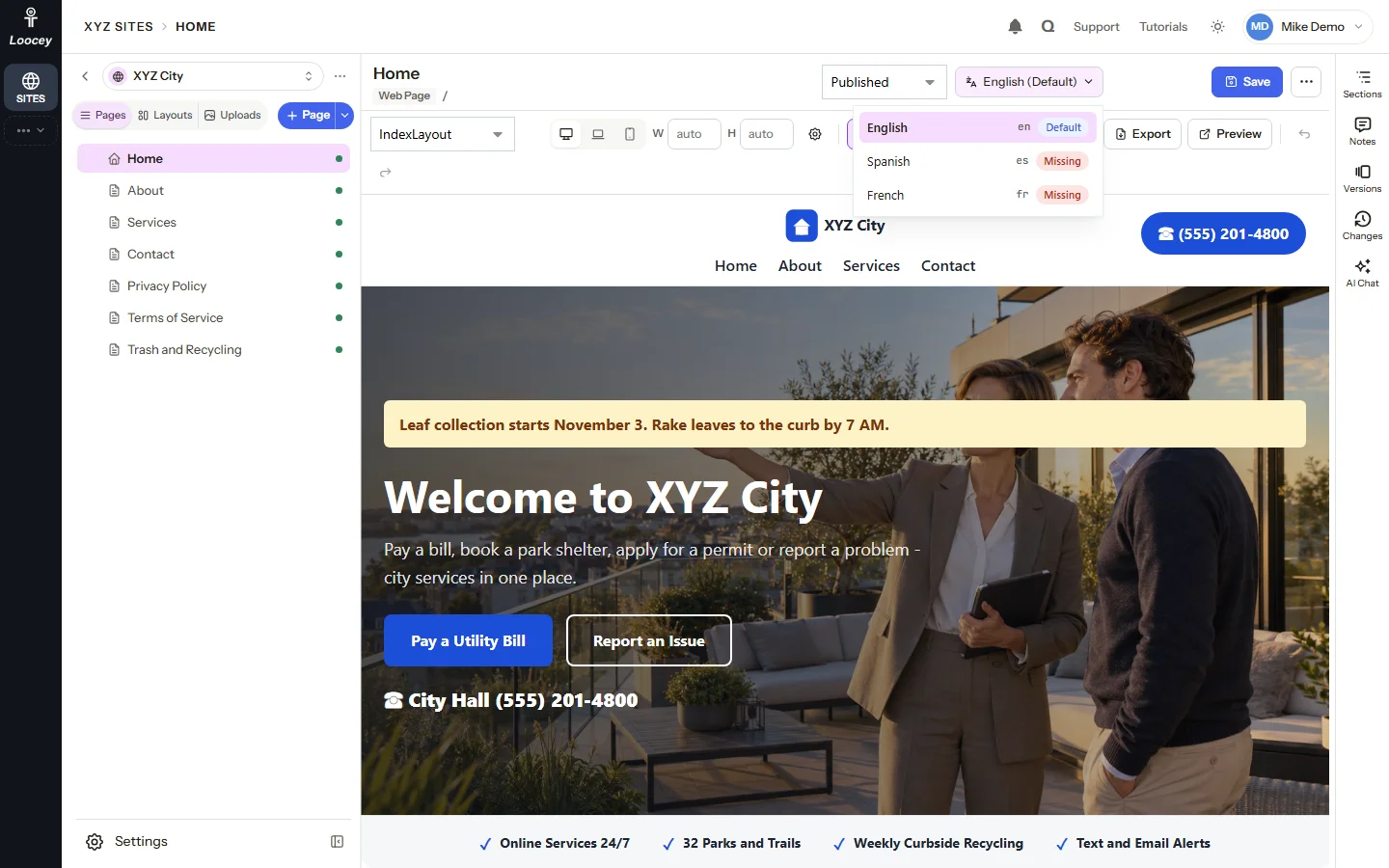
Languages
Several languages for every page
Add languages to a site in Site Settings. Every page then has a translation per language with its own name, content, SEO, versions and status, at the same address and place in the tree.
- Default, Missing, Draft, Translated and Needs Update status in the language menu
- Copy From Default starts a translation from the default language
- A missing translation shows the default language instead of an empty page
- An optional Google Translate menu on the published site
Scheduled Pages
Publish, expire and archive pages on a date
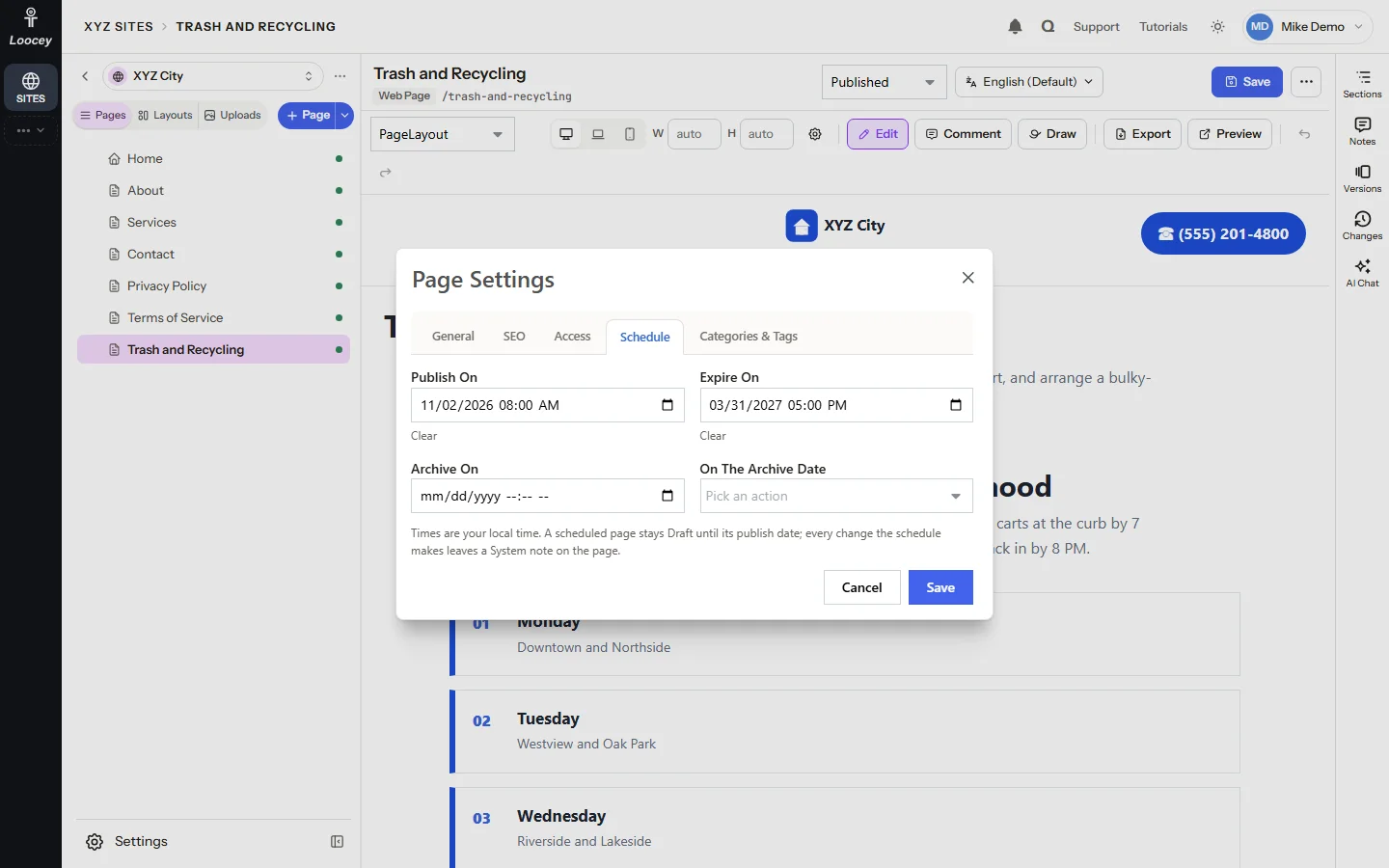
Give a page a Publish On, Expire On or Archive On date in Page Settings. The schedule applies the change on that date and leaves a note on the page.
- A Draft page is published on its date
- An expired page is hidden from the site
- An archive date can hide, archive or delete the page
- A scheduled delete archives the page first and deletes it at least 24 hours later
Site Settings
Domains, theme, scripts, access and redirects
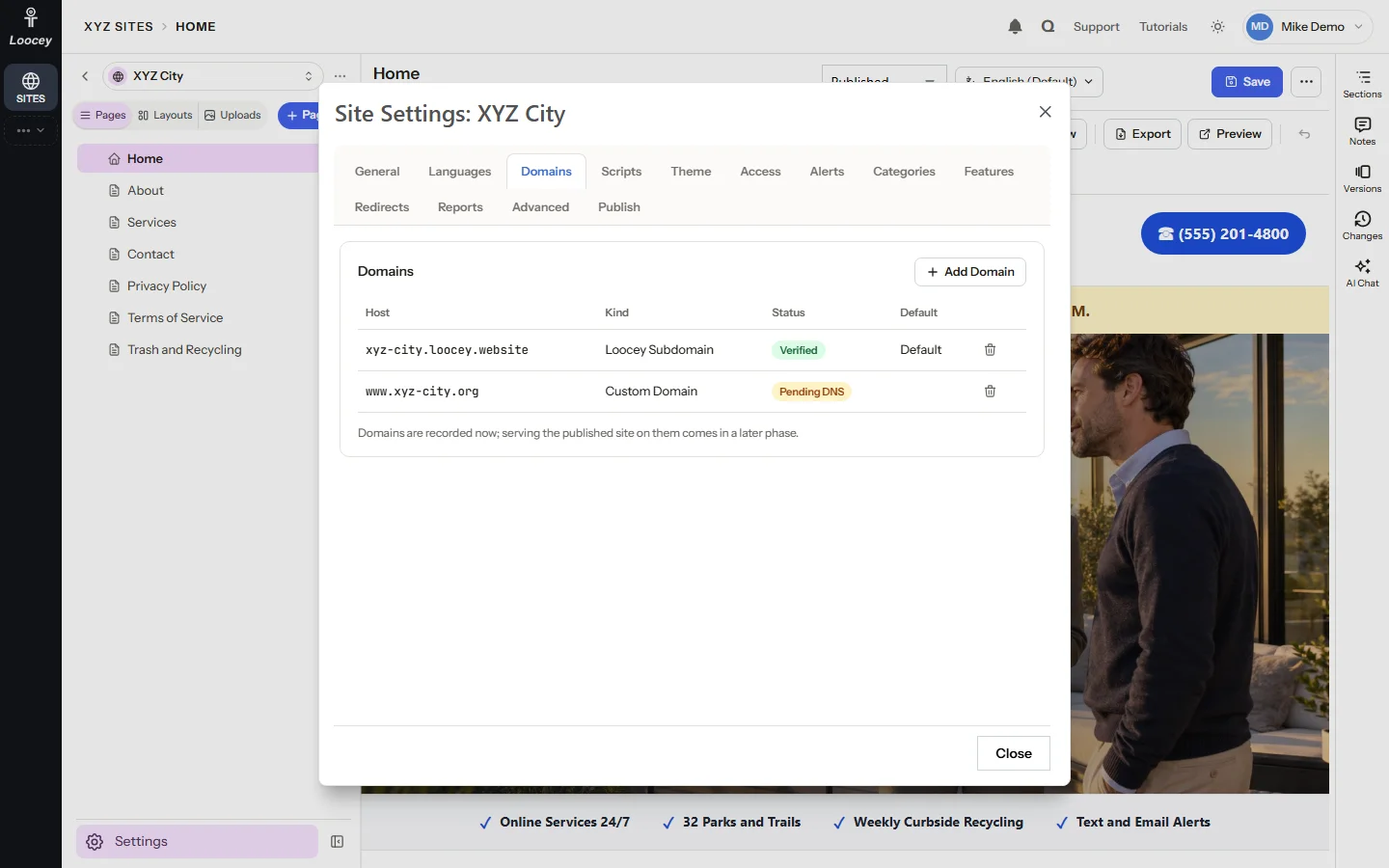
Site Settings has thirteen tabs: General, Languages, Domains, Scripts, Theme, Access, Alerts, Categories, Features, Redirects, Reports, Advanced and Publish.
- Record a free Loocey subdomain or your own custom domain
- Accent color, font family, custom CSS and header and footer scripts
- Password groups for protected pages; passwords are stored only as a hash
- 301, 302, 307 and 308 redirects, made automatically when a page moves
At a Glance
From a template to a published site in four steps
- Site templates: 4 starters and 240 catalog templates
- 244
- Page templates, from Article to Documentation Home
- 33
- Is a page version you can compare and restore
- Every Save
- MCP tools for AI agents: query, save, publish and delete
- 4
-
Pick a Template
New Site creates the site with its first layouts, pages and stylesheet from one of 244 templates.
-
Edit With AI
Change pages on the canvas, or ask the AI Chat, point at an element, draw or comment.
-
Check the Versions
Every save and every AI change is a page version you can compare or restore.
-
Publish
Publish the site as a numbered version, and roll back to an earlier one in one click.
Use Cases
Marketing sites, public-sector websites and help centers
One Sites app covers the company website, product pages, a city or agency website and the documentation site, each with its own pages, languages, domains and settings.
-
Marketing
Marketing Sites and Product Pages
Launch a company website, a product launch page or a landing page from a template and keep it current with AI Chat.
- Business and Landing starter templates
- Landing, Product, Pricing, Comparison and Case Study page templates
- SEO title, description, Open Graph image and canonical URL per page
- Header and footer scripts for analytics or a chat snippet
-
Public Sector
City and Agency Websites
A toolkit for public-sector websites: alerts, an emergency page, password-protected pages, a document library and news by department.
- Alert bar with Info, Warning and Emergency alerts
- Emergency page that replaces the home page with one click
- Agendas, minutes, reports and notices in Document List blocks
- Accessibility reporting through Loocey ADA
-
Documentation
Help Centers and Documentation
Build a help center with a docs home, step-by-step tutorials and an FAQ, and keep every page versioned.
- Help Center starter with a Docs layout and side menu
- Step By Step Tutorial pages with numbered steps
- FAQ block with groups and filter chips
- A Loocey Site can train a Loocey ChatBot
Public Sector
A government website CMS with alerts, documents and protected pages
Cities, counties and agencies get the tools their websites need in the same editor: an alert bar and an emergency page, password groups, a document library for agendas and minutes, and news by department.
- Alerts by kind (Info, Warning, Emergency) with start and end dates, scrolling and dismissible options
- An emergency page that shows on the home page while it is active
- Password groups such as Staff, Council or Volunteers for protected pages
- A document library with folders and kinds: Agenda, Minutes, Agenda Packet, Newsletter, Report, Form, Public Notice
- News pages and categories by Department, Topic or Service, with RSS feeds per category
- Expire dates that replace a page with "This Page Is No Longer Available"
Accessibility audits come from Loocey ADA, which crawls the published site and the documents it links to.
Loocey Apps
Your sites feed Loocey ADA and Loocey ChatBots
A Loocey Site is already in your Loocey account, so the other Loocey apps can use it directly: audit it for accessibility, or train a chatbot on it, without copying anything.
-
Loocey ADA
Audit a Loocey Site for accessibility: Loocey ADA crawls its public address and audits every page and the PDF and Office files it links to. A direct import of a Loocey Site is coming soon.
-
Loocey ChatBots
Use a Loocey Site as a training data source for a chatbot that answers from your own content and cites its sources.
-
Reports and the Link Checker
Site Settings > Reports shows Top Pages, Searches and Broken Links for 7, 30, 90 or 365 days, each with Export CSV. Check Links renders every published page and tries each link and image.
MCP Server
An MCP server CMS: let your AI assistant run the site
Loocey Sites is part of the Loocey MCP (Model Context Protocol) server. A compatible AI assistant can add a page, change its content, show you how it renders and publish the site, all from plain-language requests.
-
sites_queryRead sites, pages, rendered html, layouts, templates, notes, versions, publishes, images, search results and a page’s AI Chat thread. -
sites_saveCreate a site from a template, add or change pages, layouts, notes, images and translations, and restore a version. -
sites_publishPublish the site, roll back to an earlier publish, or read the publish status. -
sites_deleteDelete pages, layouts, notes, images or translations, or soft-delete a site.
-
Acts as You
An MCP client works with the permissions of the user whose API key it uses. Write tools are hidden without the matching permission.
-
Confirms Before It Publishes
The agent is told to confirm with you before deleting anything, publishing or rolling back.
-
Versioned and Audited
Every MCP save makes a page version with the source MCP and an audit log entry, like a change on screen.
Coming Soon
What we are building next
These features are in development and are not available yet.
- Coming Soon
Public Hosting on Your Domains
Serving the published site on its Loocey subdomain and custom domains, with redirects, password checks, site search and page-view counts. Today, Publish records a numbered site version and Export downloads the built site as a zip.
- Coming Soon
AI Translation of Pages
Having the AI translate a page into the site’s other languages.
- Coming Soon
Import an Existing Website
Bringing the pages of an existing website into a Loocey Site.
- Coming Soon
Astro Frameworks
Astro Template and Astro Custom as frameworks next to the Loocey Static Site Engine.
FAQ
Loocey Sites questions, answered
What is Loocey Sites? Overview
Loocey Sites is a multi-site CMS for creating and maintaining websites and documentation with AI. One Sites app holds many sites, each with a page tree, Liquid layouts, several languages, a version for every save, threaded notes and numbered site versions you publish and roll back. It is built for marketing sites, product pages, public-sector websites, help centers and step-by-step tutorials.
Is Loocey Sites an AI website builder? AI
Yes. You start a site from one of 244 site templates, then change any page with the AI Chat: ask for a change in plain words, or pick an element on the canvas and use Ask AI. The AI applies its edits to the page at once and saves them as a new version labeled AI Chat.
How does AI editing on the canvas work? AI
The canvas shows the page exactly as the site renders it. Click an element and use Ask AI, comment on it, or draw on an area of the page, then send it to the AI Chat. The AI reads the page html, its layouts, the site’s page list and what you marked, applies the change and reloads the canvas. Every AI change is a version you can compare or restore.
Can I build a help center or documentation site with Loocey Sites? Help Centers
Yes. The Help Center starter template creates a docs home, a Getting Started tutorial and an FAQ on a Docs layout with a side menu. Step By Step Tutorial pages hold numbered steps with a title and a rich text body each, and the Documentation Home, FAQ, Changelog and Roadmap page templates cover the rest of a documentation site.
Does Loocey Sites keep versions and support rollback? Versions
Yes. Every save, autosave, quick edit session, AI Chat edit, MCP save, restore and rollback adds a page version, and versions are never deleted. Publishing records a numbered site version, and a rollback puts every page back to the versions of an earlier publish and publishes that as the next version.
Can one account manage many websites? Multi-Site
Yes. One Sites app holds any number of sites, each with its own pages, layouts, languages, domains, uploads, notes and settings. The Sites home lists every site with its status, page count, languages and live version, and the site switcher moves between them.
Does Loocey Sites support multiple languages? Languages
Yes. Add languages in Site Settings and every page gets a translation per language with its own content, SEO, versions and status (Missing, Draft, Translated or Needs Update). A missing translation falls back to the default language, and an optional Google Translate widget can be switched on for the published site. AI translation of pages is not available yet.
Is Loocey Sites a good fit for government and public-sector websites? Public Sector
Loocey Sites includes a toolkit for public-sector websites: an alert bar with Info, Warning and Emergency alerts, an emergency page that replaces the home page, password groups for protected pages, a document library for agendas, minutes, reports and public notices, news by category and redirects. Accessibility audits come from Loocey ADA, which crawls the published site and the documents it links to.
Does Loocey Sites have an MCP server for AI agents? MCP
Yes. The Loocey MCP server has four Sites tools: sites_query, sites_save, sites_publish and sites_delete. An AI assistant can read and create sites and pages, change content and layouts, add notes, restore versions, publish and roll back, limited by the permissions of the user it acts for. Every MCP save is a page version with the source MCP.
Can I schedule pages and check for broken links? Publishing
Yes. Page Settings has Publish On, Expire On and Archive On dates, and every change the schedule makes leaves a note on the page. Check Links in Site Settings > Reports renders every published page, tries each link and image and lists the broken ones.
Can I use my own domain, and where is the site hosted? Publishing
You can record a free Loocey subdomain or your own custom domain in Site Settings > Domains today. Serving the published site on those domains is coming in a later phase. Until then, Publish records numbered site versions and Export downloads the built html of a page or the whole site as a zip you can host yourself.
How does Loocey Sites work with Loocey ADA and Loocey ChatBots? Loocey Apps
Loocey ADA audits a Loocey Site like any other website: it crawls the public address and audits the pages and the PDF and Office files they link to (a direct import is coming soon). Loocey ChatBots can use a Loocey Site as a training data source for a chatbot that answers with citations.
Build your website and help center with AI
Templates to start from, a canvas to edit on, an AI Chat on every page and versions for every change. See Loocey Sites in a short demo.